This help article will review how to enter a custom credit amount on a family's record in Hubbe.
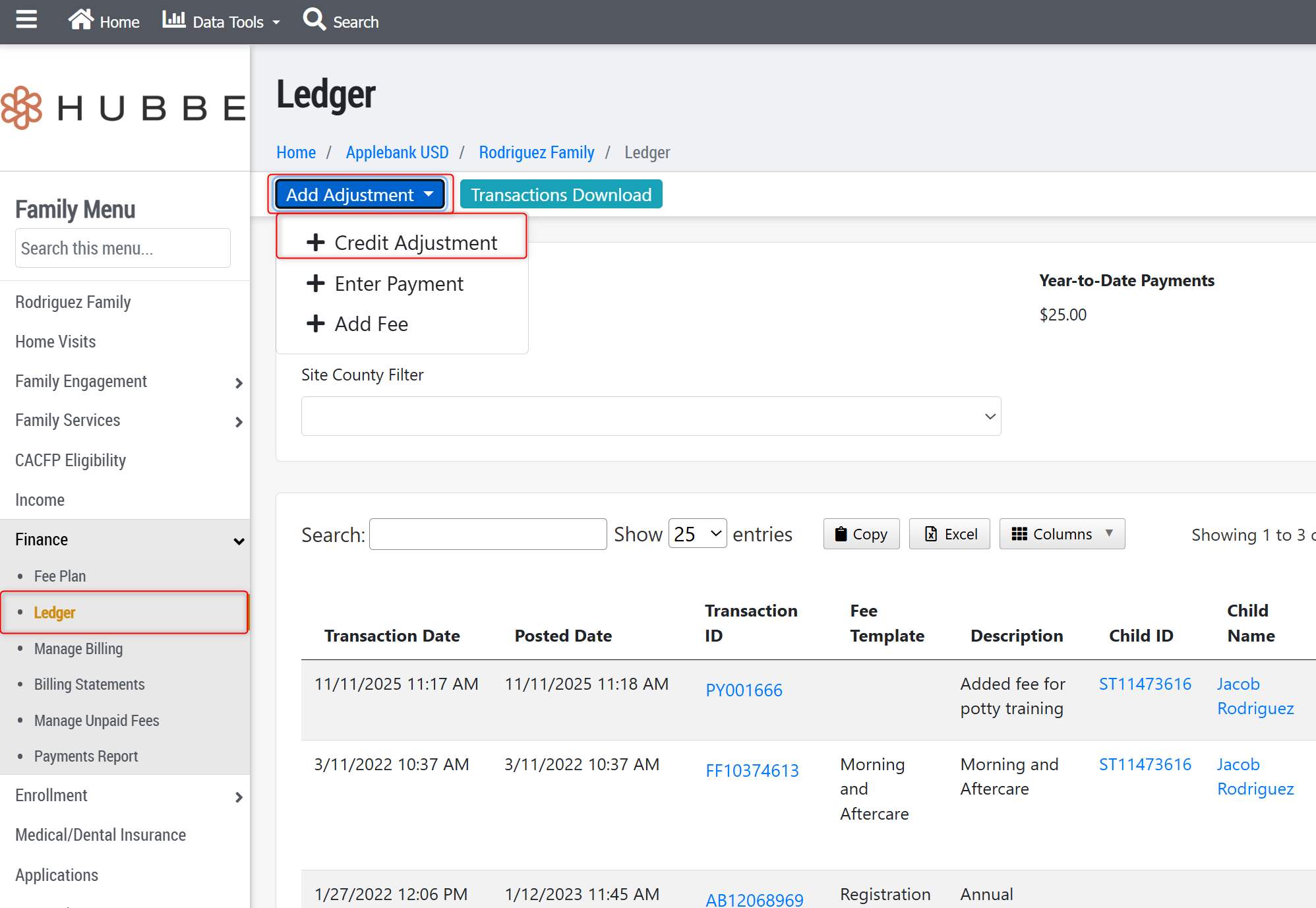
- Navigate to the family's "Ledger" record (Family Menu > Finance > Ledger)
- Click on the blue "Add Adjustment" button on the top left of the Ledger page
- From the dropdown list, choose '+ Credit Adjustment'
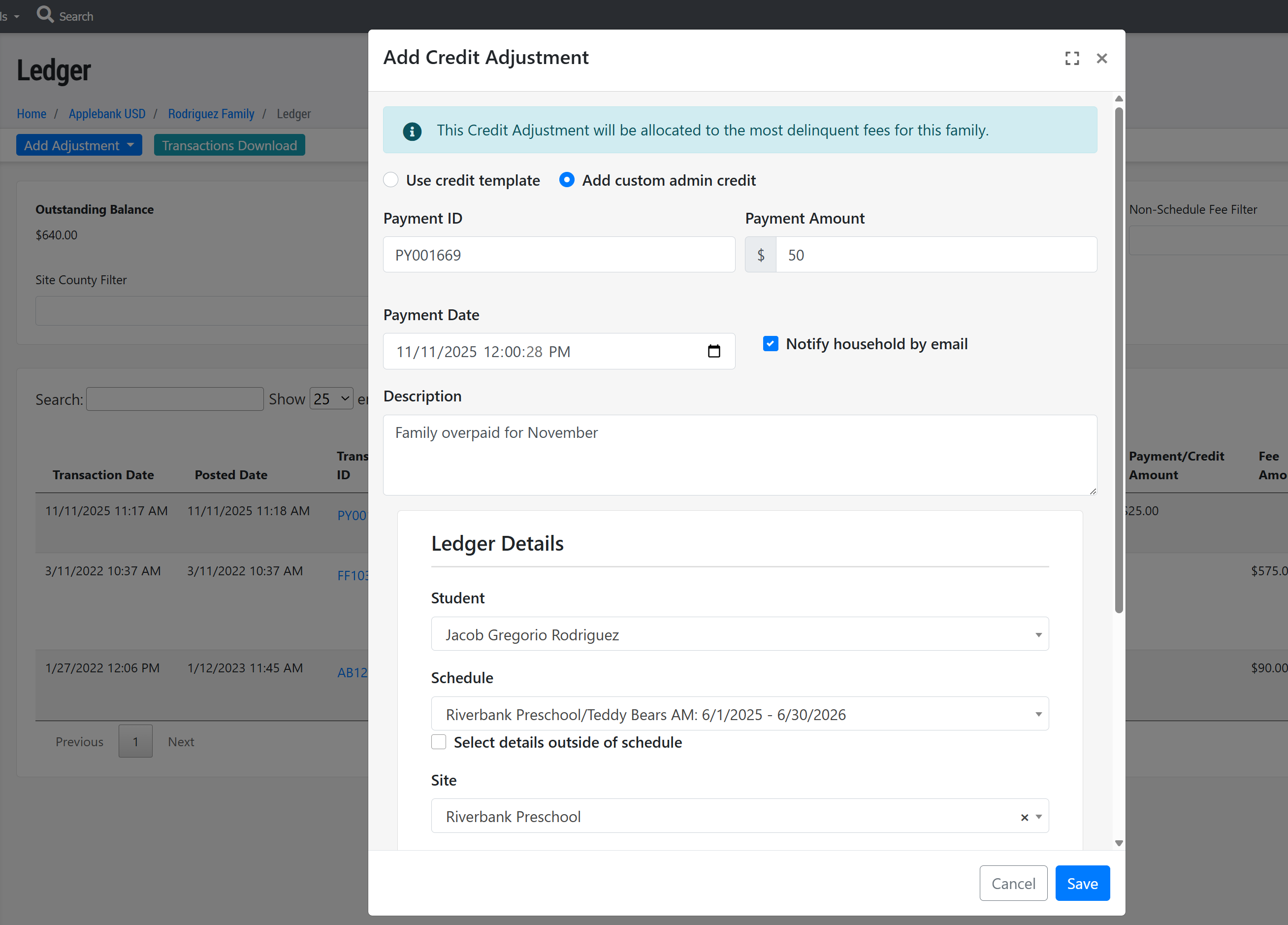
- In the modal that opens, address the following fields
- Leave "Add custom admin credit" selected
- Payment ID - system generated number, can be left alone
- Payment Amount - Enter the amount to be credited towards the family
- Payment Date- This will default to the current date, but can be edited to the date the payment was made.
- Note: The payment date will dictate which billing statement the payment will appear in
- Notify household by email- This will not be selected by default, but can be selected if you would like to alert the family a credit amount added towards their current or future balance
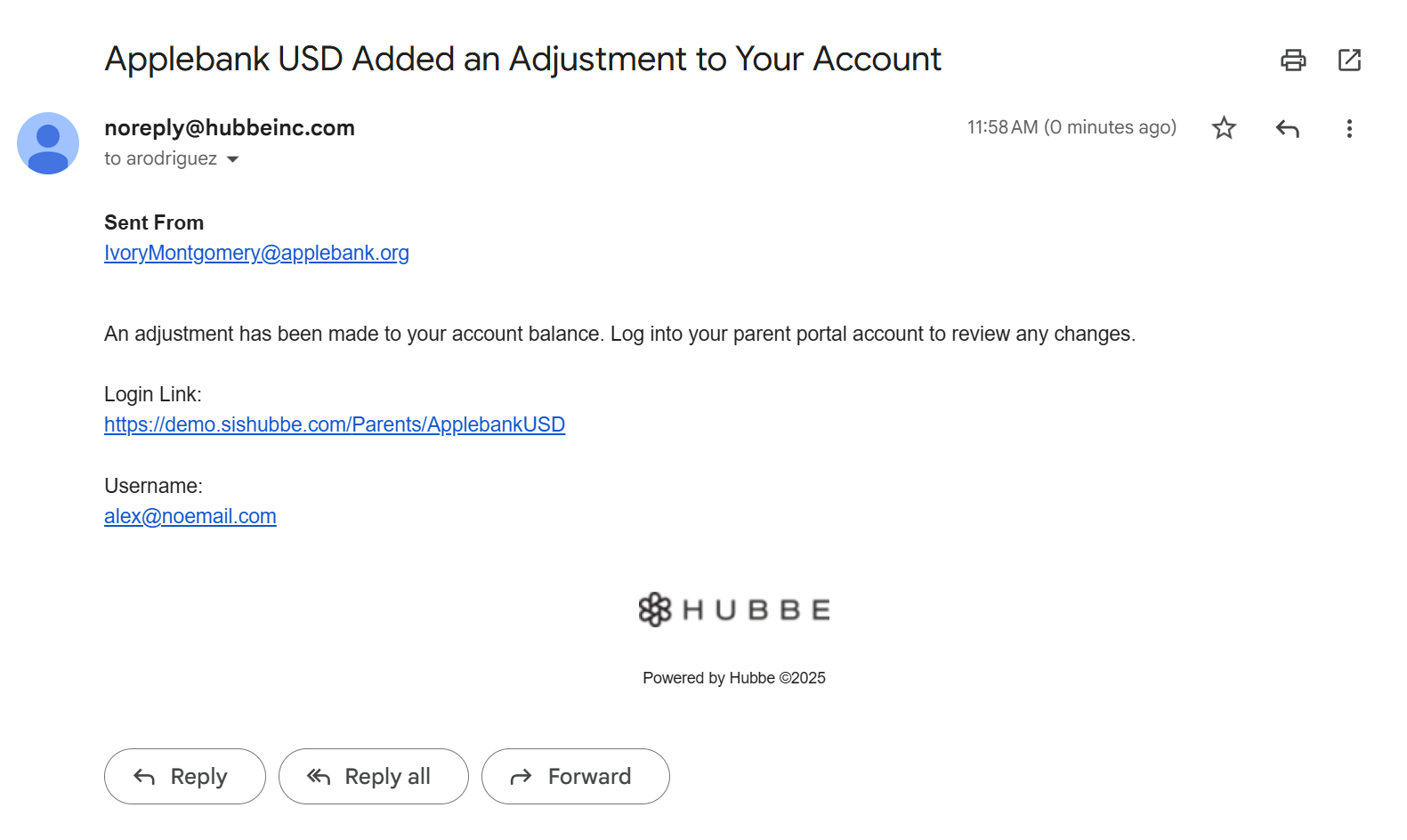
- Note: The email will include a link to their parent portal to view the credit adjustment (if provided) - example of email shown below
- Description - Will be included on the billing statement, and visible on the ledger grid
- Ledger Details - These will prefill with an active student in the family. You can change the selection if needed. The schedule chosen will appear in the ledger attached to the fee.
- Attachment - You can add an attachment to the payment (such as a copy of a check), which will be stored on the ledger for internal reference
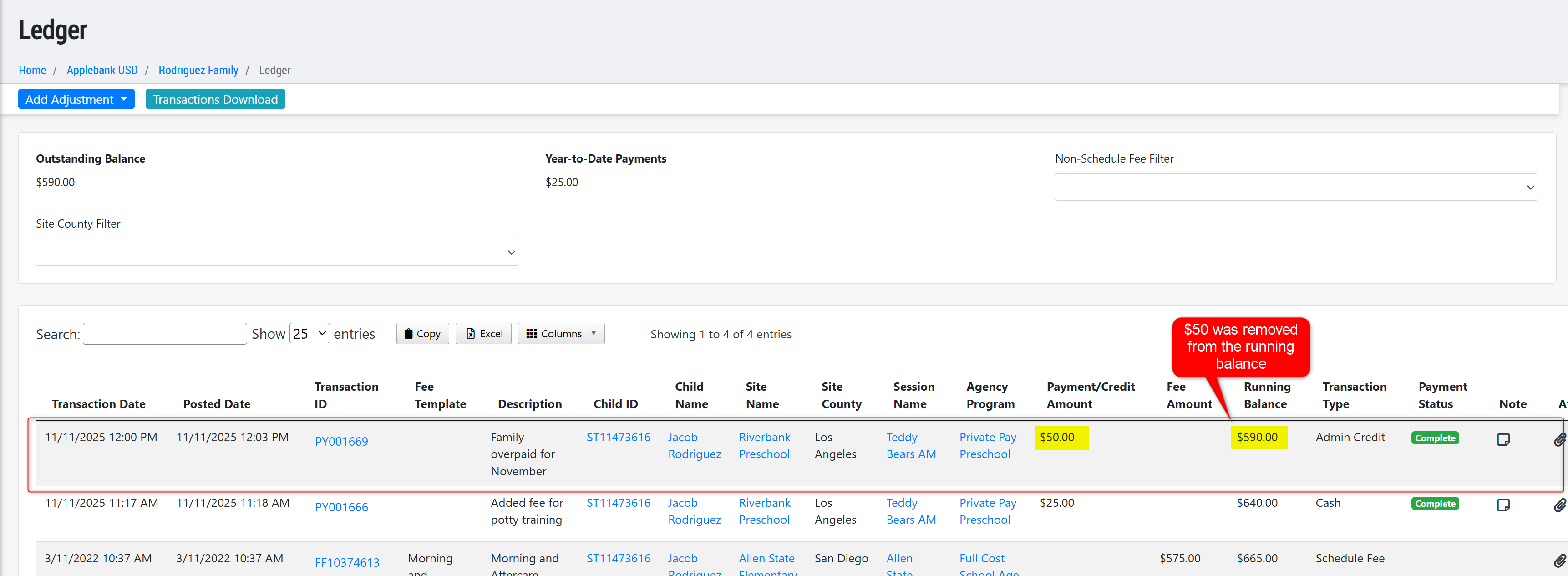
- Once all information has been added, click the blue "Save" button to record the credit adjustment. This will automatically update the family's Outstanding Balance and will be reflected in the parent portal.
- Note: If the family had an existing running balance, the credit will be applied automatically. If there is no fee amount left, the credit will be saved on the ledger to be applied to the next fee amount charged to the family.
Example of email received by parent:
Was this article helpful?
That’s Great!
Thank you for your feedback
Sorry! We couldn't be helpful
Thank you for your feedback
Feedback sent
We appreciate your effort and will try to fix the article