Overview
In this article, we'll explain how you can review coach logs for coaching events you've attended. Note that you can access these coach logs in multiple ways, depending on the role you're assigned in Hubbe. This article is intended for staff with roles assigned at the Site or Session level, including Site Admins, Site Supervisors, Session Admins, Lead Teachers, Teachers, and Instructional Assistants.
Written Steps for Accessing Coach Logs on Your Staff Record
Step 1: Log into the Hubbe system
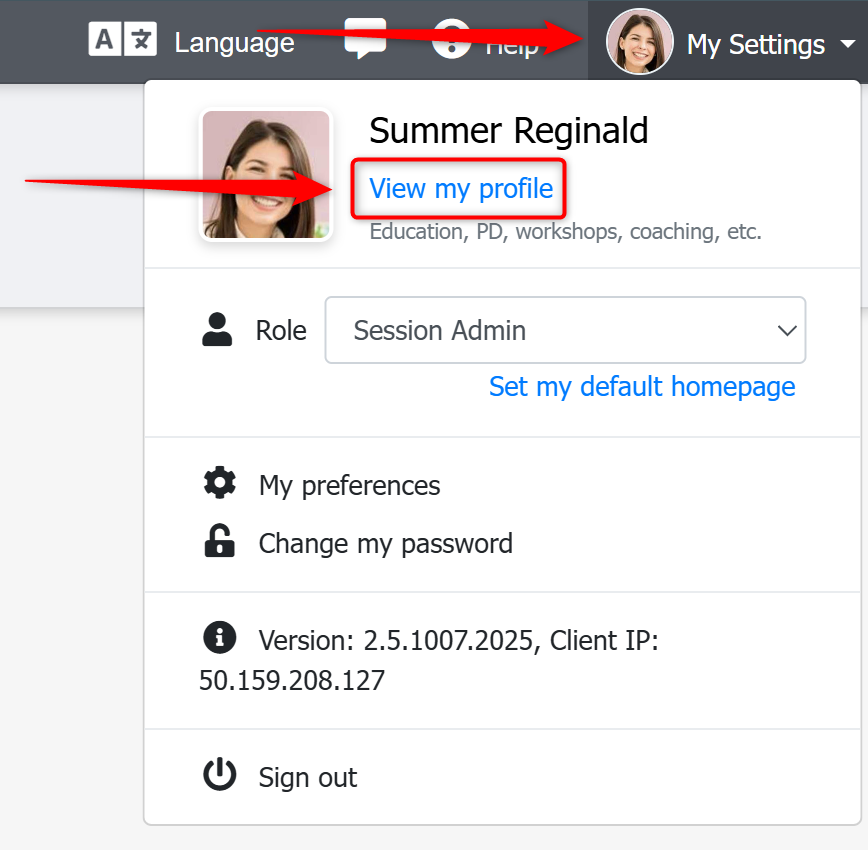
Step 2: Click on My Settings > View My Profile in the top-right corner of your screen
Step 3: On your Staff Menu on the left-hand side of your screen, click on the Coach Logs menu item
- Click on the blue Coach Log ID to see details about the Coach Log
- If you don't see any Coach Logs in the grid, this means you haven't been selected as a participant in any coaching events, or that you don't have any coaching events in the past year. Click on the blue "Filters" button to change the date of visit range for which events you'd like to see in your grid.
- Once you click on the Coach Log ID, you can scroll down to see information about the Topics covered, Resources Provided, Coach's Notes, Future Activities, and QIP Goals Addressed.
- Additionally, you can click on the Download Coach Log button at the top to download and print the Coach Log in English or Spanish
Step 4: Repeat as Many Times as Needed for Additional Coach Logs
Tutorial Video
This 3 minute video will also show you how to download the daily/weekly meal counts templates:
Was this article helpful?
That’s Great!
Thank you for your feedback
Sorry! We couldn't be helpful
Thank you for your feedback
Feedback sent
We appreciate your effort and will try to fix the article