TABLE OF CONTENTS
- Head Start PIR 25-26 Report & Supporting Updates
- Provider Invoicing Enhancements
- New Agency & Site Level Roles
- DRDP Enhancements
- Attendance Report Enhancements
- General Enhancements
- CLASS Enhancements
- Fixes & Adjustments
Head Start PIR 25-26 Report & Supporting Updates
We have made many improvements to the Hubbe system that will support the PIR 25-26 Report for Head Start programs, as follows:
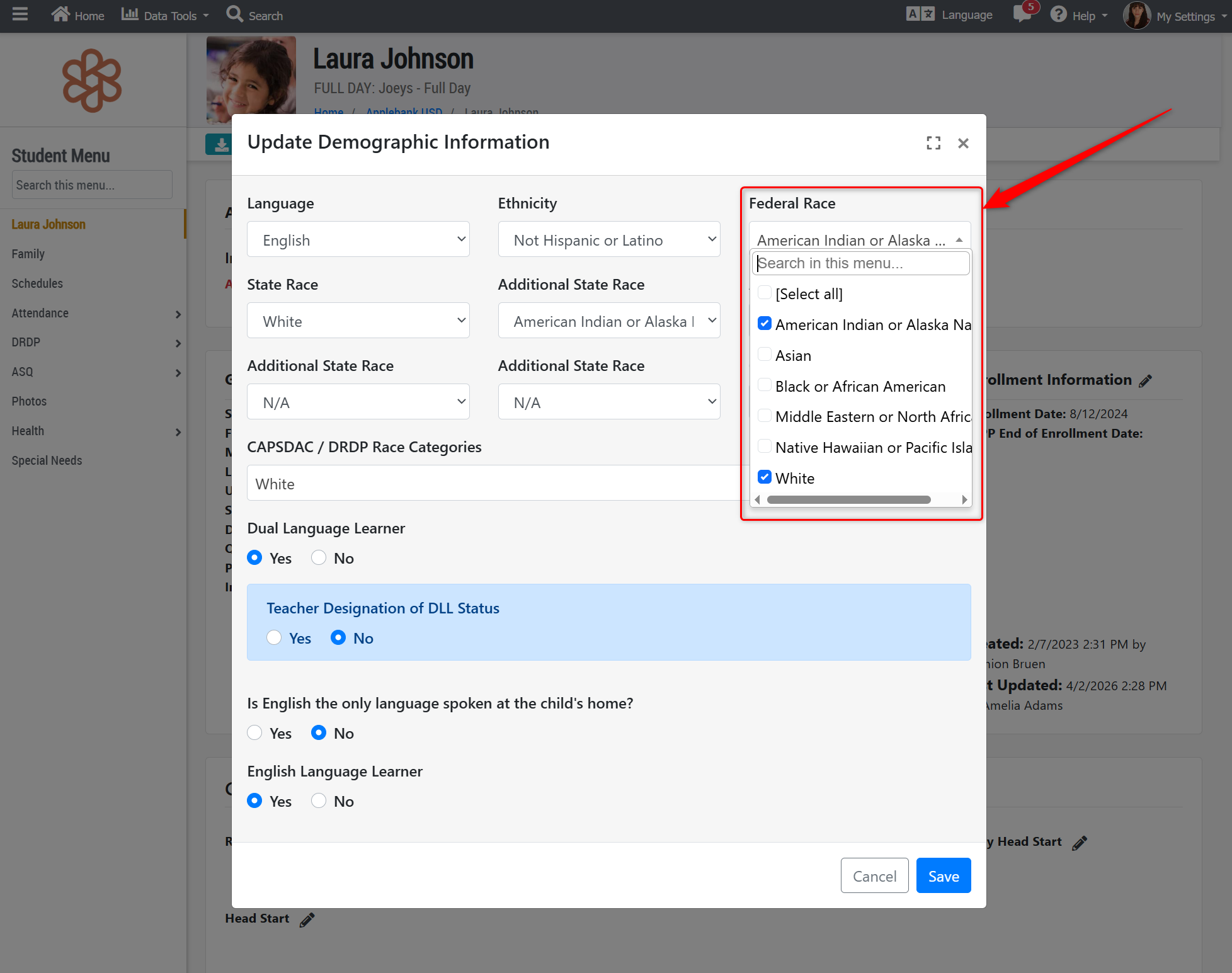
- Student Federal Race -The student "Federal Race" field has been converted to a multi-select field, rather than the single-selection field as it was before, and has been updated to include new and renamed options, as follows:
- Added a new option of "Middle Eastern or North African"
- Renamed the option "Native Hawaiian or Other Pacific Islander" to "Native Hawaiian or Pacific Islander"
- Removed the option "Unknown" - If the student had this selection previously, they will now have "Unspecified" automatically selected, or any State Races selected in any of the five (5) State Race fields.
- Removed the option "Bi-Racial/Multi-Racial" - If the student had this selection previously, they will now have "Unspecified" automatically selected, or any State Races selected in any of the five (5) State Race fields. A student will be considered Bi-Racial/Multi-Racial in reporting if more than one Federal Race is selected.
- Removed the option "Other" - If the student had this selection previously, they will now have "Unspecified" automatically selected, or any State Races selected in any of the five (5) State Race fields.
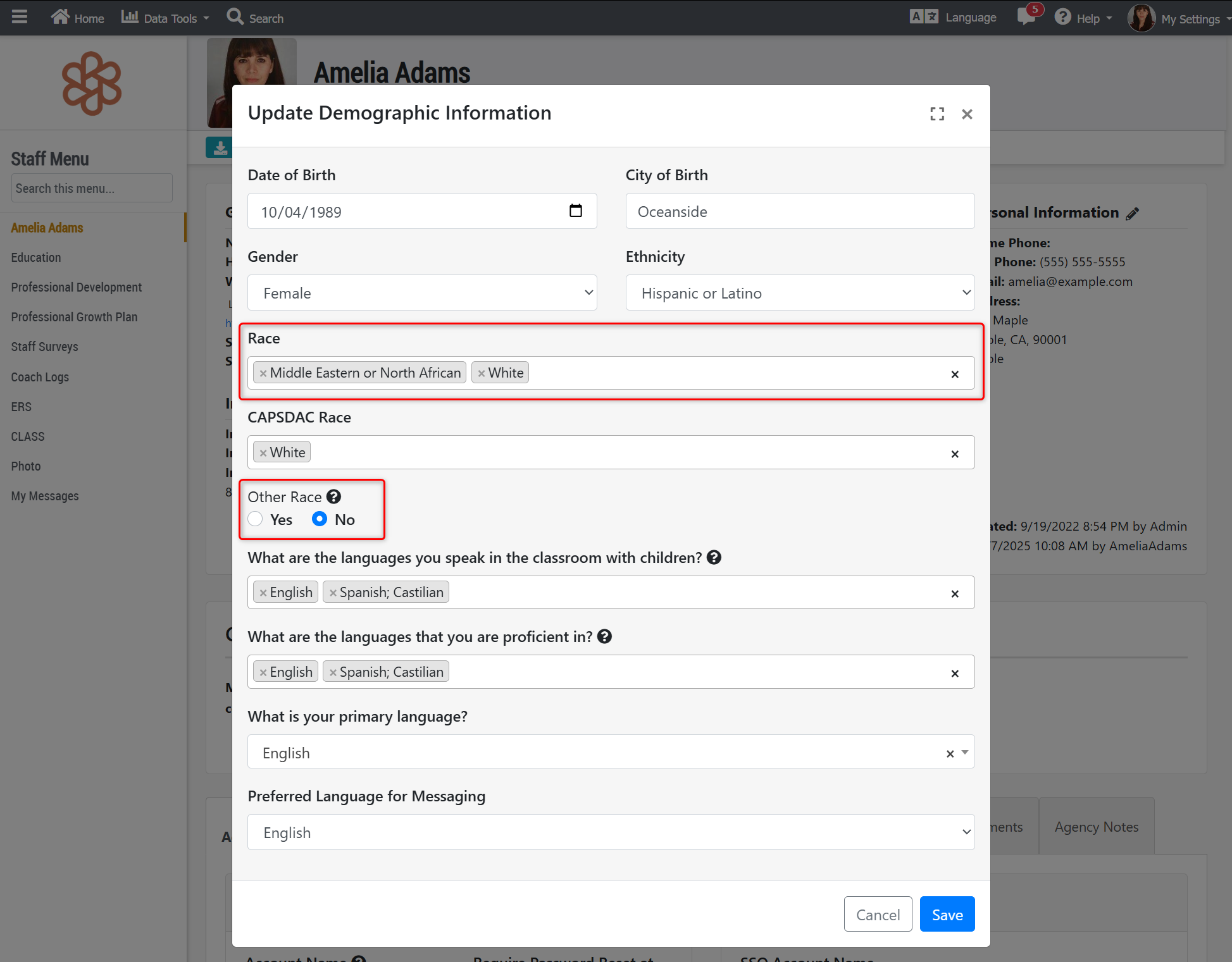
- Staff Race - The staff "Race" field has been updated to include new and renamed options, as follows:
- Added a new option of "Middle Eastern or North African"
- Renamed the option "Native Hawaiian or Other Pacific Islander" to "Native Hawaiian or Pacific Islander"
- Removed the option "Bi-Racial/Multi-Racial" - If the staff has more than one race selected, then they will be considered as Bi-Racial/Multi-Racial in reporting.
- Removed the option "Unspecified" - If the staff does not have any race selections saved, then they will be considered as unspecified in reporting.
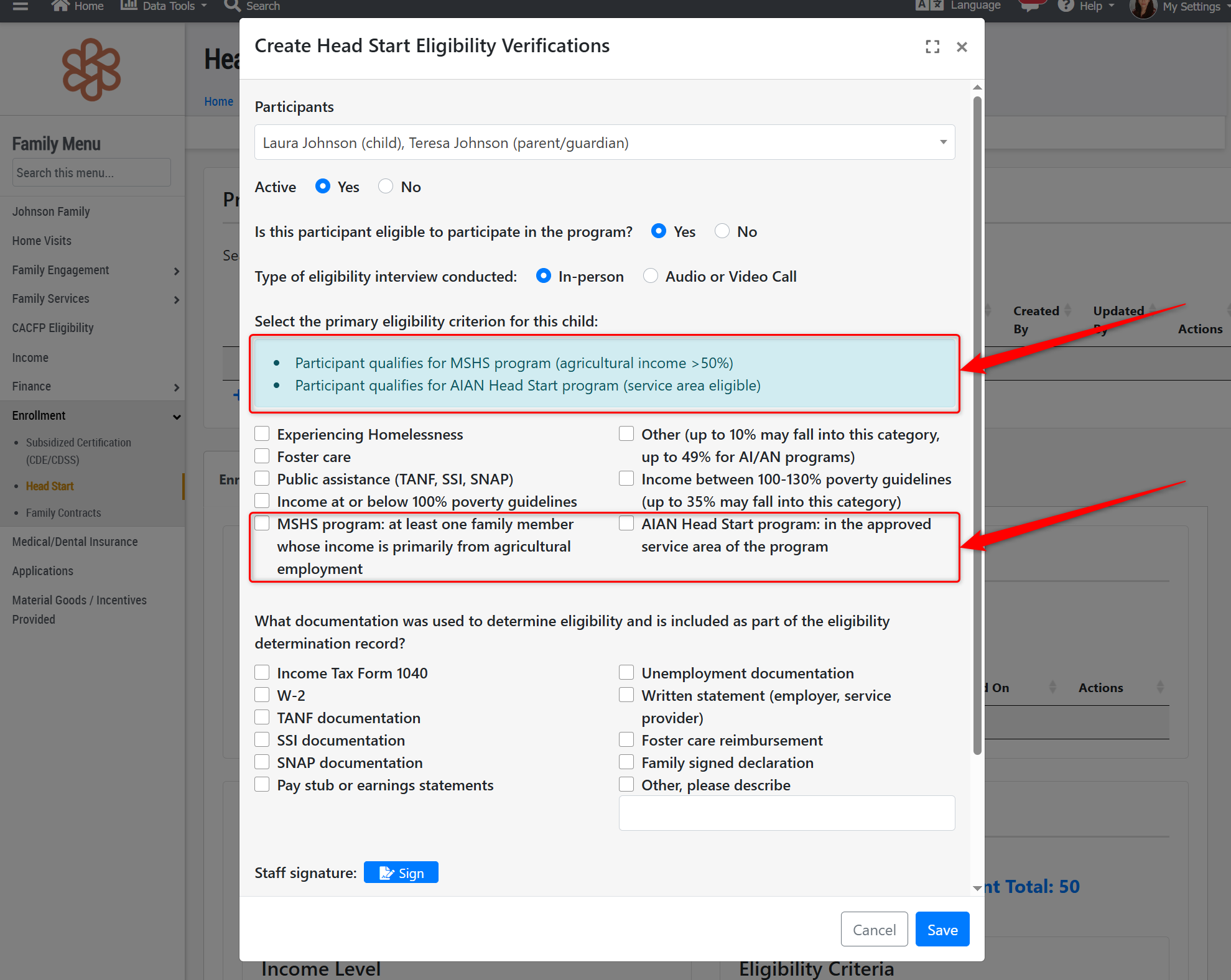
- Head Start Eligibility Verification Form -This form has been updated to include two more eligibility criteria, as follows:
- MSHS Program - We recently released an Agricultural Income portion of the Family Income section within the Family Application. In conjunction with that update, we added a column to the Applications & Waitlist grids titled "Migrant/Seasonal Eligibility" that will show "Yes" if the family's combined agricultural income exceeds 50% of the family's total income. In this week's release, we have added the "MSHS Program" as an eligibility criteria within the Head Start Eligibility Verification Form, and will list the family as eligible for this criteria if their application was marked as "Yes" for the "Migrant/Seasonal Eligibility" field.
- AIAN (American Indian and Alaska Native) Head Start Program - We recently released the Head Start Selection Criteria feature within the Family Application that allows users to enter values for a list of various criteria, such as income level, disabilities, homelessness, and more. In this list of criteria, there is also the "Tribal Program" field that prompts the family to select if an individual in their household is a member of an Indian Tribe. In this week's release, we have added the "AIAN Head Start program" as an eligibility criteria within the Head Start Eligibility Verification Form, and will list the family as eligible for this criteria if their application had this criteria selected.
- Housing Costs Adjustment & Supporting Updates to the Income Calculator Worksheet -
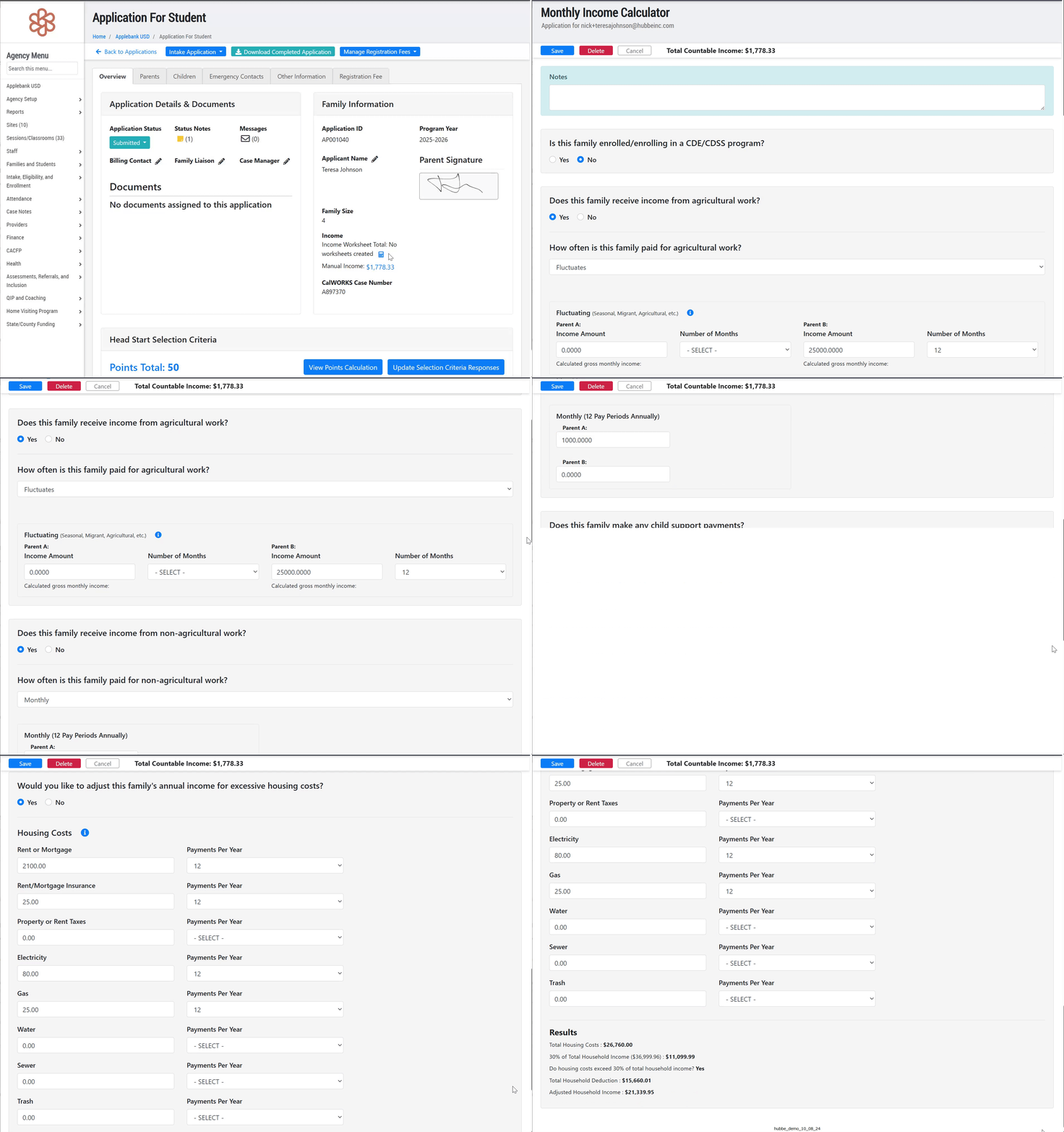
- In this week's release, we are also implementing a new portion of the Family Income section within the Family Application for "Housing Costs." A calculation will be automatically made if any housing costs are entered for the family, and an adjusted income will be determined if the housing costs exceed 30% of the household's total annual income.
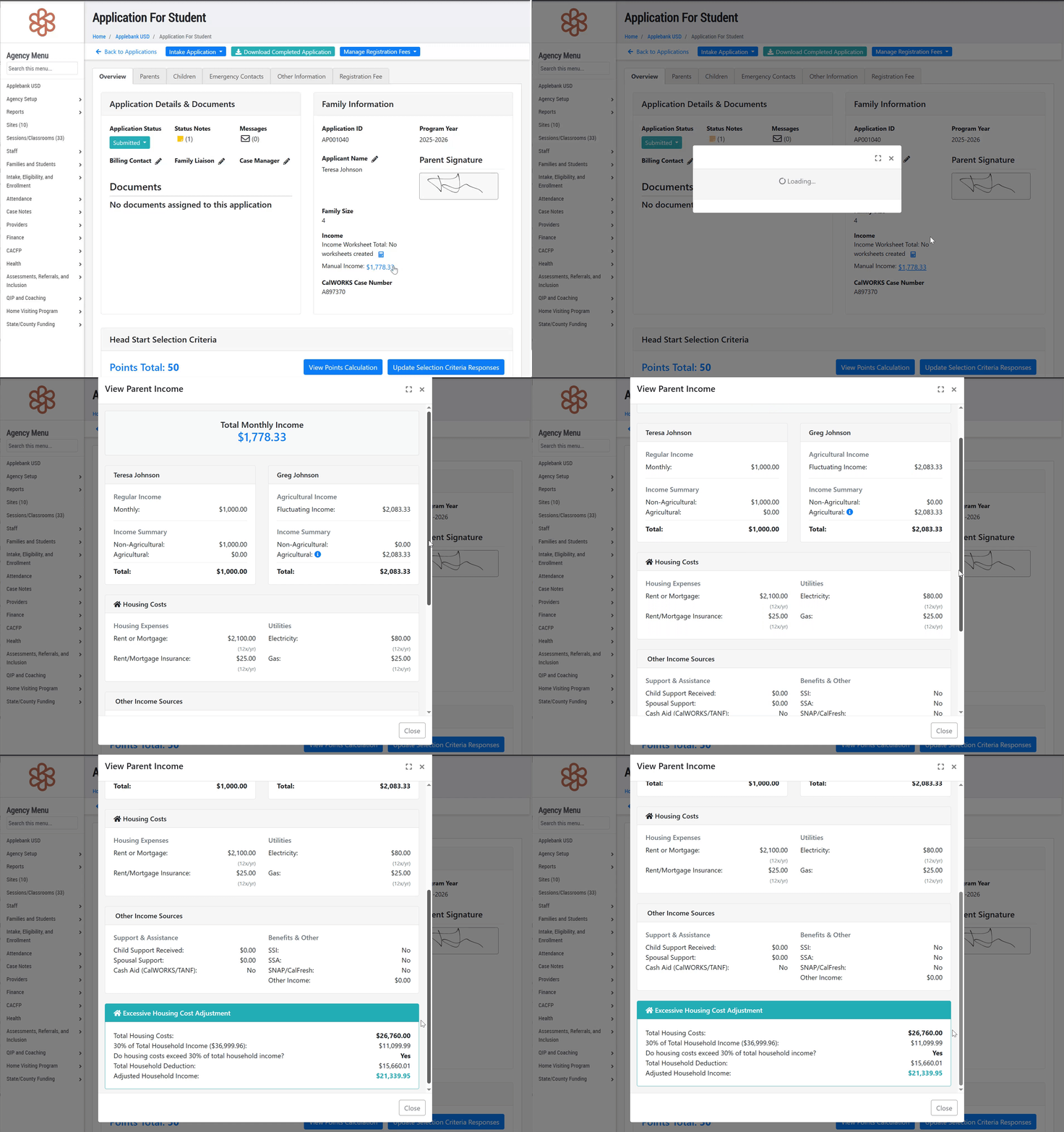
- In conjunction with this enhancement, we have updated the Income Calculator Worksheet to better handle the addition of the agricultural income fields and the housing costs, now both featured within the family's income section of the application. The Income Calculator Worksheet will now include sections for each of the following that can be filled out to capture the family's full income information:
- CDE/CDSS Program
- Income from Agricultural Work
- Income from Non-Agricultural Work
- Child Support Payments
- Other Sources of Income
- Excessive Housing Costs
- If an Income Worksheet is created from within the family's application, then all income information will automatically feed the sections as completed by the family. At the bottom, the calculation for housing costs will display and show the adjusted income if applicable.
- Please note, to initially enable the Housing Costs as a part of the Income Worksheet for families, you must follow the steps below in order:
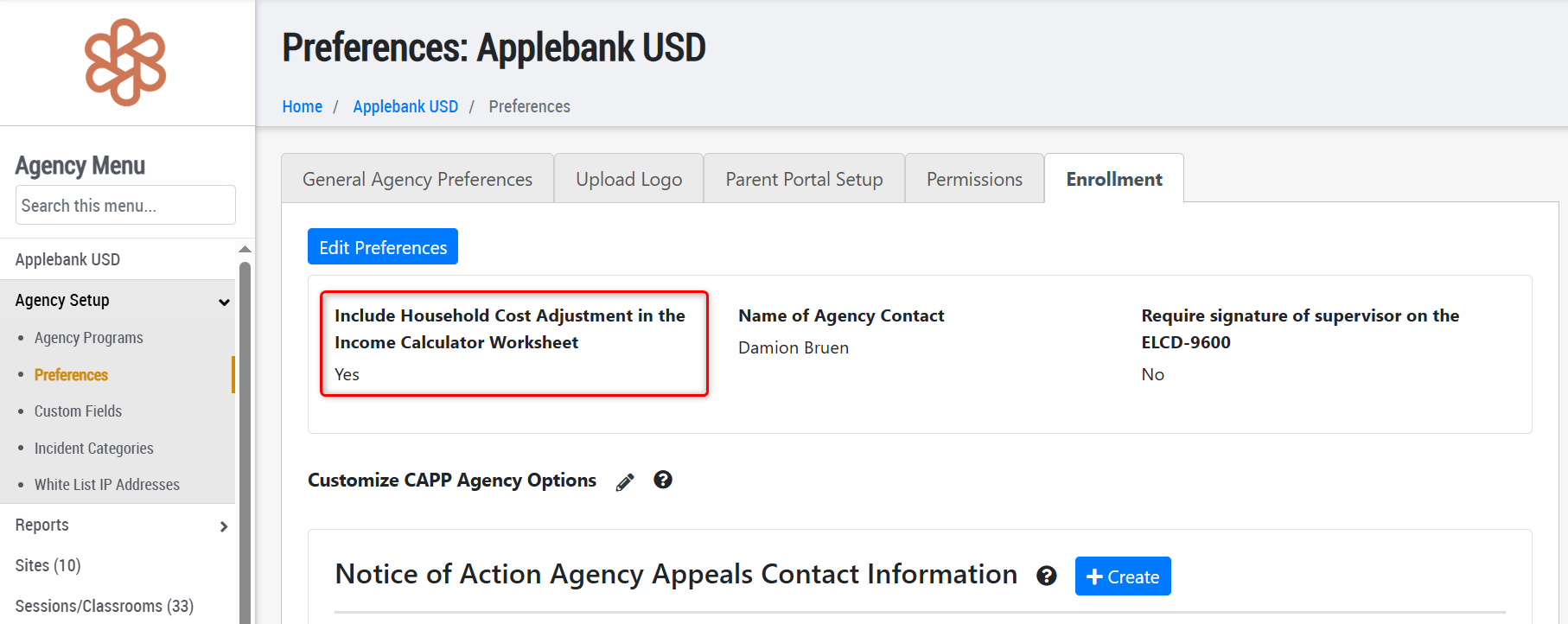
- (1) Agency Preference - First, you must set the new setting within Agency Preferences > Enrollment tab titled "Include Household Cost Adjustment in the Income Calculator Worksheet" to "Yes." Once this is completed, you may move to the next step below. Note, if you do not wish for Housing Costs to be included in the Family Application or Income Worksheets, you can keep this setting as-is since it will be defaulted to "No."
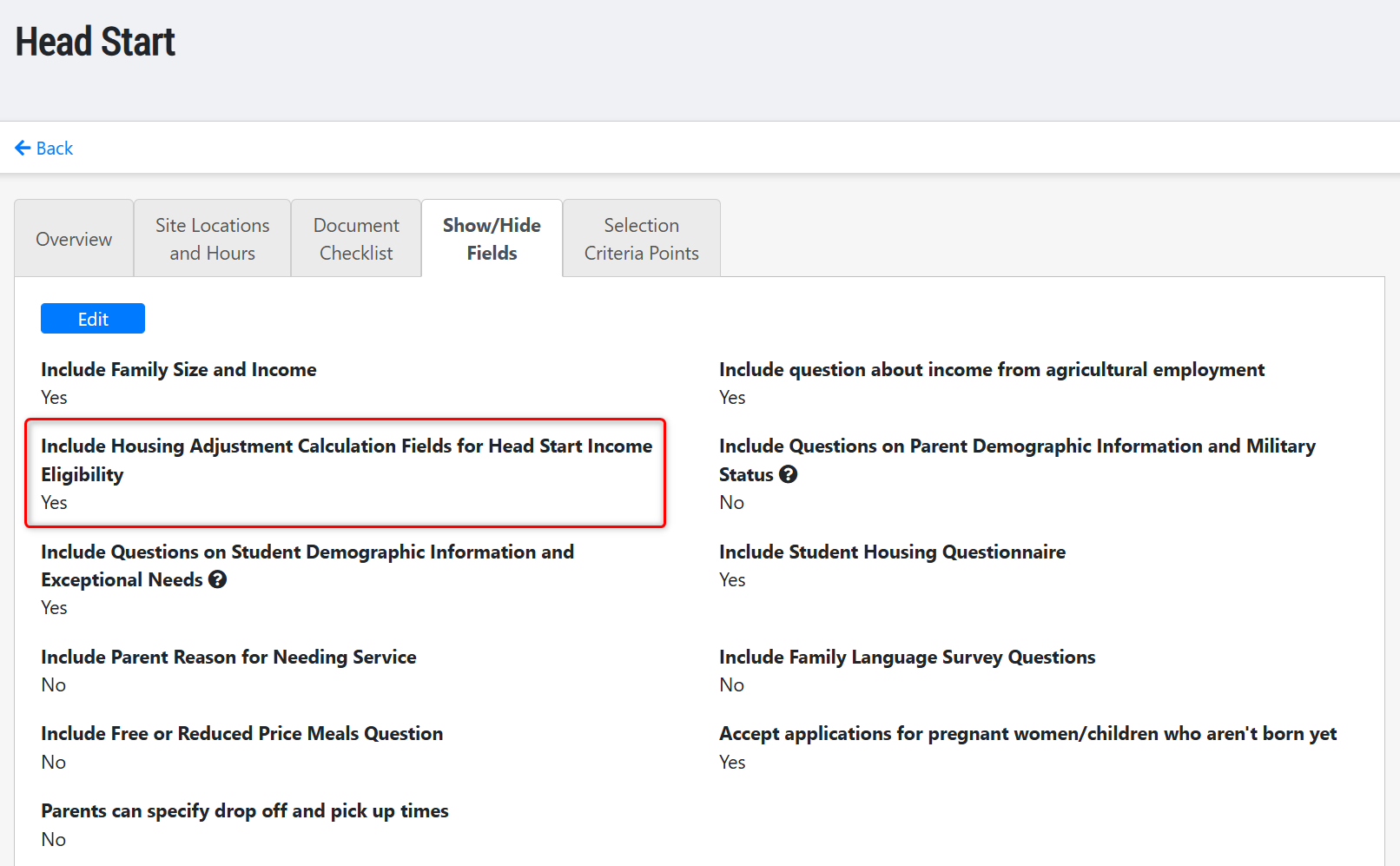
- (2) Family Application Preference - Second, you must go to the Agency Program you wish to enable the Housing Costs within for applying families. For example, you may navigate to your Head Start agency program and enter the configuration settings for the 2026-2027 Family Application, as shown below. Within the "Show/Hide Fields" tab, set the new setting titled "Include Housing Adjustment Calculation Fields for Head Start Income Eligibility" to "Yes." You are now ready to receive housing cost information for any family applying to that program and intake their application with this income information flowing over to their household.
- (1) Agency Preference - First, you must set the new setting within Agency Preferences > Enrollment tab titled "Include Household Cost Adjustment in the Income Calculator Worksheet" to "Yes." Once this is completed, you may move to the next step below. Note, if you do not wish for Housing Costs to be included in the Family Application or Income Worksheets, you can keep this setting as-is since it will be defaulted to "No."
- In this week's release, we are also implementing a new portion of the Family Income section within the Family Application for "Housing Costs." A calculation will be automatically made if any housing costs are entered for the family, and an adjusted income will be determined if the housing costs exceed 30% of the household's total annual income.
Provider Invoicing Enhancements
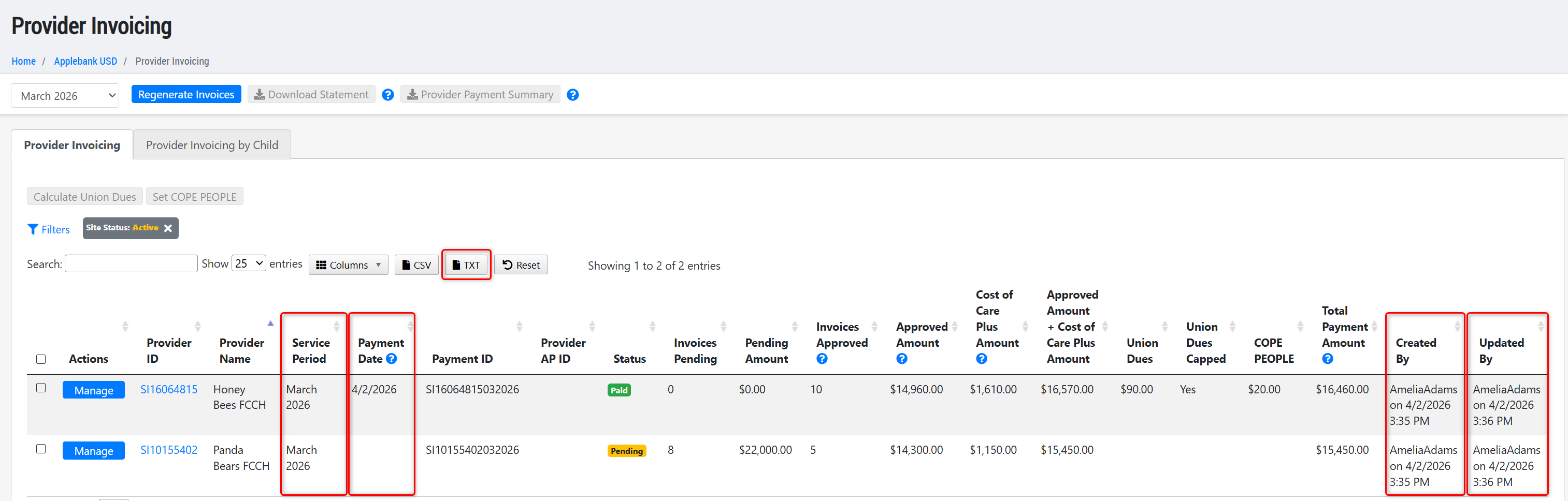
- Updated the Provider Invoicing grid with several new columns and tools, as follows:
- Payment Date - This is a new column that was added to the grid to stamp the date that all invoices were marked as paid within a service period for a provider.
- Service Period - This was previously titled "Payment Period" but has been re-titled to better reflect the value, which is the period in which the children's enrollment/attendance data is used to calculate invoice amounts. An invoice may be paid outside of the service period, as applicable.
- Created By - This is a new column that was added to the grid to stamp the date and user the invoicing was first created by for the service period for that provider.
- Updated By - This is a new column that was added to the grid to stamp the date and user the invoicing was last updated by for the service period for that provider. Actions that "update" this time/user stamp include: confirming/adjusting invoice amounts for a child, changing the status of a child's invoice (such as from pending to approved), setting COPE PEOPLE amounts, calculating and setting Union Dues, and re-generating invoices.
- New Tools:
- Added a new TXT download to the grid, which excludes the grid column titles in the download.
- Updated both the CSV and TXT file exports to reflect any column selection and re-ordering made in the grid prior to downloading.
New Agency & Site Level Roles
- We have released many new roles to the Agency level to assist with assessment/consultations and heath related management, as follows:
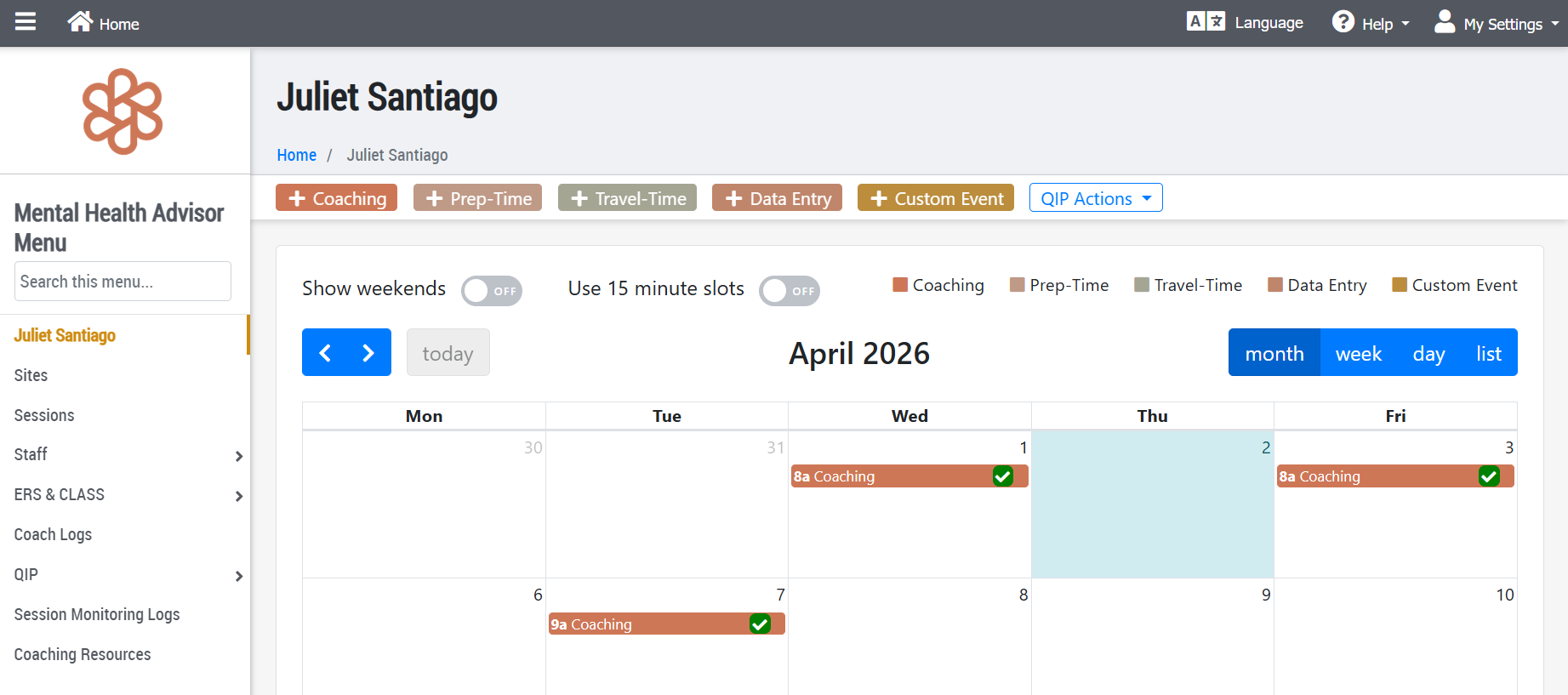
- Mental Health Advisor - This new role is intended to be very similar in permissions to the Education Specialist role, but distinct in its title as another position that can complete and manage consultations, such as Coach Logs. This user will have limited access to the sites and sessions within their agency, but will have access to create coaching activities for their agency/center. Within the Coach Log, this user will be able to "park" notes within a new section labeled "Mental Health Advisor Notes" - and can also view the new notes section for Behavioral Specialists described next. Below is a screenshot of this role's landing page upon logging into Hubbe.
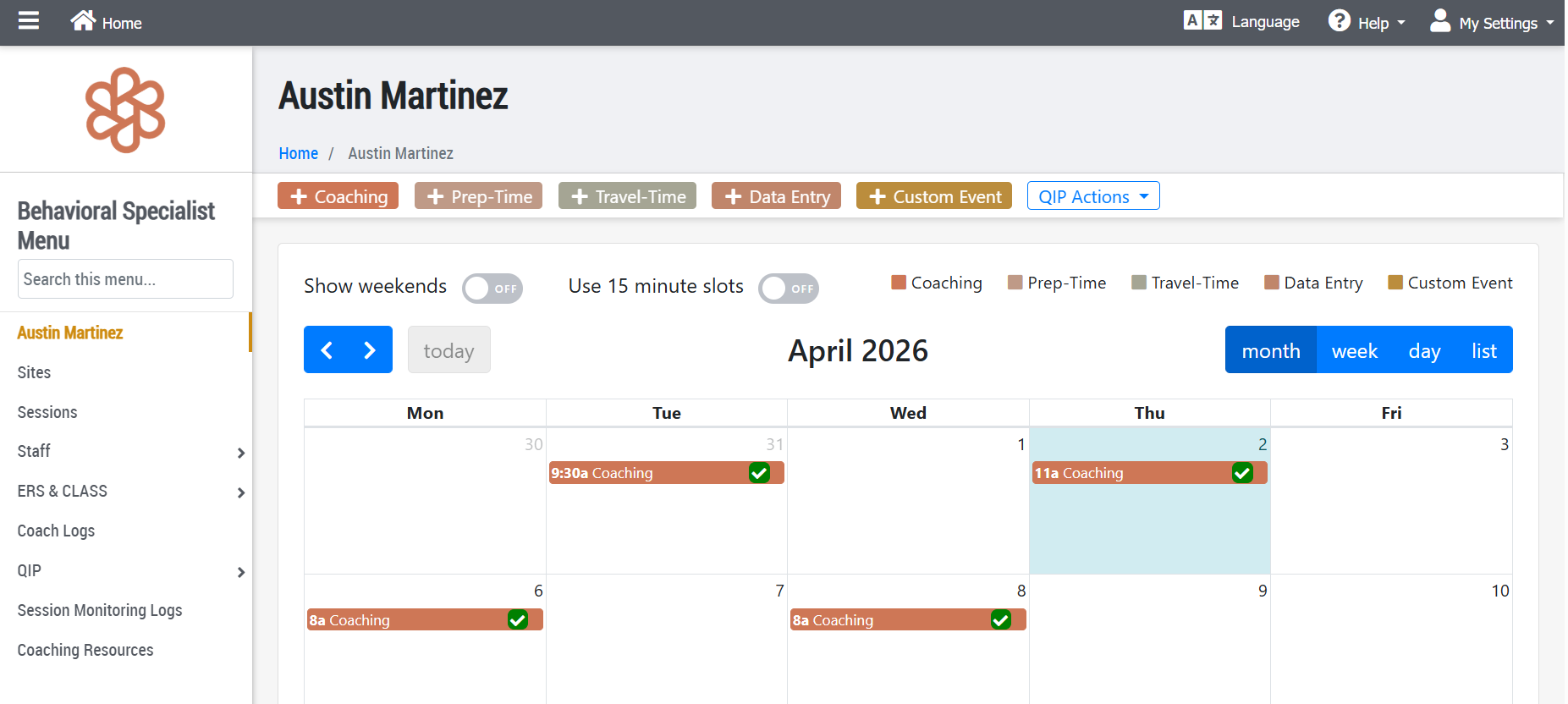
- Behavioral Specialist - This new role is intended to be very similar in permissions to the Education Specialist role, as well, but distinct in its title as yet another position that can complete and manage consultations, such as Coach Logs. This user will have limited access to the sites and sessions within their agency, but will have access to create coaching activities for their agency/center. Within the Coach Log, this user will be able to "park" notes within a new section labeled "Behavioral Specialist Notes" - please note they will not be able to view the "Mental Health Advisor Notes" section. Below is a screenshot of this role's landing page upon logging into Hubbe.
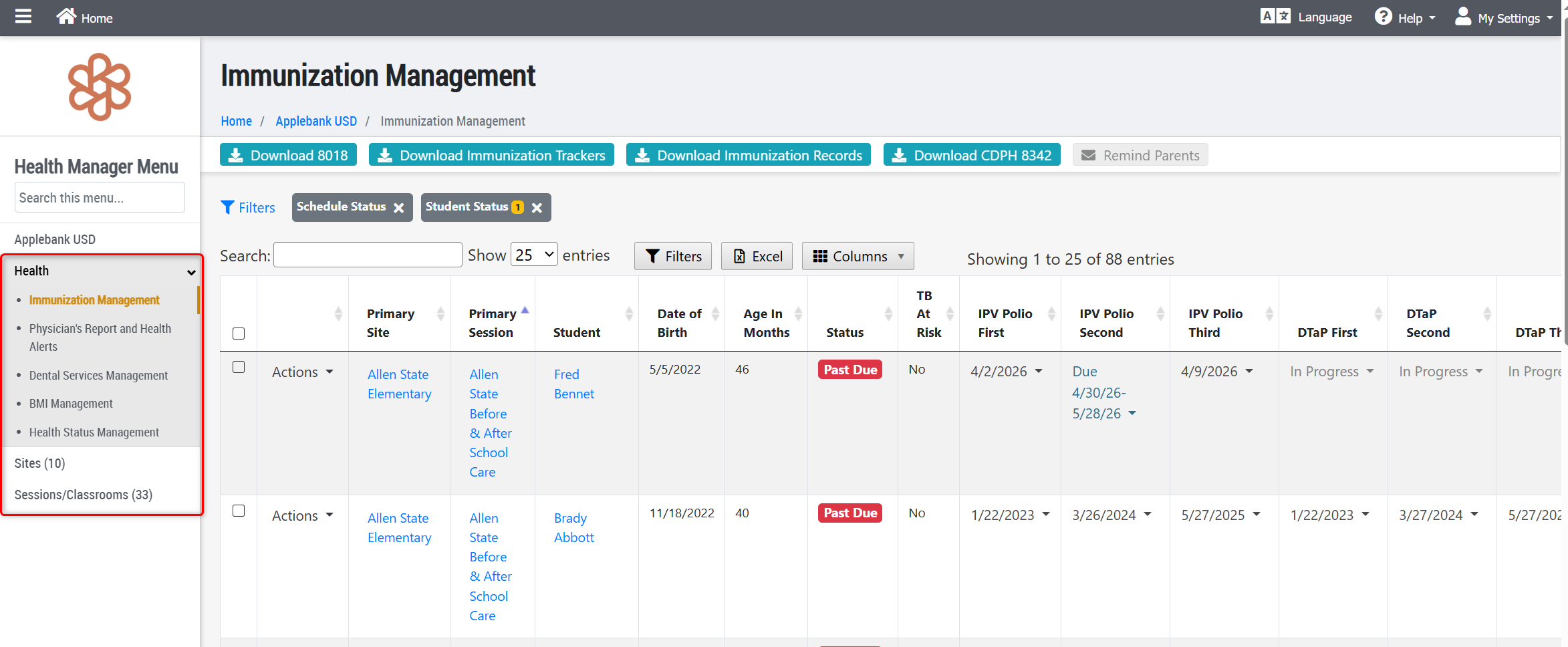
- Health Manager - This new role is intended to provide users with access to the Health features within your agency/center for all students served. Users with this role will be able to fully manage student health items, such as immunizations, health conditions (ie., allergies, asthma, etc.), dental services, BMI, health screenings (ie., physicals, blood pressure, lead toxicity, etc.), and sensory screenings (vision, hearing). This role will provide limited access at the agency, site, session, household, and student level to just those health items. Below is a screenshot of this role's landing page upon logging into Hubbe.
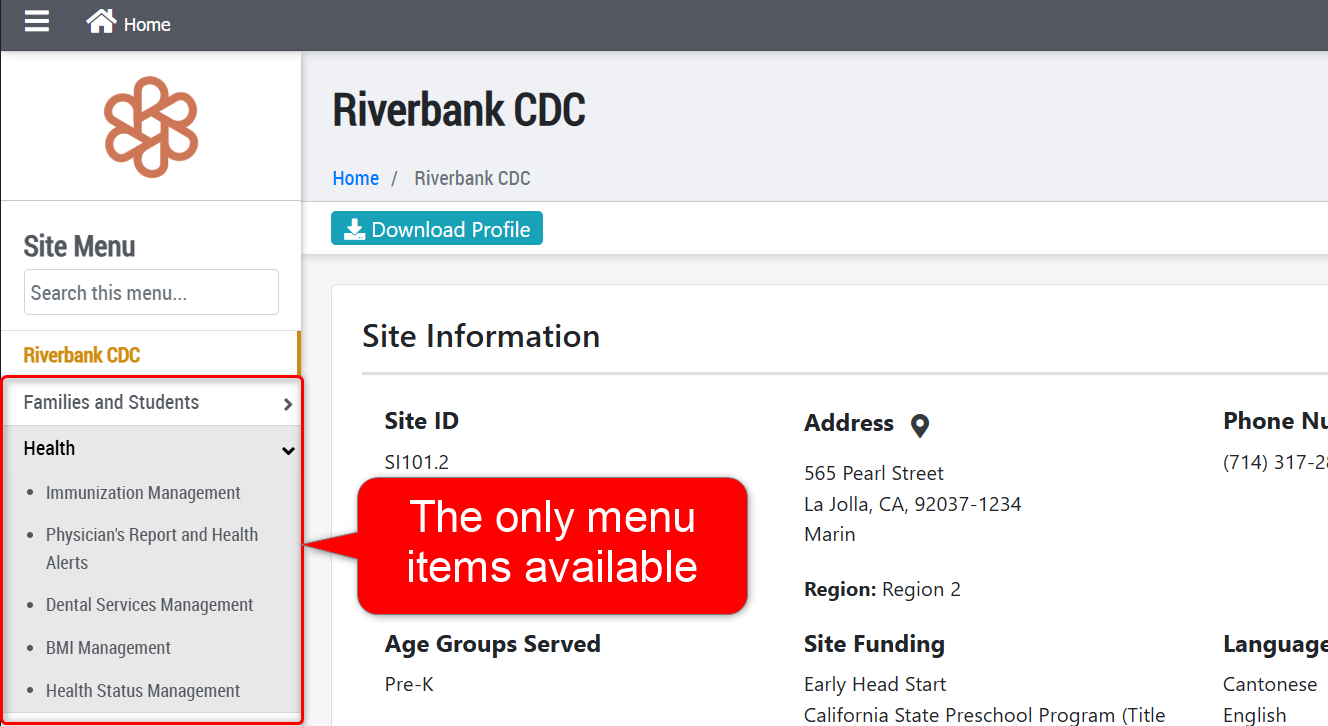
- Site Health Manager - This new role is intended to provide users with access to the Health features for only the students served at their site. Users with this role will be able to fully manage student health items, such as immunizations, health conditions (ie., allergies, asthma, etc.), dental services, BMI, health screenings (ie., physicals, blood pressure, lead toxicity, etc.), and sensory screenings (vision, hearing). This role will provide limited access at the site, session, household, and student level to just those health items. Below is a screenshot of this role's landing page upon logging into Hubbe.
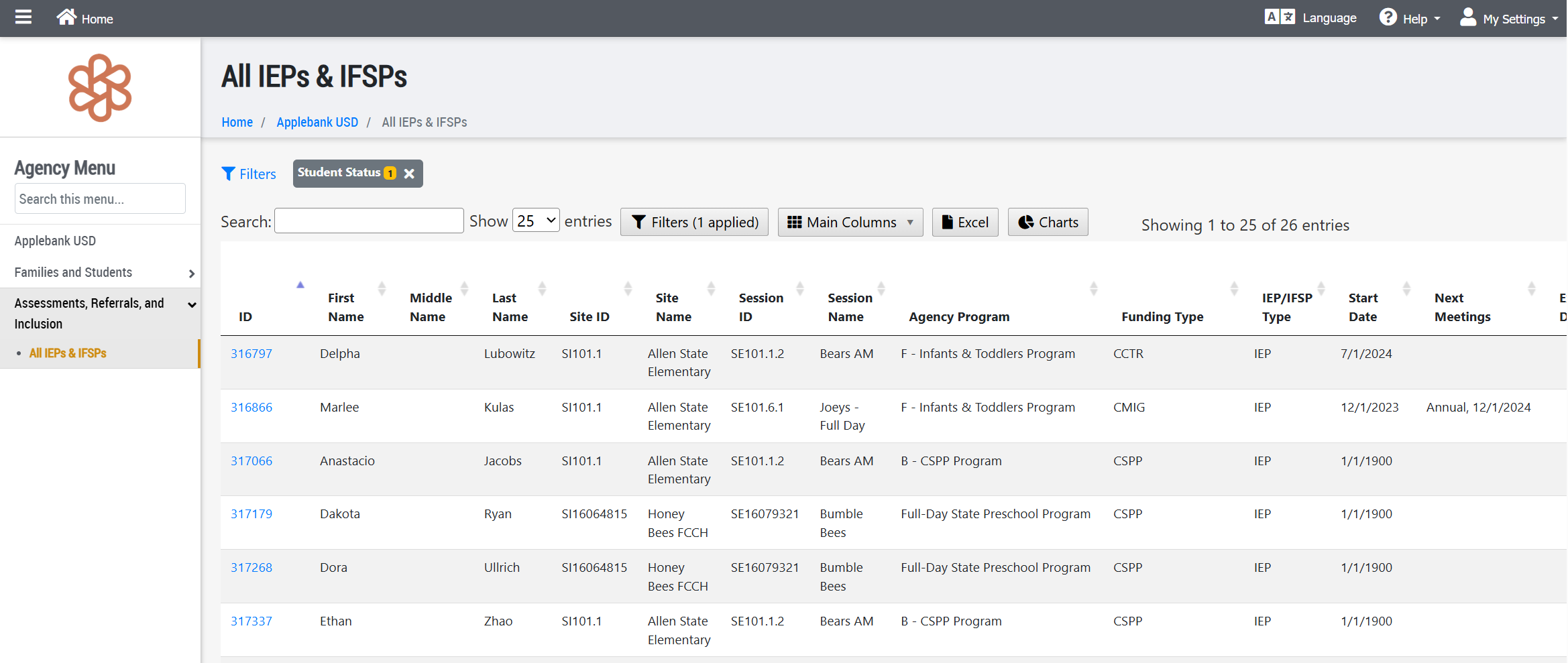
- Special Education Manager - This new role is intended to provide users with access to the IEP, IFSP, and special needs records for children served at the agency. This role provides access to the agency level All IEPs & IFSPs grid, and the Special Needs menu item within the student record. Users with this role have access to manage data related to the special education and special needs for the children at the agency. Users with this role will have very limited access to viewing all other household information outside of those records listed above. Below is a screenshot of this role's landing page upon logging into Hubbe.
- Mental Health Advisor - This new role is intended to be very similar in permissions to the Education Specialist role, but distinct in its title as another position that can complete and manage consultations, such as Coach Logs. This user will have limited access to the sites and sessions within their agency, but will have access to create coaching activities for their agency/center. Within the Coach Log, this user will be able to "park" notes within a new section labeled "Mental Health Advisor Notes" - and can also view the new notes section for Behavioral Specialists described next. Below is a screenshot of this role's landing page upon logging into Hubbe.
DRDP Enhancements
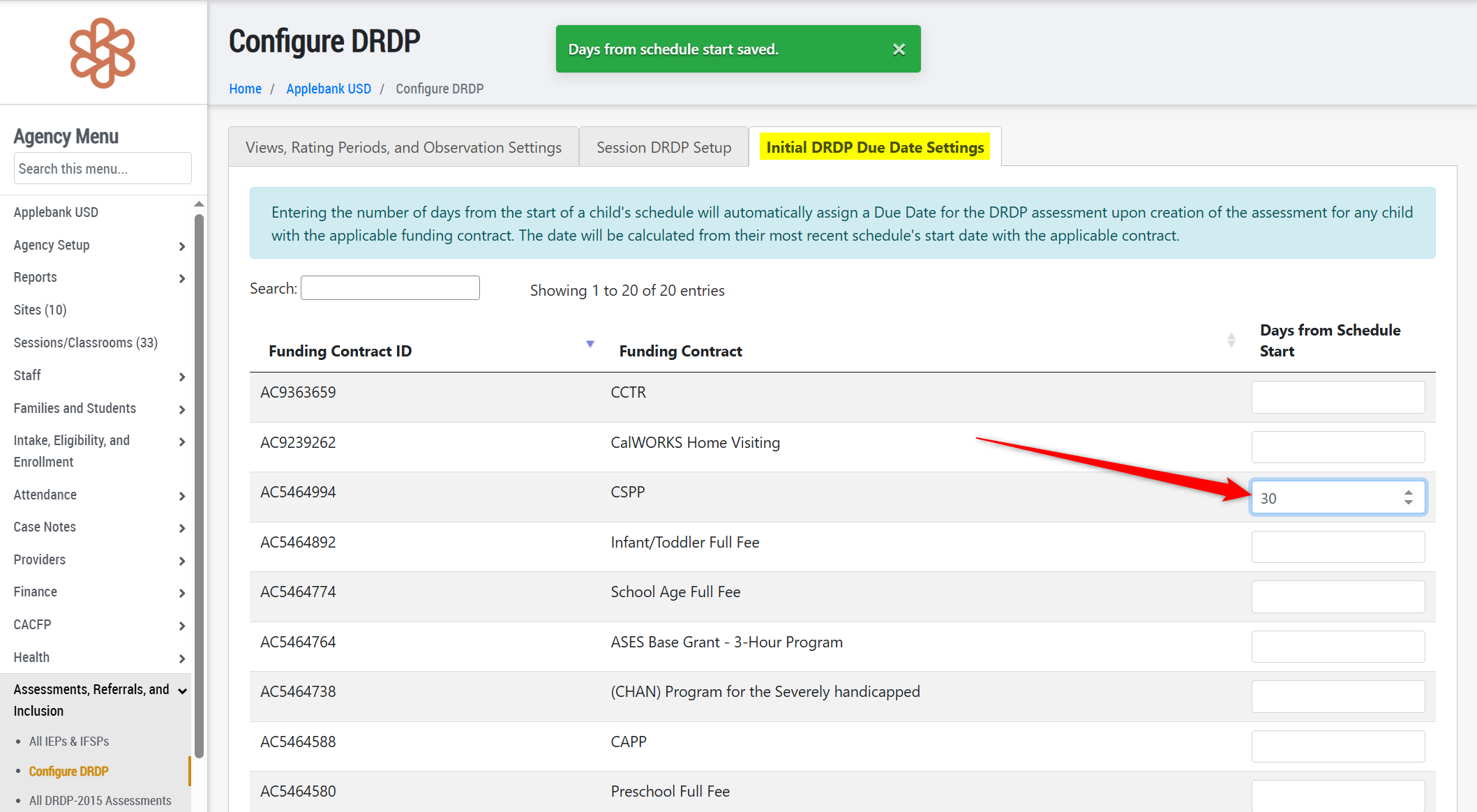
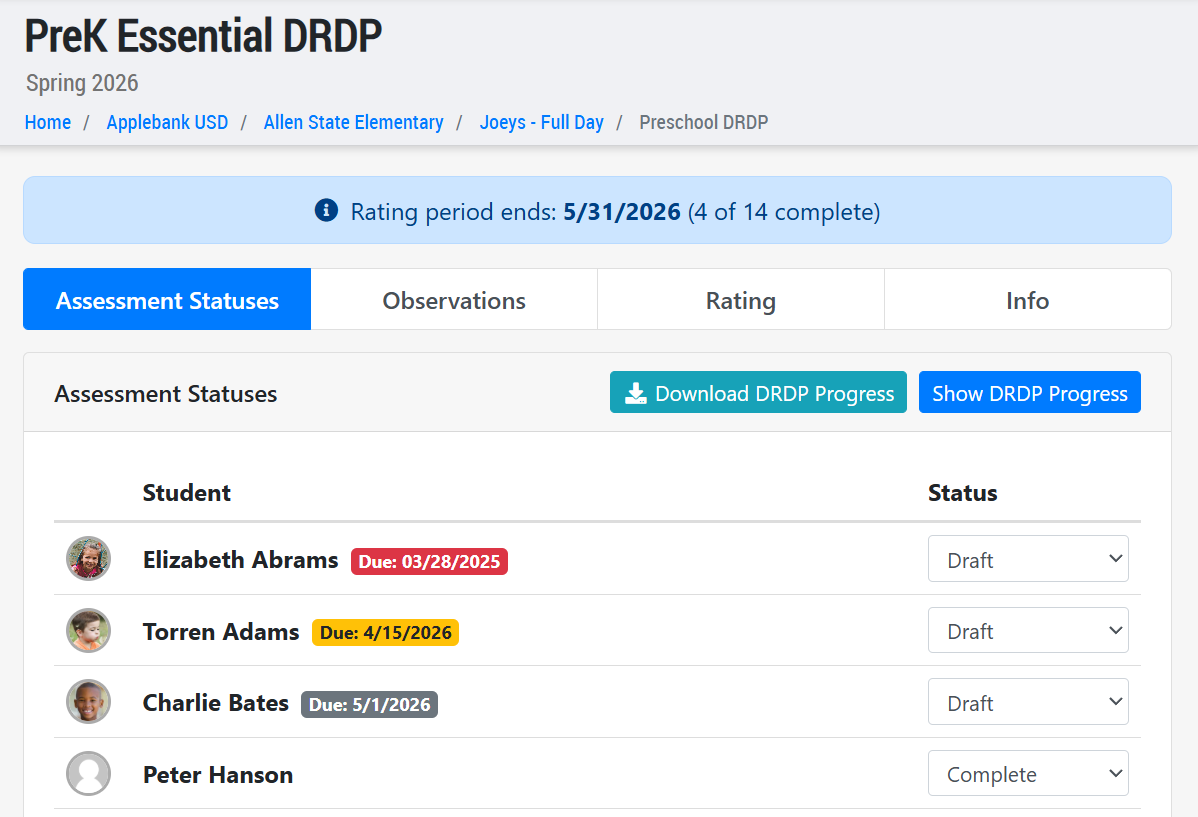
- Added a new area to the "Configure DRDP" area that allows users to enter an automated Due Date for DRDP Assessments according to the child's Funding Contract. If a user enters 30 days for the CSPP contract in this area, for example, then upon creation of the DRDP Assessment for this upcoming Rating Period, the child's DRDP will be assigned a Due Date 30 days from the start date of their most recent CSPP schedule. A badge with this Due Date will appear in the DRDP Session Rating tool for teachers to easily view when rating.
Attendance Report Enhancements
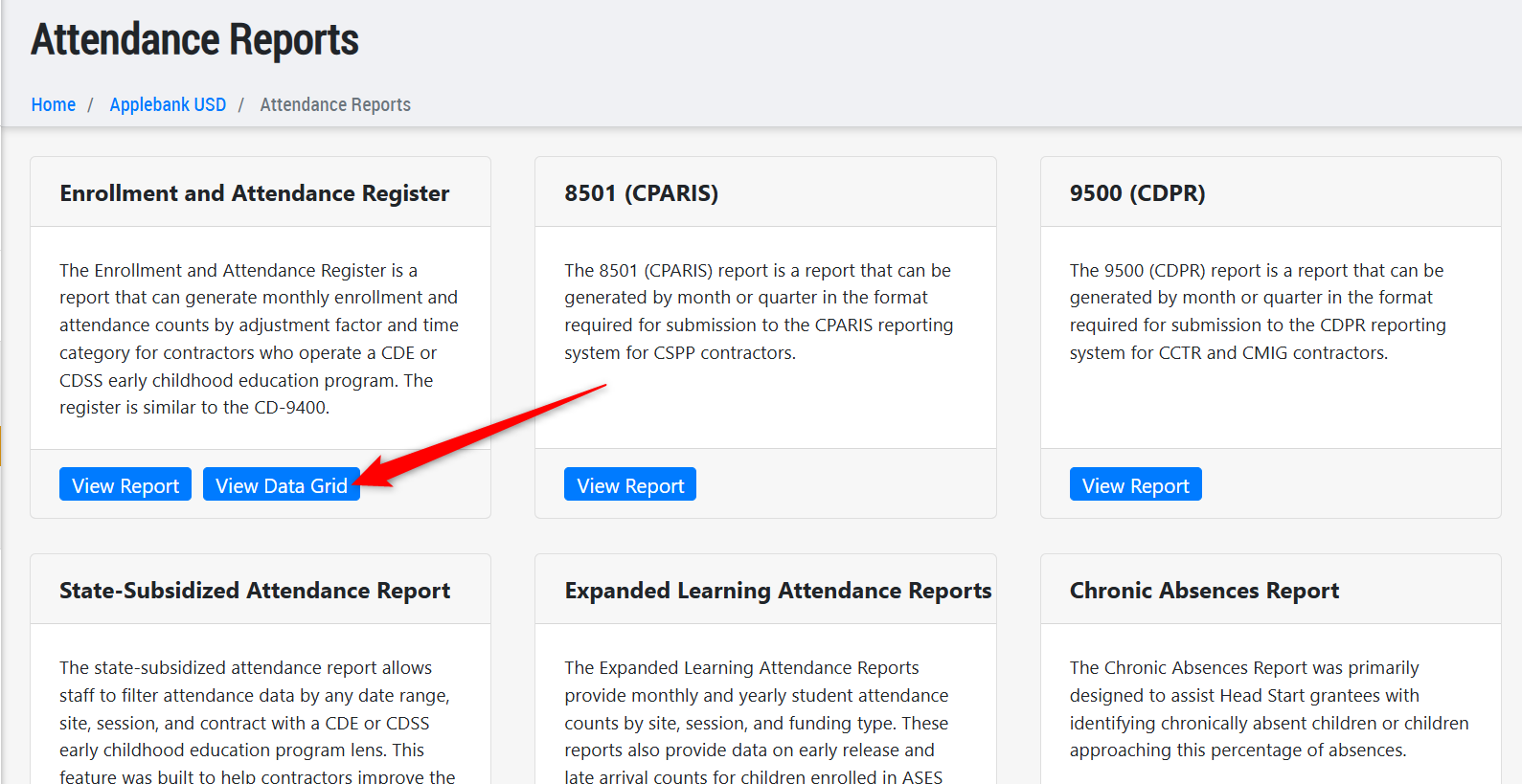
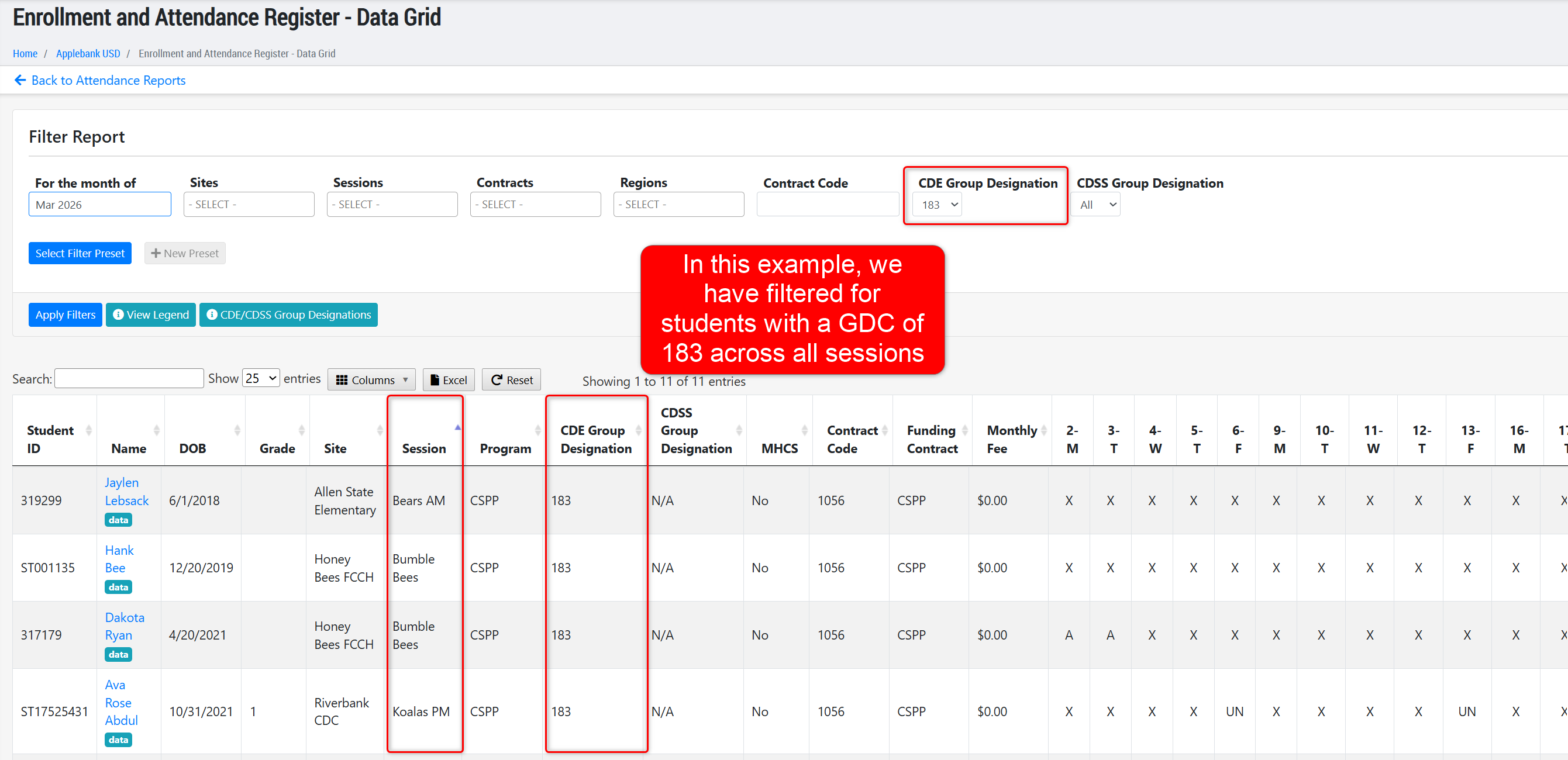
- Added a new version of the Enrollment and Attendance Register (EAR) Report called the "Data Grid" report. This new version will produce the same data per child, but rather than organizing the children into sessions and certified/non-certified sections, it will simply list each child row in the grid and allow users to sort by various components, such as the session or Group Designation Code (GDC).
- For example, if a user wanted to view all students that have a GDC of 133 for the March 2026 reporting period, they could go to this new EAR Data Grid Report, filter by March 2026 and a GDC of "133" to view a list of all the enrollment and attendance days that will be reported with that GDC across all sessions at your center. We hope this new report version helps your team manage and verify enrollment data.
General Enhancements
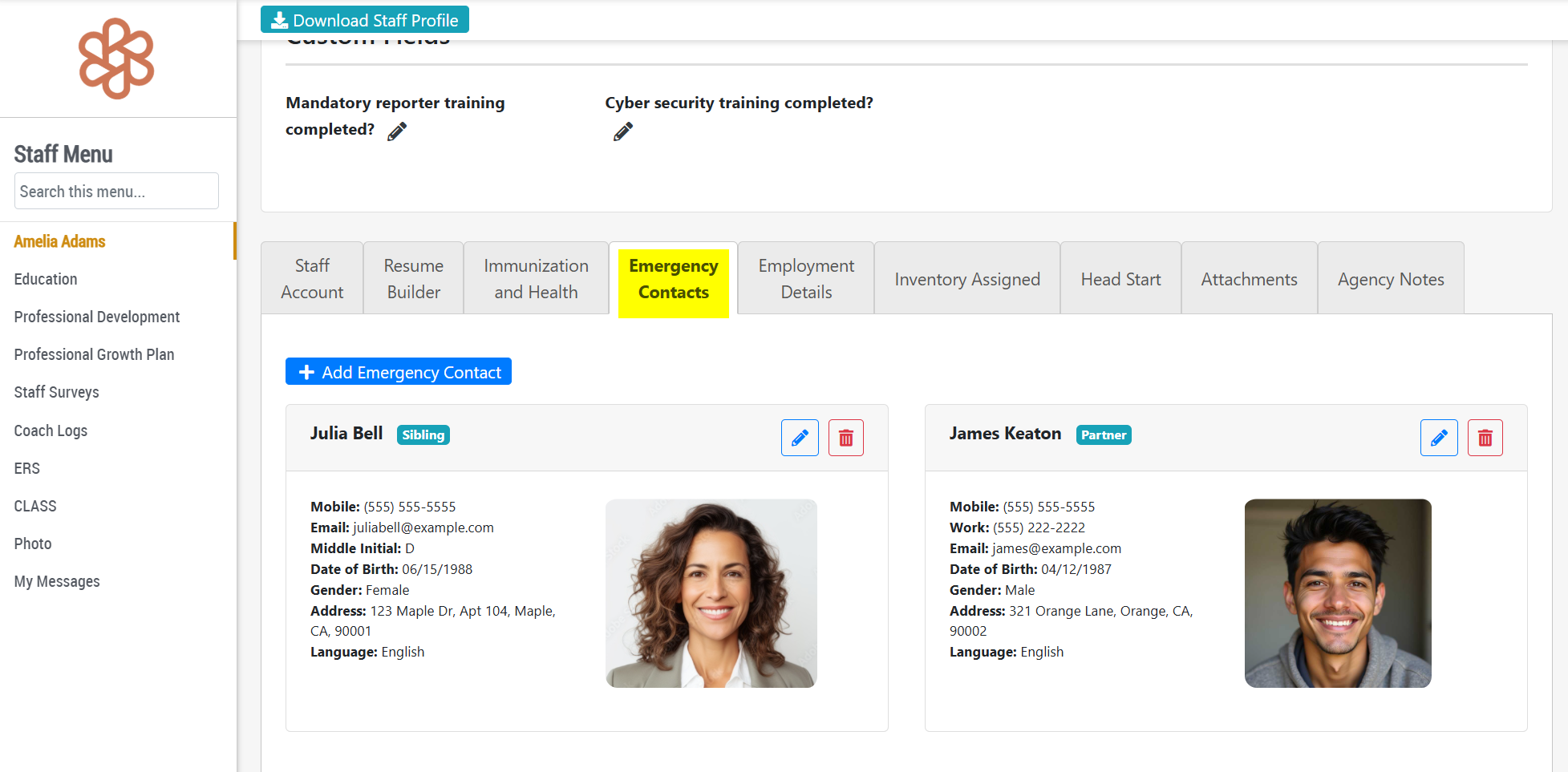
- Added a new feature to the Staff Record for "Emergency Contacts." Now, staff can enter emergency contacts for their own staff record, and other staff who can access their record can view the contacts in the event of an emergency for the individual. The "Relationship Types" for the emergency contacts can be managed at the Agency Menu > Staff > Staff Emergency Contacts record. We are also working on a roll-up grid of all the Emergency Contacts that have been added for staff at your agency/center.
- Added a new column to the Parent Surveys feature that allows users to add a "Follow Up Note" to any parent who has been sent a survey to complete. In this space, users are able to enter a note on how they followed up with families, as required for CDE contractors.
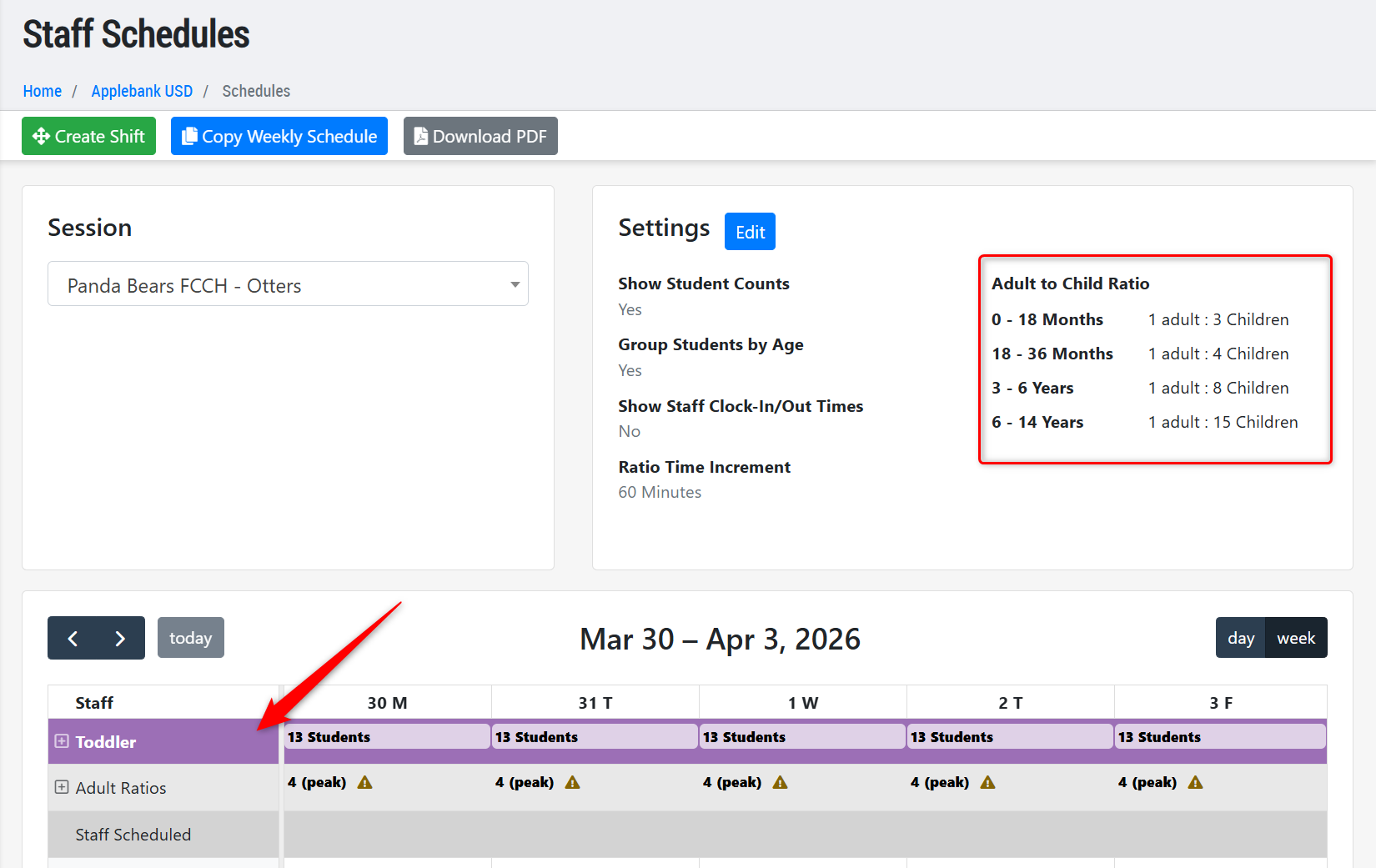
- Updated the Staff Scheduler feature that was recently released to include the following age groups: Infants (0-18 months), Toddlers (18-36 months), Preschool (3-6 Years), School Age (6-14 Years).
CLASS Enhancements
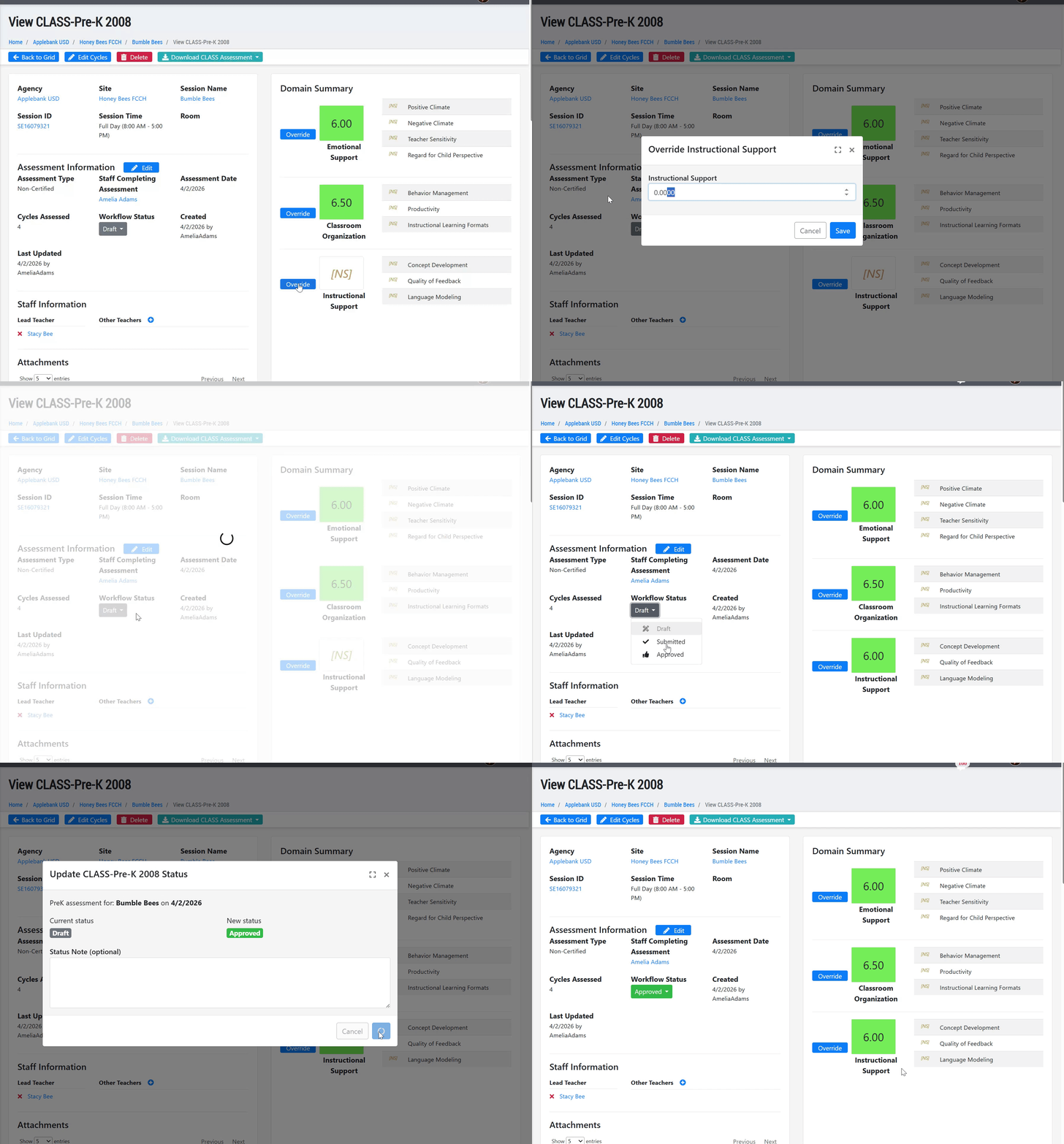
- Updated the CLASS Pre-K 2008 version to feature an "Override" button for each domain score. This allows users to quickly complete the CLASS if the domain scores are known without needing to score each element. This update was made to support centers who may still be using the CLASS Pre-K 2008 version for site ratings.
Fixes & Adjustments
- Addressed a system error impacting older iPad devices where security settings were out of date.
- Updated the Family record to allow users to edit the "Head of Household" and "Parent A/B" fields for a parent record that is "Inactive." This allows users to properly report the inactive family in State Reports, such as the 801A, CAPSDAC, and PLIS reports.
- Updated the "Welcome" tab of the Family Application within the application portal for parents to ensure the applicable Income Table shows for the program type, such as the CDE Income Ceilings Table for CA Preschool Programs.
- Fixed an issue with the "Address Line 2" part of a family's home address within the application not saving in certain scenarios.
- Updated the Applications & Waitlist grid to ensure only the children marked as "Applying" in the application are considered when determining the family's eligibilities and values for the grid columns.
- Fixed an issue reported by users when trying to assign the "Provider" in certain scenarios within the configuration area: Providers > Provider Settings > Participating Providers tab.
- Updated the Semi-Monthly Sign-In Template to ensure larger centers are able to download the templates for all applicable children.
Was this article helpful?
That’s Great!
Thank you for your feedback
Sorry! We couldn't be helpful
Thank you for your feedback
Feedback sent
We appreciate your effort and will try to fix the article