TABLE OF CONTENTS
- New Program Year Resources
- DRDP Enhancements
- Provider Invoicing Enhancements
- CACFP Enhancements
- Applications & Waitlist Enhancements
- General Enhancements
- CAPSDAC 2.0 Updates
- Fixes & Adjustments
New Program Year Resources
As we transition into a new program year next week, we wanted to re-share the tutorial videos on how to set up your agency for the new program year. Please click here to access the article with more information and resources.
DRDP Enhancements
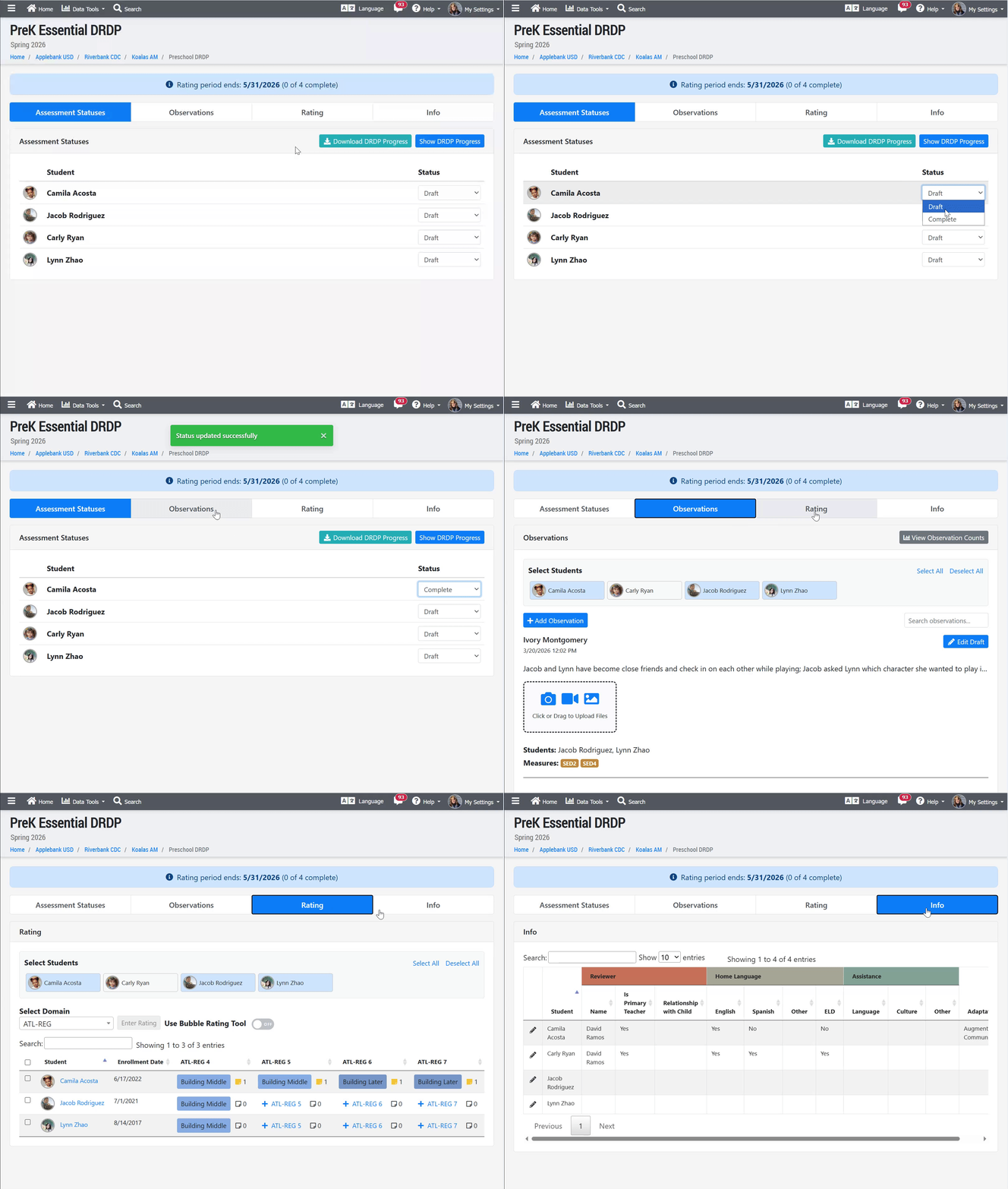
- We have made many updates to the DRDP Rating tool at the session level for teachers when assessing children. With this update, the following changes will be in place:
- Teachers will be able to easily mark an assessment as "Complete" once they finish completing all observations and ratings for a rating period,
- The end date of the current rating period will show at the top of the screen so that teachers know when assessments must be completed, and
- The rating and observation tools will be easier to use on a mobile/tablet view.
- The DRDP Assessment tool will now feature four (4) tabs:
- Assessment Statuses - This tab will list all students that need an assessment for the current rating period at that session. This is where the student's "Status" can be marked as "Complete" to finalize the child's DRDP assessment.
- Observations - This tab is where teachers can enter and complete observations for children during the rating period. The student selection card allows users to select which students they wish to add observations for. This tab contains what was previously called the "Observation Drafts" tab. Additionally, staff can click the grey "View Observation Counts" button to see their progress on completing observations for every measure in every student's assessment.
- Rating - This tab is where teachers can enter ratings for children in each domain during the rating period. The student selection card allows users to select which students they wish to rate at that time, which is especially important when using the "Bubble Rating" view. Please note that this student selection is separate from the one in the "Observations" tab and will only affect the students shown in the "Rating" tab.
- Info - This tab will list all students that need an assessment for the current rating period at that session. In this tab, teachers can enter information about the child's assessment, including the View Type (Essential, Comprehensive, etc.), Date Completed, Rating Period, Reviewer, Home Language, types of assistance, and adaptations.
- We also updated the DRDP assessment tool to ensure any a child's assessment follows them to the site/session where they've been transferred. For example, if a child transfers from Site A to Site B mid Spring 2026 Rating Period, then any assessment that had been started or completed at Site A will move over to Site B with the child. All grids, dashboards, and rating tools will no longer show the child's assessment for Spring 2026 at Site A; rather, Site B will now show this child's assessment for Spring 2026. In summary, a child's DRDP assessment will be linked to the site/session in which they were enrolled through the end of the rating period, or where they were enrolled at the end of the rating period.
Provider Invoicing Enhancements
- On March 10, 2026, we released an update that added new fields for Union Dues and COPE PEOPE in our Provider Invoicing feature. The Provider Invoicing grid displays values for these new fields, and performs calculations to determine each sites' "Total Payment Amount" after they are incorporated.
- In this upcoming release, the following changes were made to optimize the calculations and operation of this grid for providers, as follows:
- We have updated the Provider Invoicing grid to incorporate the Cost of Care Plus amounts within the Approved Amount value that is used to calculate the Union Dues amount for a provider. Now, all Approved or Paid invoice amounts plus their associated total Cost of Care Plus amounts will be multiplied by the Dues Deduction Rate to determine the amount. We've made some column title changes to reflect this update in the grid. The "Total Payment Amount" will be: (Approved Amount + Cost of Care Plus Amount) - Union Dues - COPE PEOPLE.
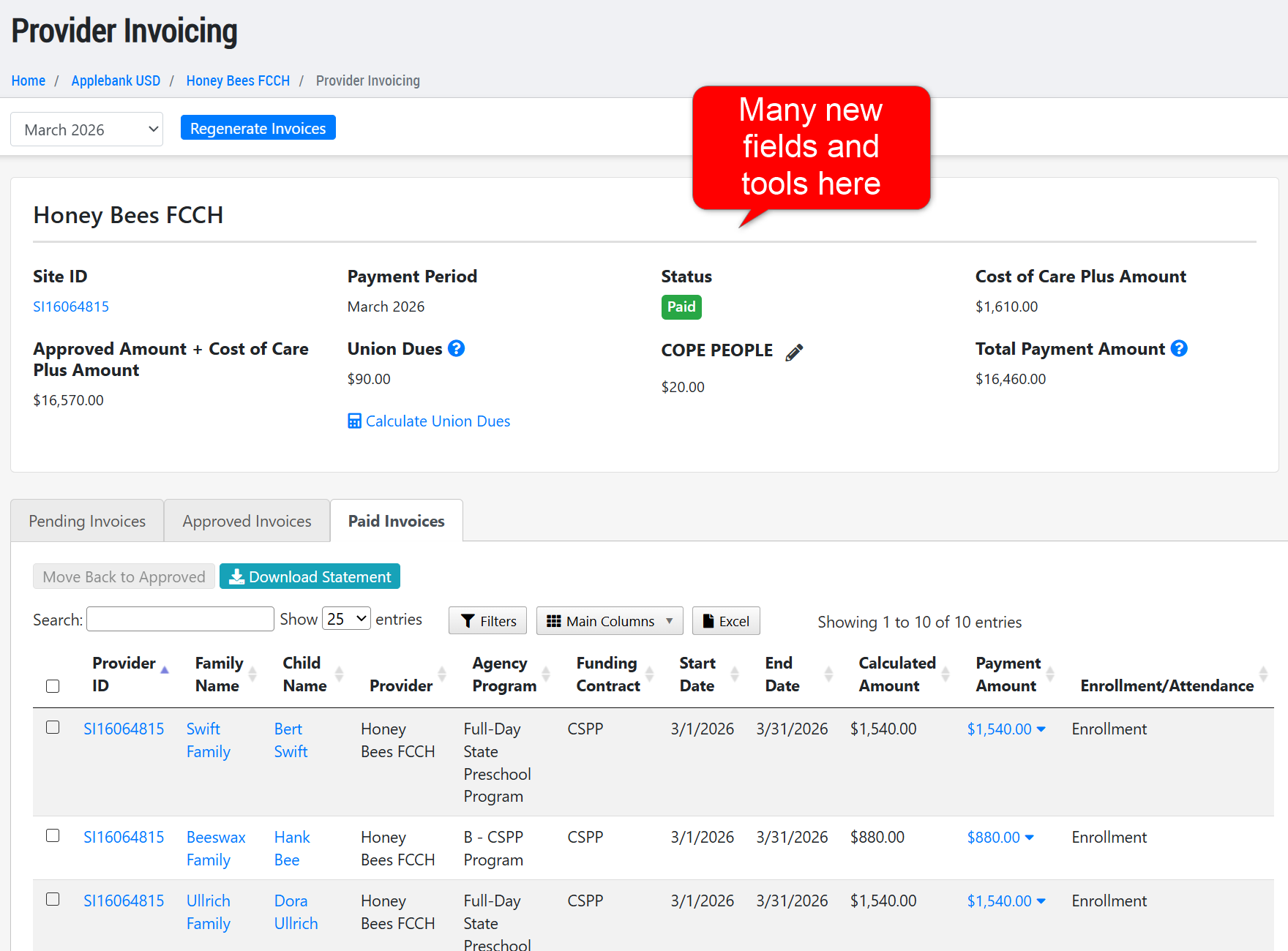
- At the site level Provider Invoicing area, we have added a new field to the top card for "Cost of Care Plus" and have re-labeled some fields to reflect the change in how Union Dues are calculated, as described above.
- Updated the Provider Statement download to include Union Dues and COPE PEOPLE amounts. The totals section will now include a "Subtotal" which will be the Approved amounts plus the Cost of Care Plus amounts. Beneath this subtotal, Union Dues and COPE PEOPLE amounts will be listed, if there are any. Beneath these costs, the "Total Payment Amount" will be listed, which will be the subtotal amount minus any Union Dues and/or COPE PEOPLE amounts.
- In this upcoming release, the following changes were made to optimize the calculations and operation of this grid for providers, as follows:
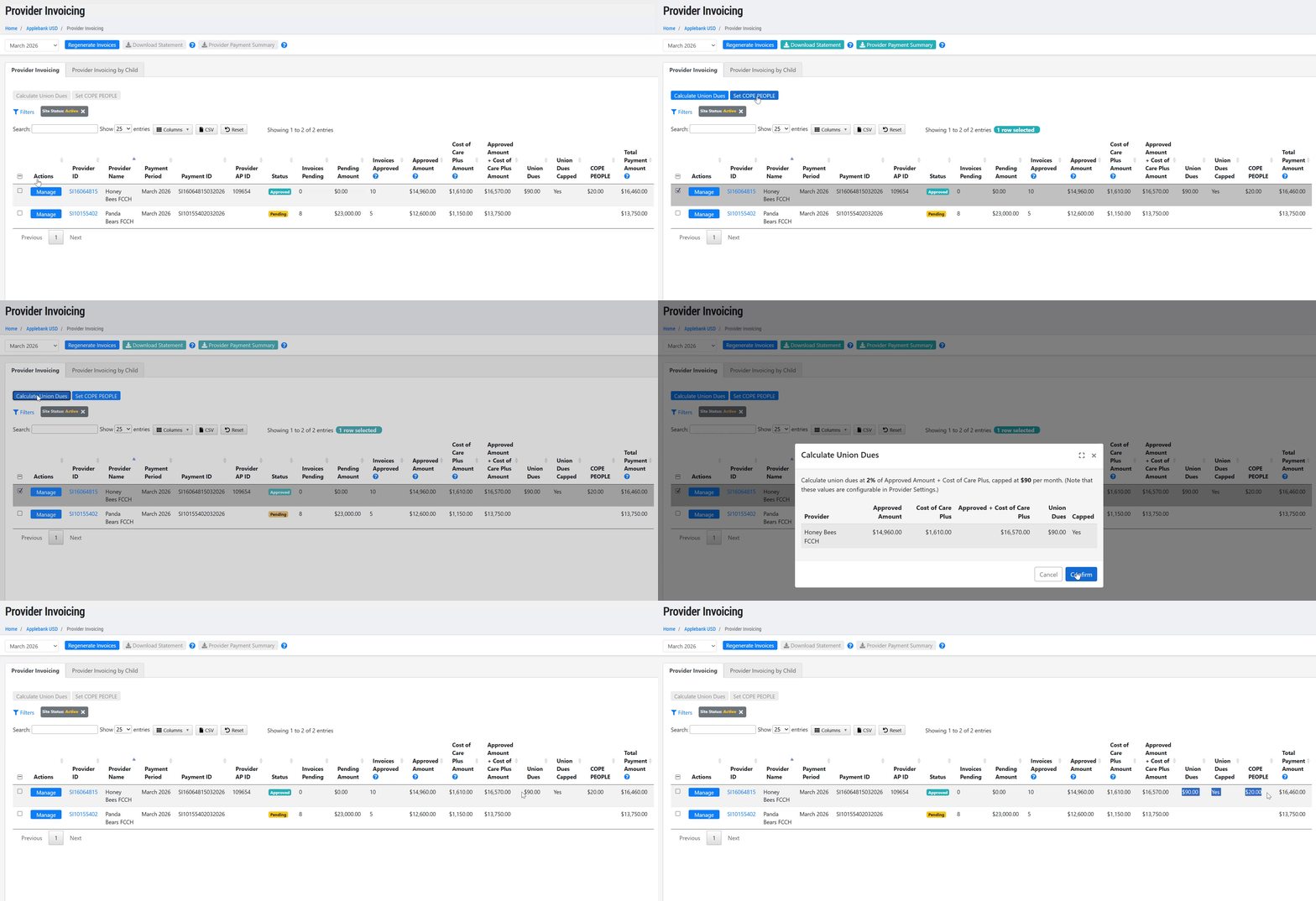
- Some additional notes about Union Dues in Hubbe:
- Please note that the Union Dues Deduction Rate for the calculation can be set within the Provider Settings area, with a capped dues value that no site shall exceed when calculating.
- At any point, if a child's invoice for that period is updated or added, there will be an alert on the "Provider Invoicing" grid for the "Union Dues" to be re-calculated to ensure they are using the correct amount to calculate.
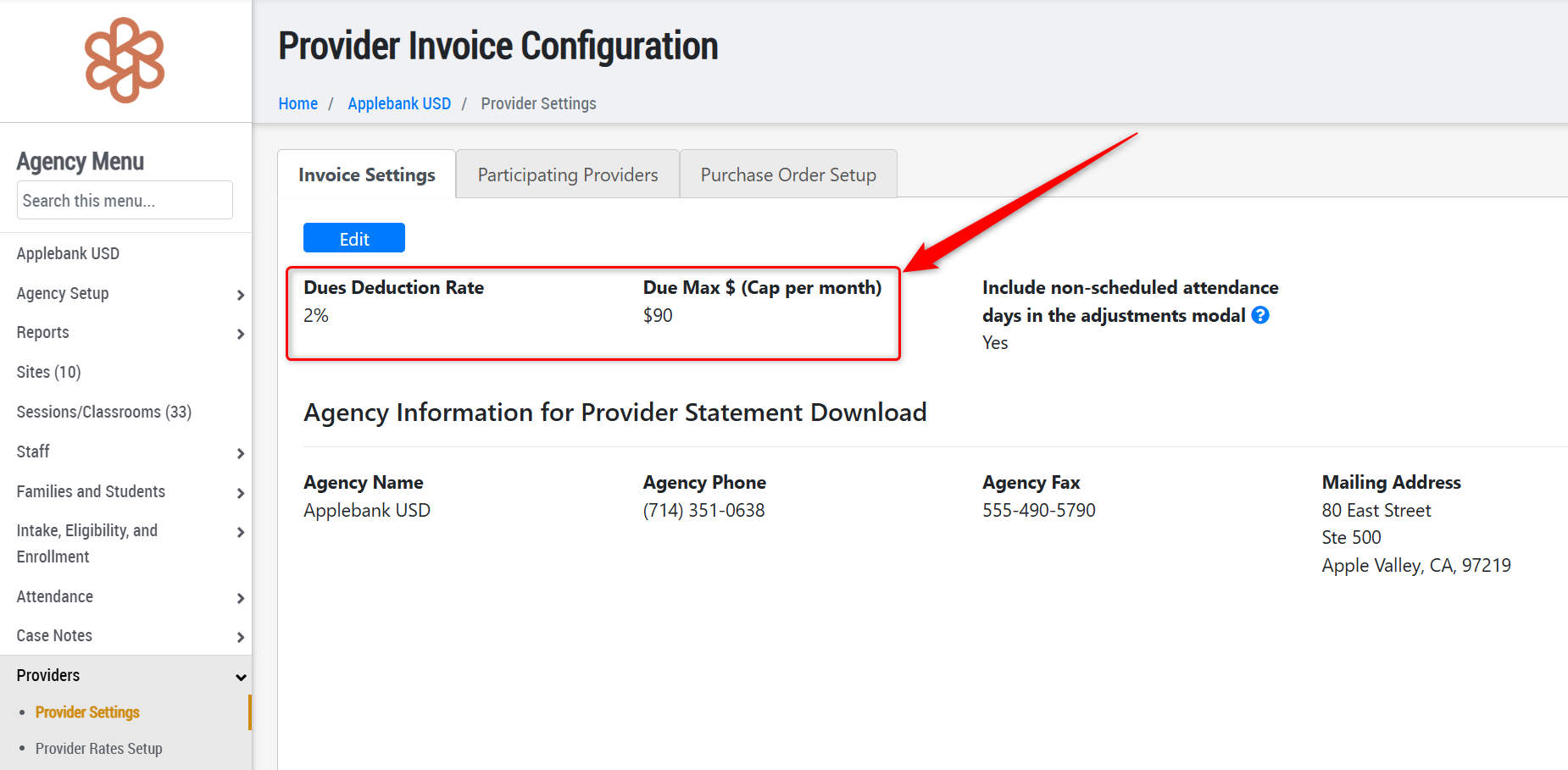
- Please note that the Union Dues Deduction Rate for the calculation can be set within the Provider Settings area, with a capped dues value that no site shall exceed when calculating.
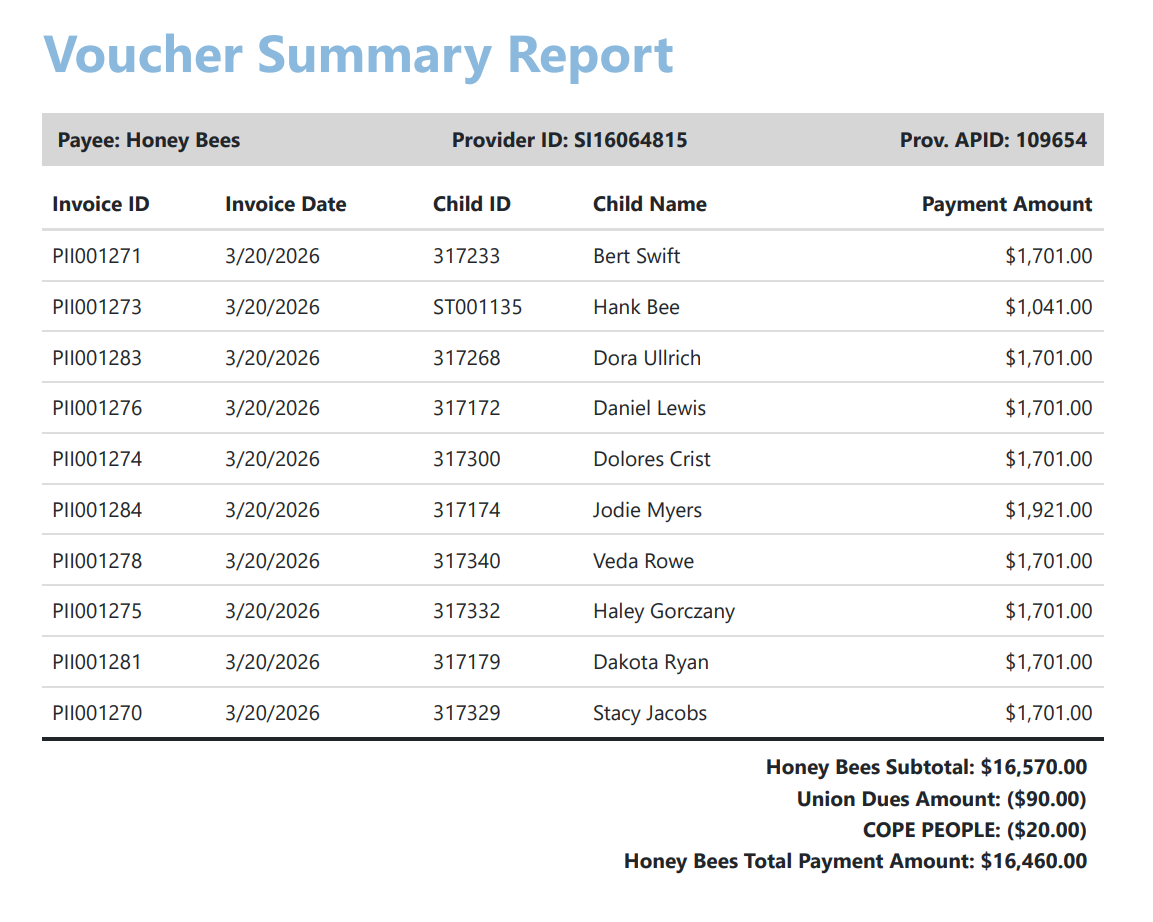
- Created a new "Provider Payments Summary" report download that presents payment amounts by child and by provider, as requested by users.
- To support the information needed on this new download, we have also added two new fields to the Provider: Provider AP ID and Payee Name. These fields can be managed within the Provider Settings at both the agency and site level.
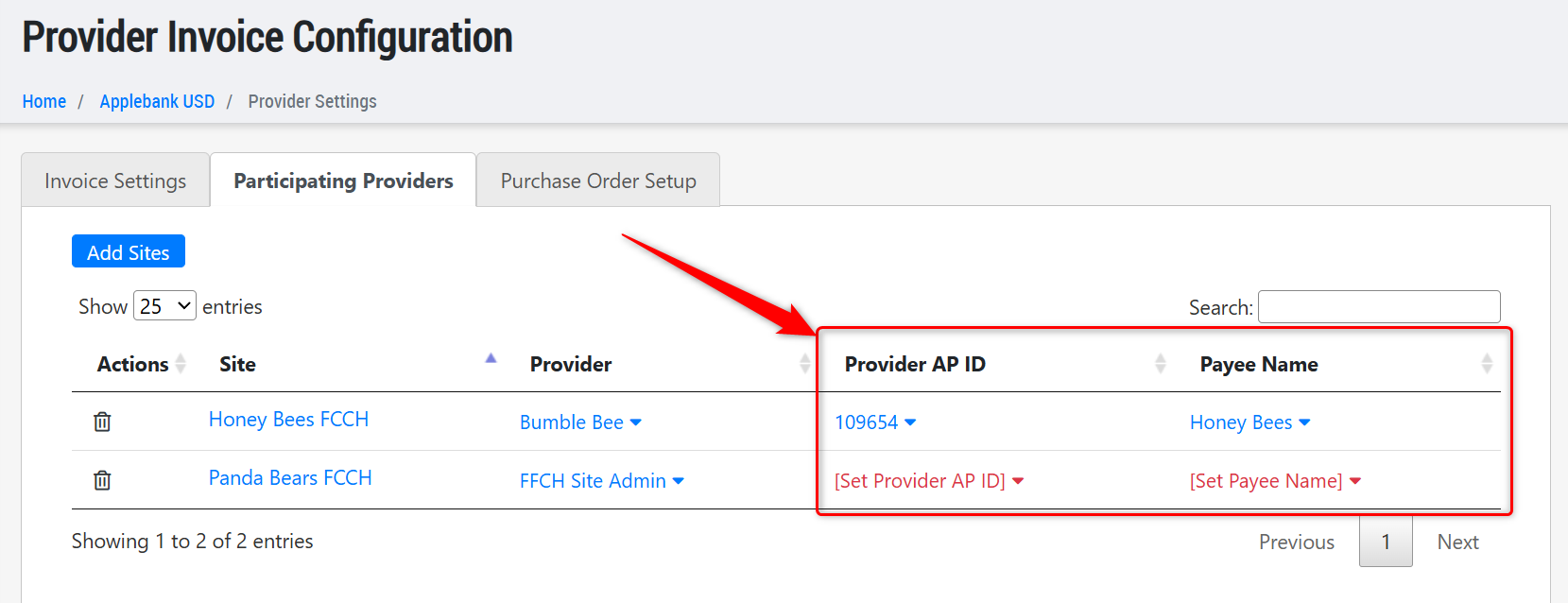
- To support the information needed on this new download, we have also added two new fields to the Provider: Provider AP ID and Payee Name. These fields can be managed within the Provider Settings at both the agency and site level.
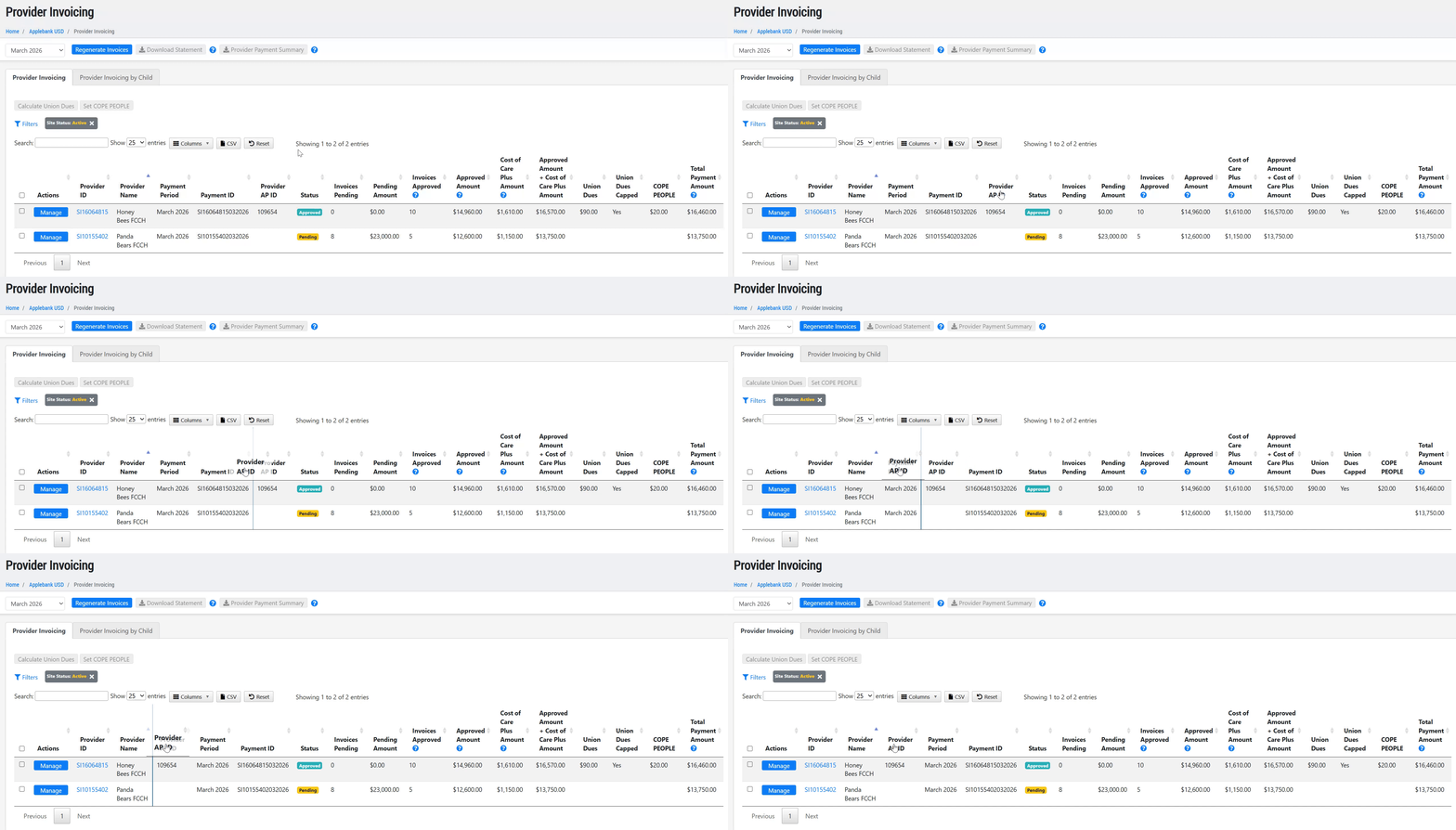
- Added a column re-ordering tool to the Provider Invoicing grid that will allow users to re-order the columns. Whichever order is set will be saved for the user's view each time they load into the grid.
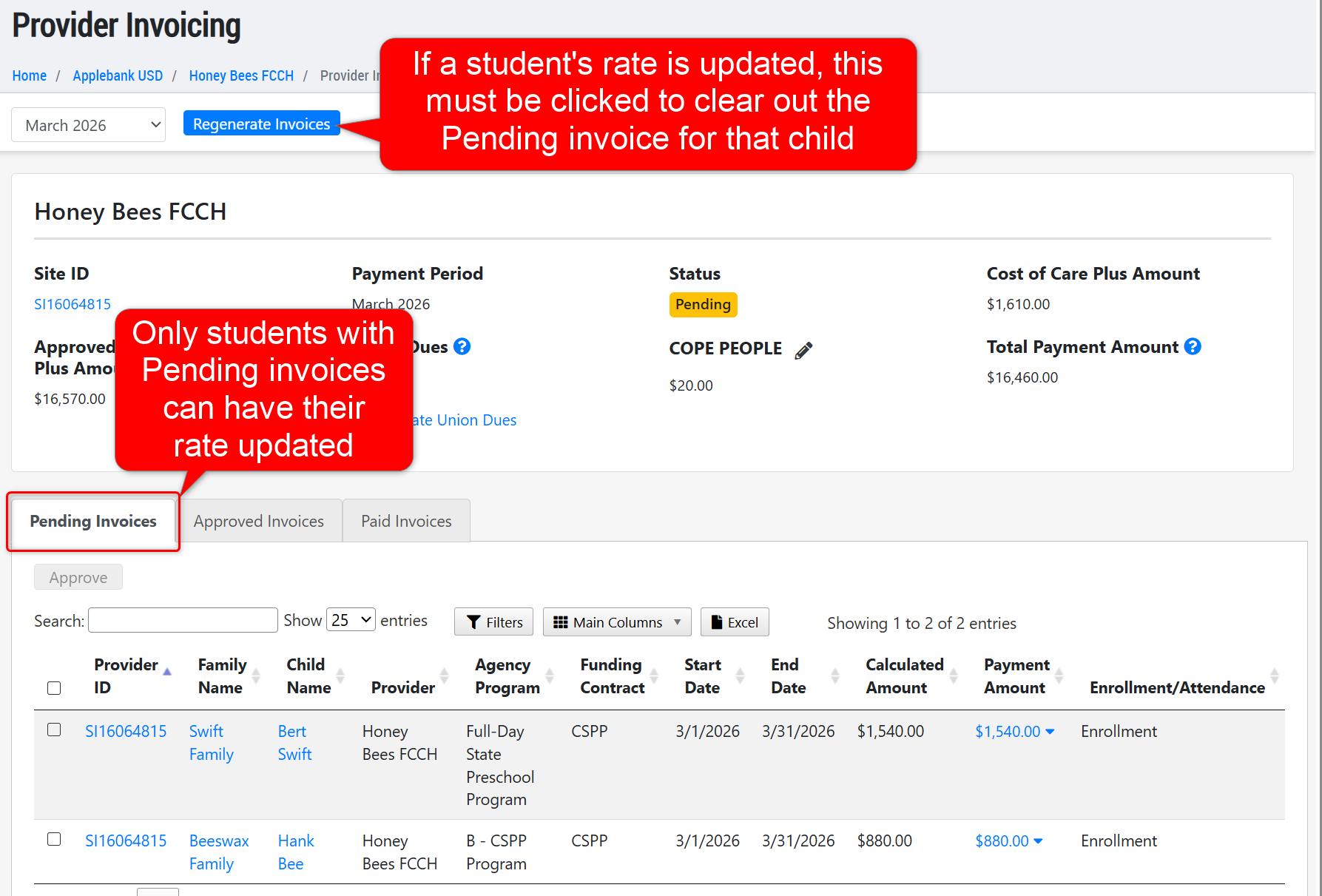
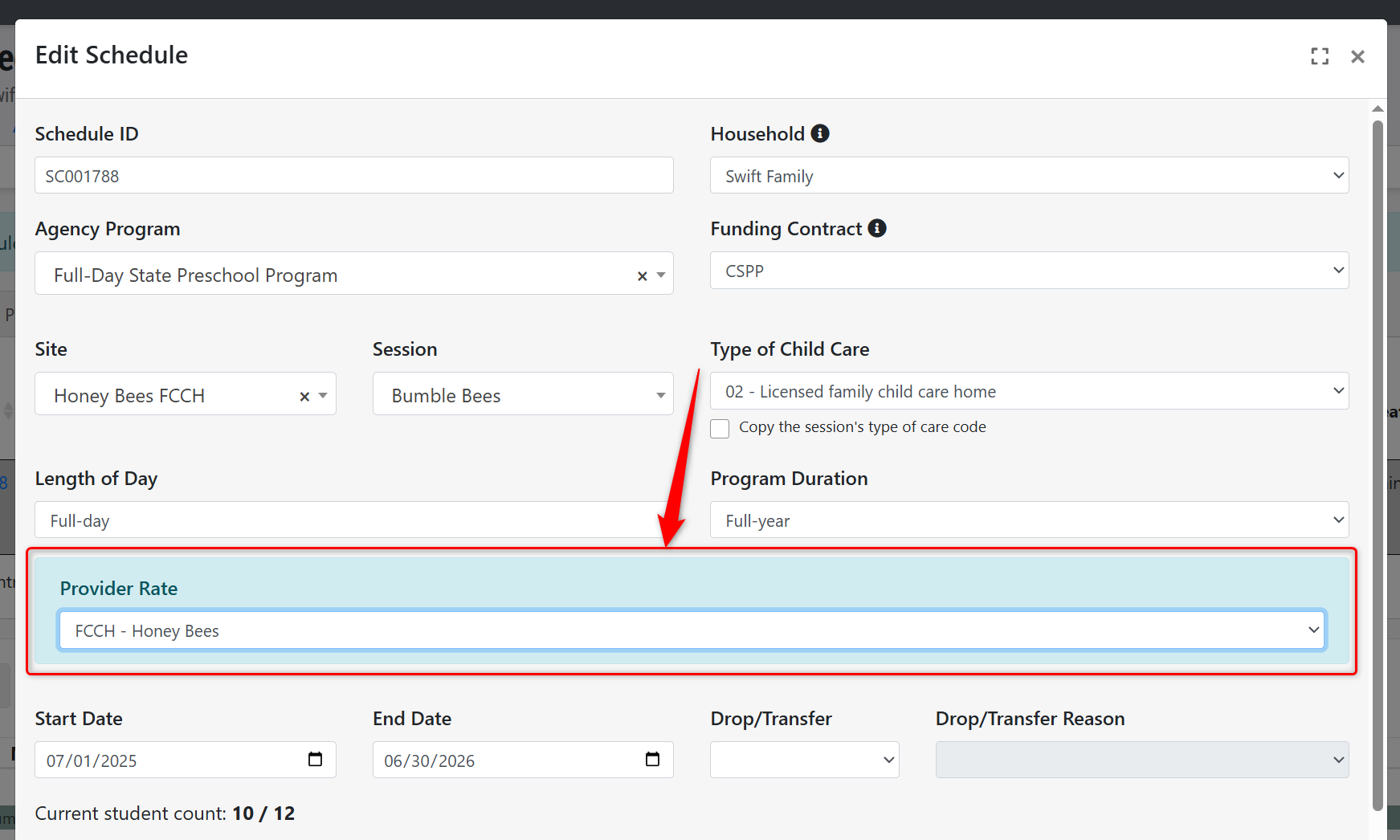
- Updated student schedule validation to allow users to change the "Provider Rate" selected on a schedule if there either hasn't been any invoices created for that student's schedule yet, or if the only invoice(s) that have been created are in a "Pending" status. Once a student's invoice has been updated to an "Approved" or "Paid" status then the user will no longer be able to change the Provider Rate for the schedule, and must end that schedule and create a new one to reflect the change in Provider Rate.
- Please note that if a student's Provider Rate is changed when there are invoices in the "Pending" status, you will need to go to Provider Invoicing and click "Regenerate Invoices" to clear the child's current invoice and recalculate the amount under the newly selected provider rate.
CACFP Enhancements
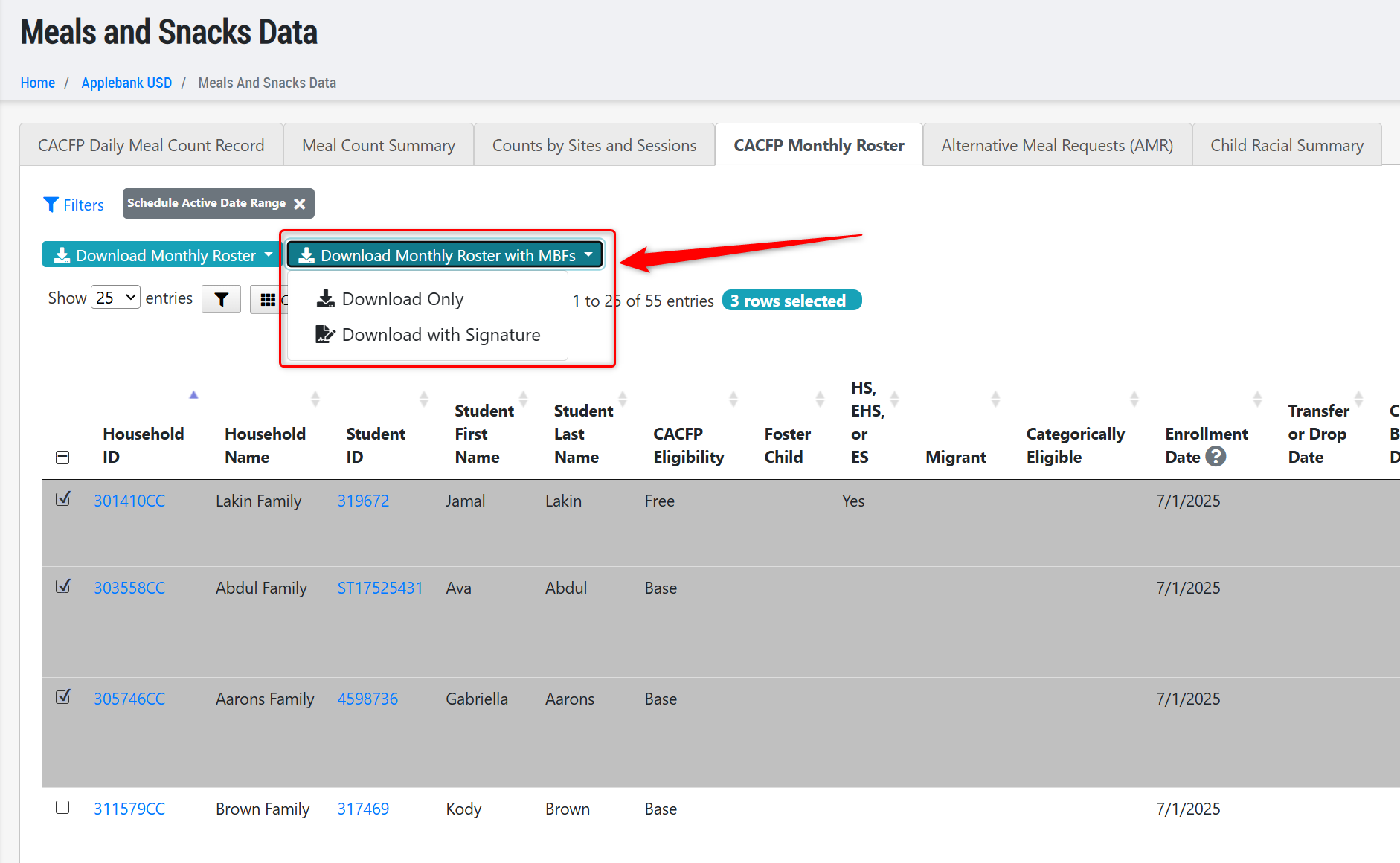
- Added a new download option on the Agency Menu > CACFP> Meals and Snacks Data > CACFP Monthly Roster grid, titled "Download Monthly Roster with MBFs." This option will include the Meal Benefit Form (MBF) for each child selected for the download, following each session's CACFP Monthly Roster table. Only MBFs that are approved for the current year will be included in the download. The order of the MBFs following each session will follow the same order of children listed in the CACFP Monthly Roster table. This PDF document can also be downloaded with a signature. The user's signature will populate at the bottom of each session's CACFP Monthly Roster.
Applications & Waitlist Enhancements
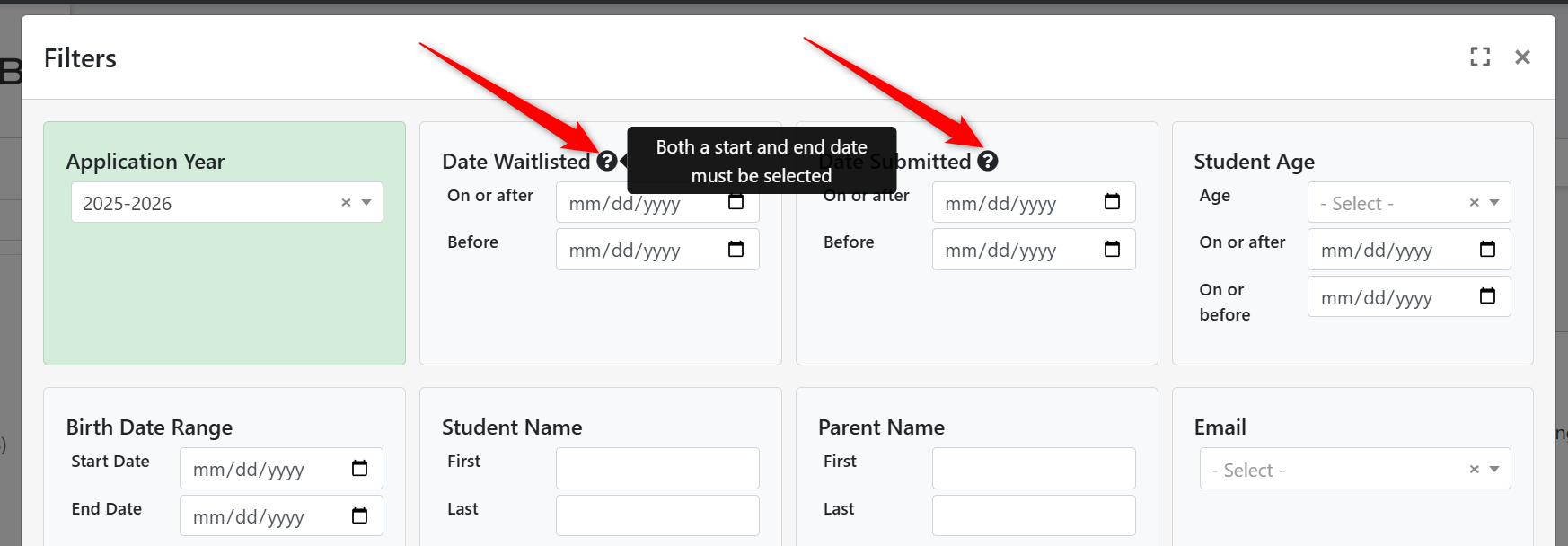
- Added tooltips to the "Date Waitlisted" and "Date Submitted" filters on the Applications and Waitlist grid to help staff understand how to use them effectively.
- Implemented more performance improvements on the Applications and Waitlist grid to ensure users are able to efficiently manage applications.
General Enhancements
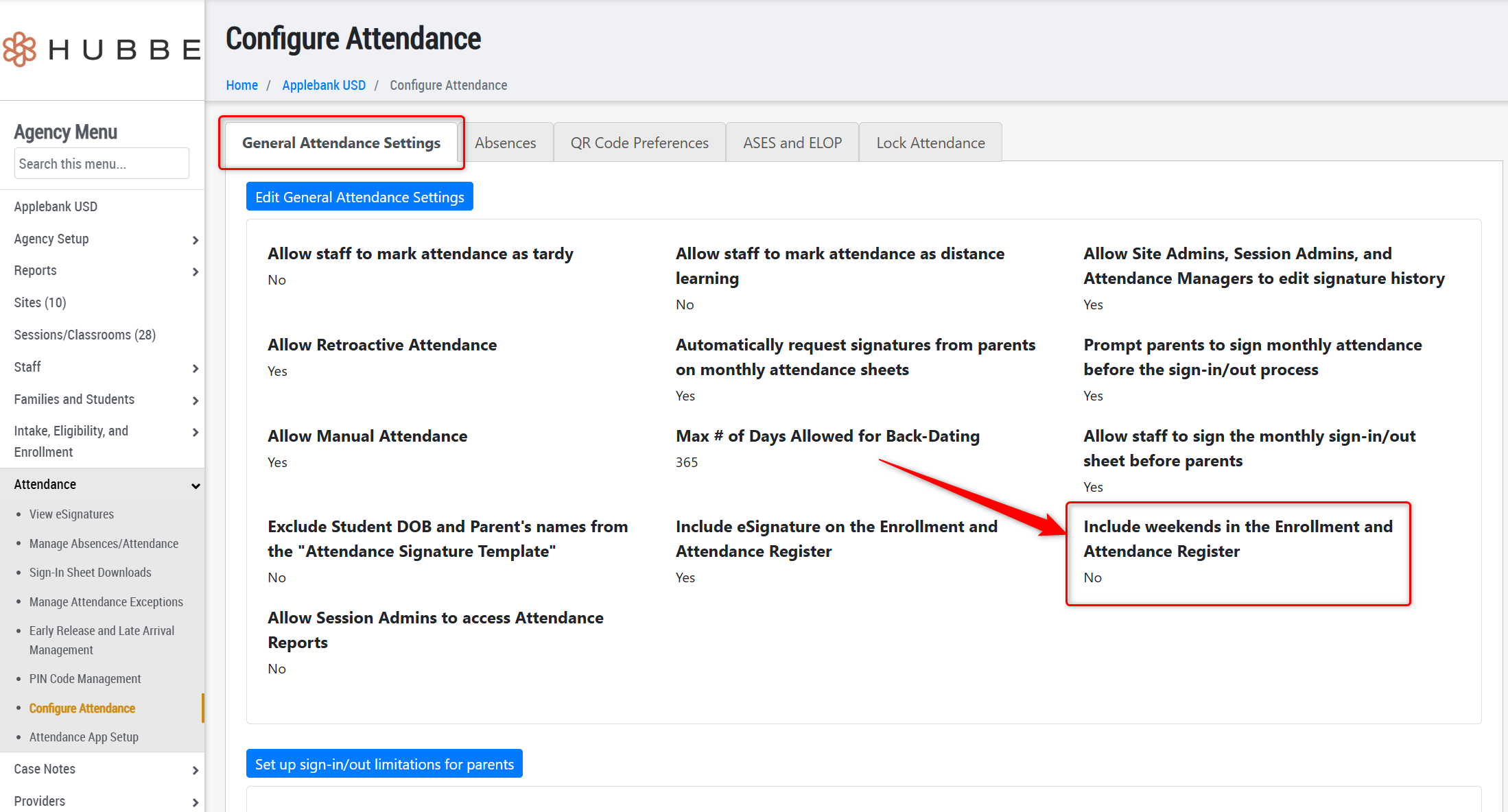
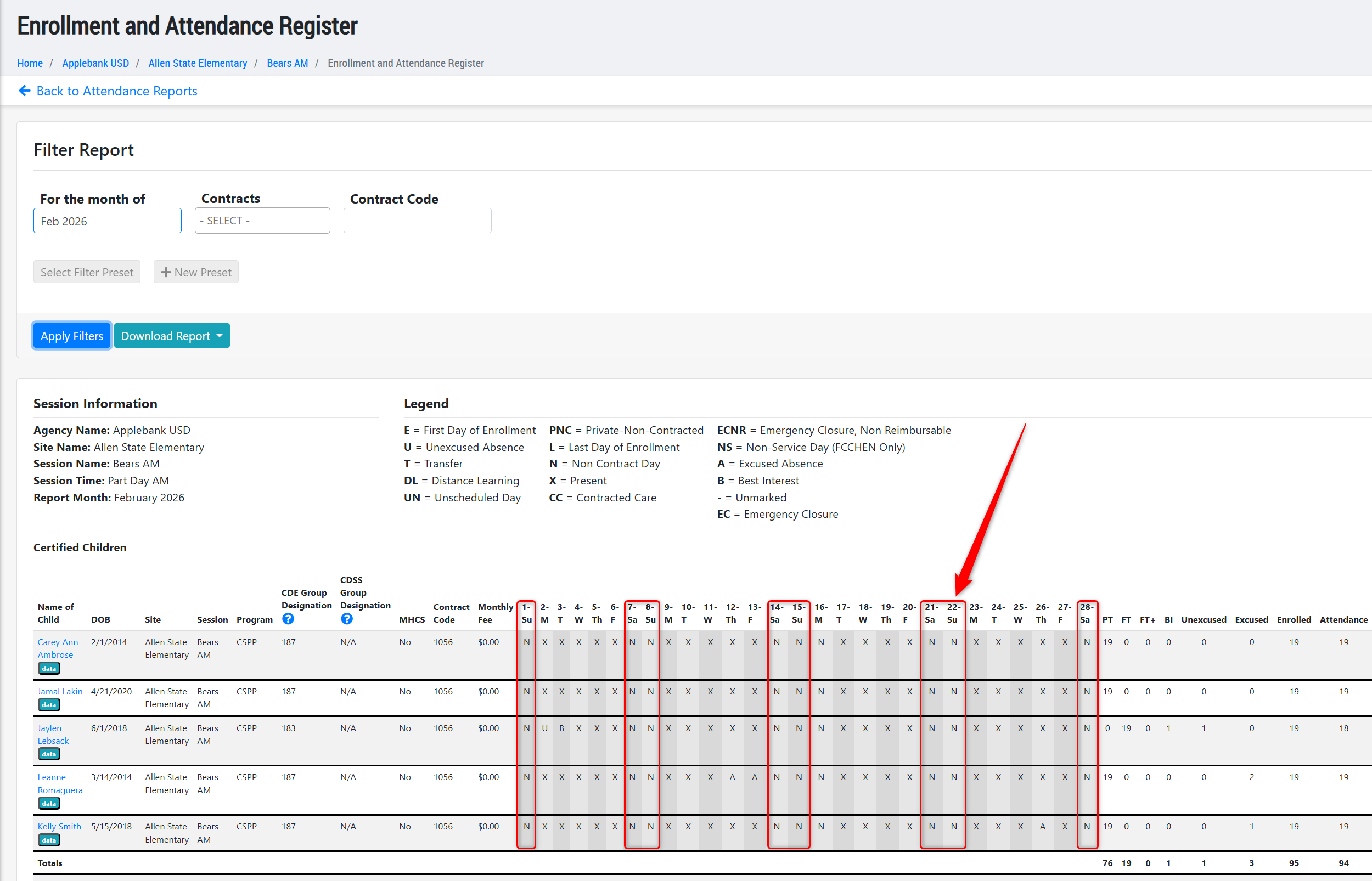
- Added a new setting to the Configure Attendance record within the "General Attendance Settings" tab titled "Include weekends in the Enrollment and Attendance register." This setting will default to "No" upon release of this update, so no changes will be see in the report in this state. If set to "Yes" then users will see Saturdays and Sundays in the Enrollment and Attendance Register (EAR), so any students with schedules on the weekends will show those enrollment/attendance days within their row.
If set to "Yes":
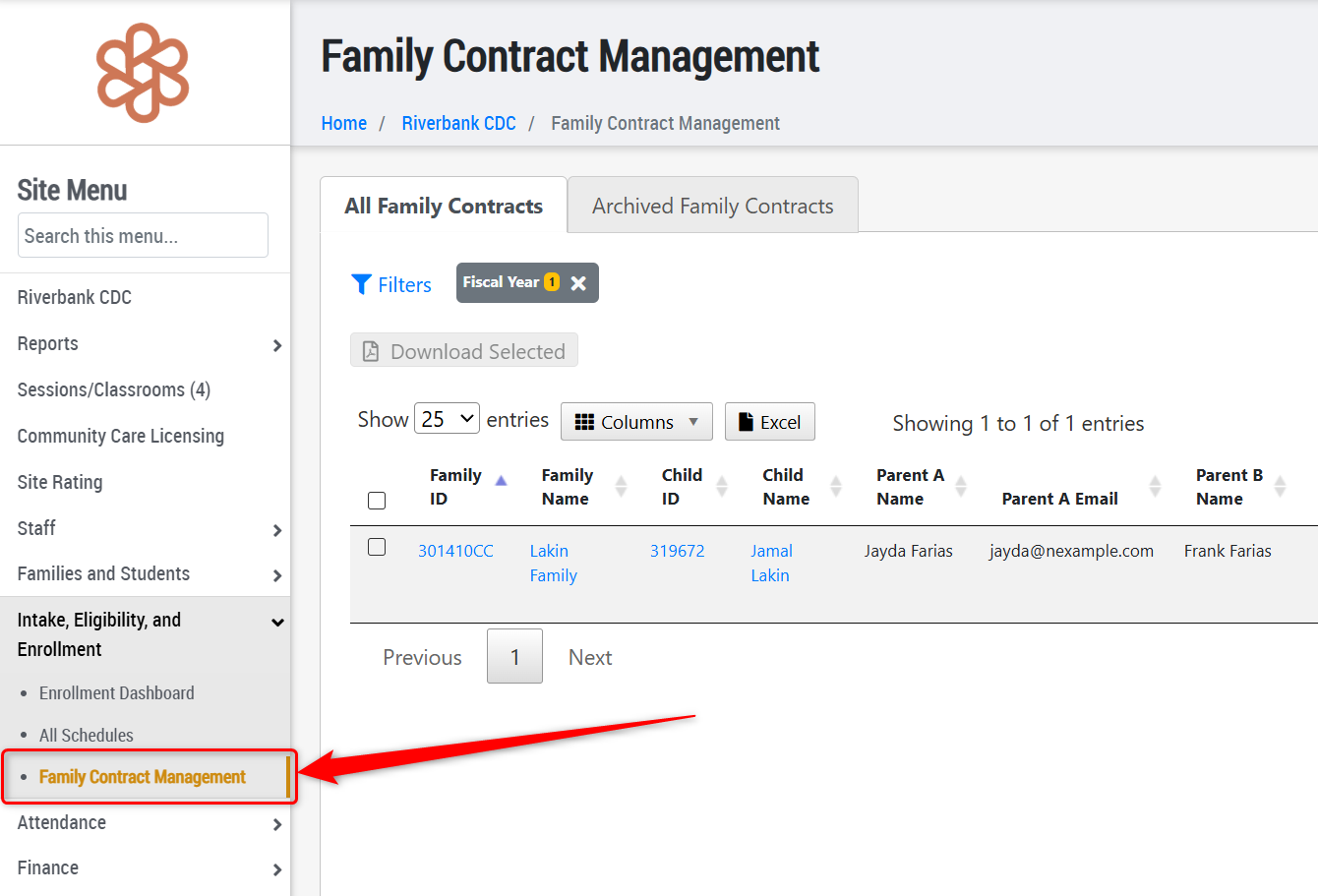
- Added a new Agency Preference within the "Permissions" tab titled "Allow Site Admins to View and Download Family Contracts." This will be defaulted to "No" upon release of this update, and no changes will be seen by users with the Site Admin role in this state. If set to "Yes" then the Site Admin role will then see the "Family Contract Management" record at the site level, and will be able to view all contracts for families at their site. Please note this setting only grants view permissions, so Site Admins will not be able to create or manage contracts when set to "Yes."
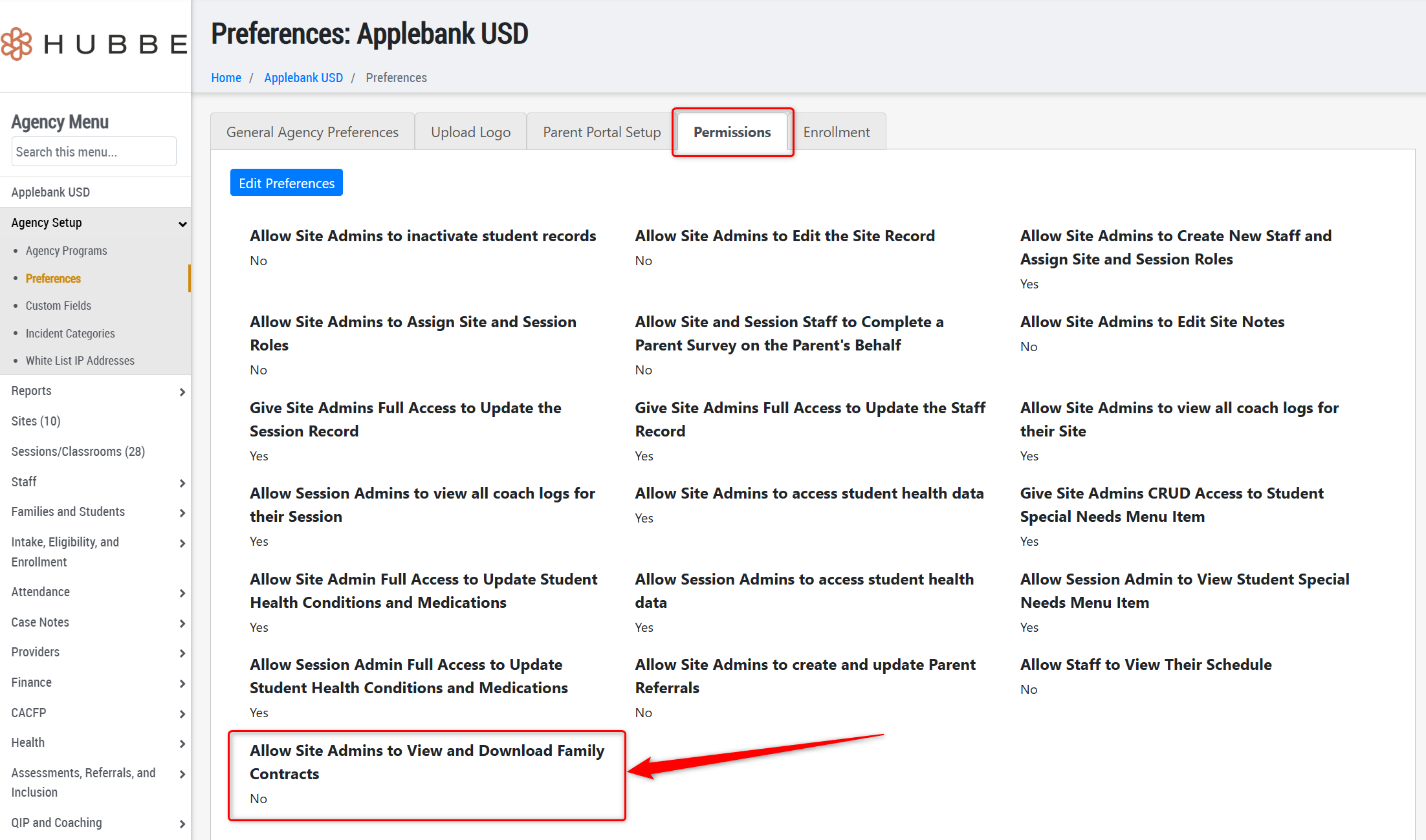
If set to "Yes":
- Updated the FCCERS Assessment type to include several more items within its subforms, and updated the wording of several fields within these subforms.
CAPSDAC 2.0 Updates
- We have continued to work on the CAPSDAC 2.0 Report in Hubbe to ensure all domains keep up to date with field and validation changes released by the CAPSDAC team. We also continue to fix items discovered by our team and users participating in the Beta testing with the CAPSDAC team. More about these feature tools will be detailed in later release notes once the Hubbe CAPSDAC 2.0 Report is no longer in Beta testing.
Fixes & Adjustments
- Fixed an issue reported by users when trying to run the CDSS 801B Report in certain scenarios.
- We updated the "Edit Attendance" feature to populate times for individual attendance status updates and batch updates for variable schedules. We have also given the role of "Attendance Manager" the ability to edit attendance using this tool.
Was this article helpful?
That’s Great!
Thank you for your feedback
Sorry! We couldn't be helpful
Thank you for your feedback
Feedback sent
We appreciate your effort and will try to fix the article