TABLE OF CONTENTS
- Head Start Enrollment Enhancements
- Family Application Enhancements
- Meals and Snacks Enhancements
- Attendance Enhancements
- Student Health Enhancements
- General Enhancements
- Keeping Up With the State
- Fixes & Adjustments
Head Start Enrollment Enhancements
Head Start Selection Criteria
To support Head Start enrollment, we are excited to share the new Head Start Selection Criteria tool for the Family Application feature.
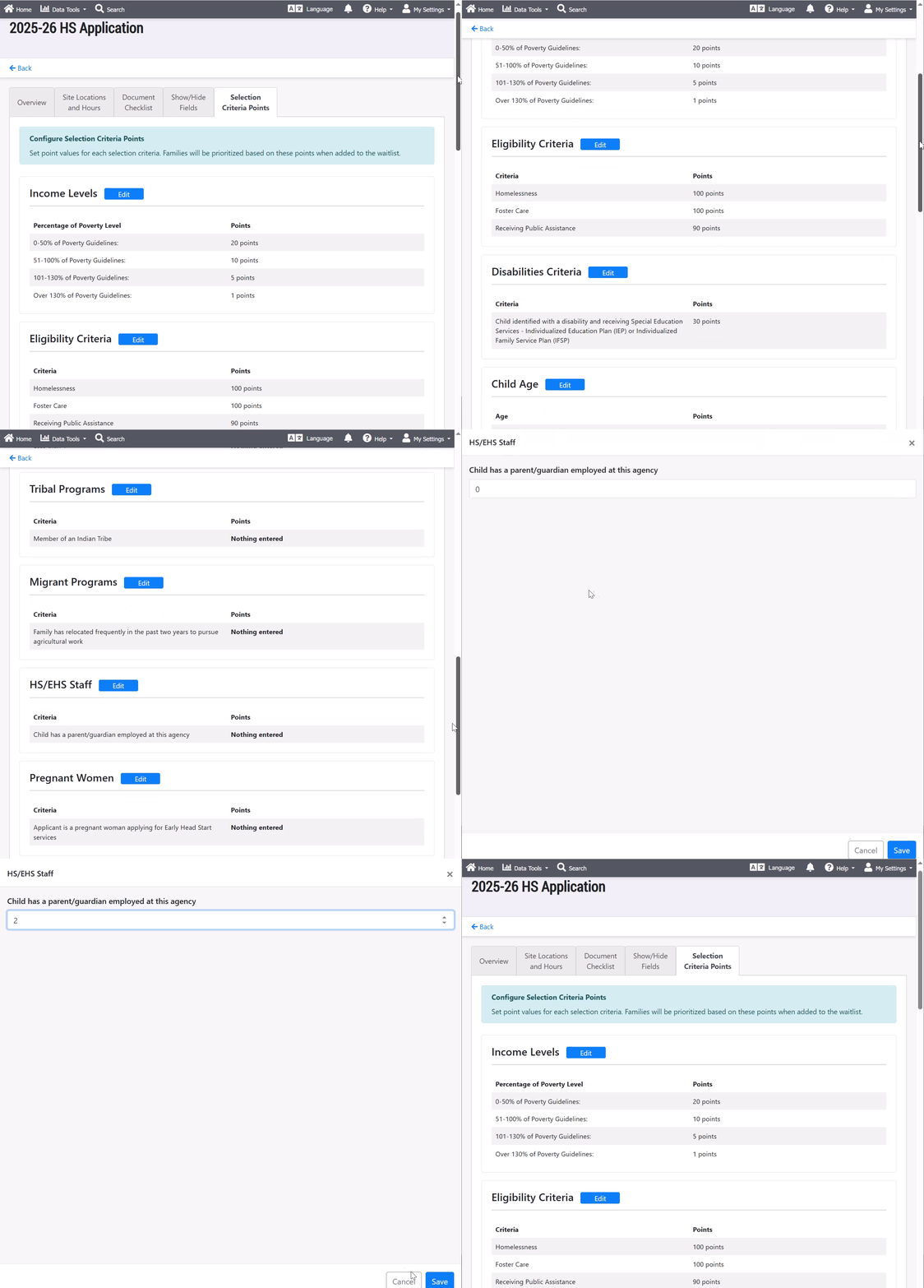
- Setup: We've added a "Configure Selection Criteria Points" tab within the application settings area for any Agency Program with "Head Start" selected as its program type. Here, users can enter points values for any and all eligibility criteria, such as Income Levels, Disabilities, Child Age, Tribal Programs, Migrant Programs, and more. Users can also associate point totals with custom criteria based on the community their agency serves. Once any point value is assigned to a criteria, then any applicant who is eligible for that criteria will have those points added to their overall "Head Start Criteria Points" value in their application.
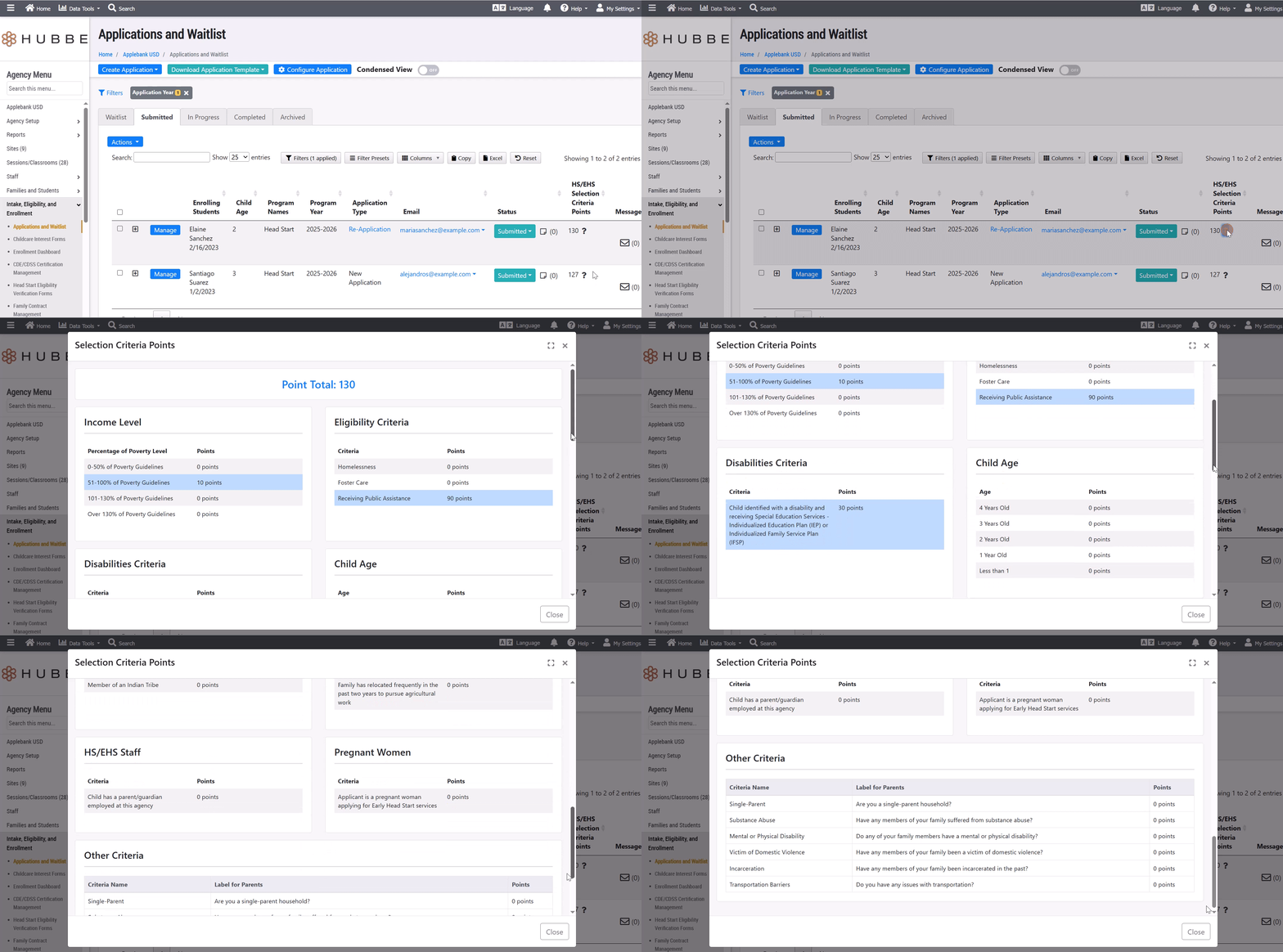
- Family Application: The Applications & Waitlist grid features a new column titled "Head Start Selection Criteria" that will display the family's point total based on the information provided in the application. This column will be available to select as a column in the grid from the "Head Start" column cluster. The family's point value will also be available to view within the "Overview" tab of the application.
- Point Criteria Logic: Many of the criteria already exist as fields within the Family Application and will automatically apply to the criteria calculations, including income, foster care, homelessness, public assistance, child age, disabilities, and more. For example, if a child applying is marked as having an IEP, then the points for the "Disabilities" criteria will apply to that family's application.
- New Family Application Fields: There are a few new fields that have been added to the application to account for the criteria categories that did not previously exist within the application. These questions will only appear within the application if applicants have (A) selected a Head Start program and (B) a point value has been assigned to that criteria category in setup. These new fields include:
- Tribal Program - Are any children, parents, or other members of the household members of an Indian Tribe?
- Migrant Program - Have you relocated frequently in the past two years to pursue agricultural work?
- Head Start Staff - Is any family member in this application employed by this Head Start/Early Head Start agency?
- Custom Criteria - These can be customized - for example, "Do you have any transportation barriers?"
- Enrollment: Upon intake of the Family Application, a record of the Head Start Criteria Point Value for the application will be included within the Family Record's Enrollment > Head Start record.
Applications for Pregnant Parents
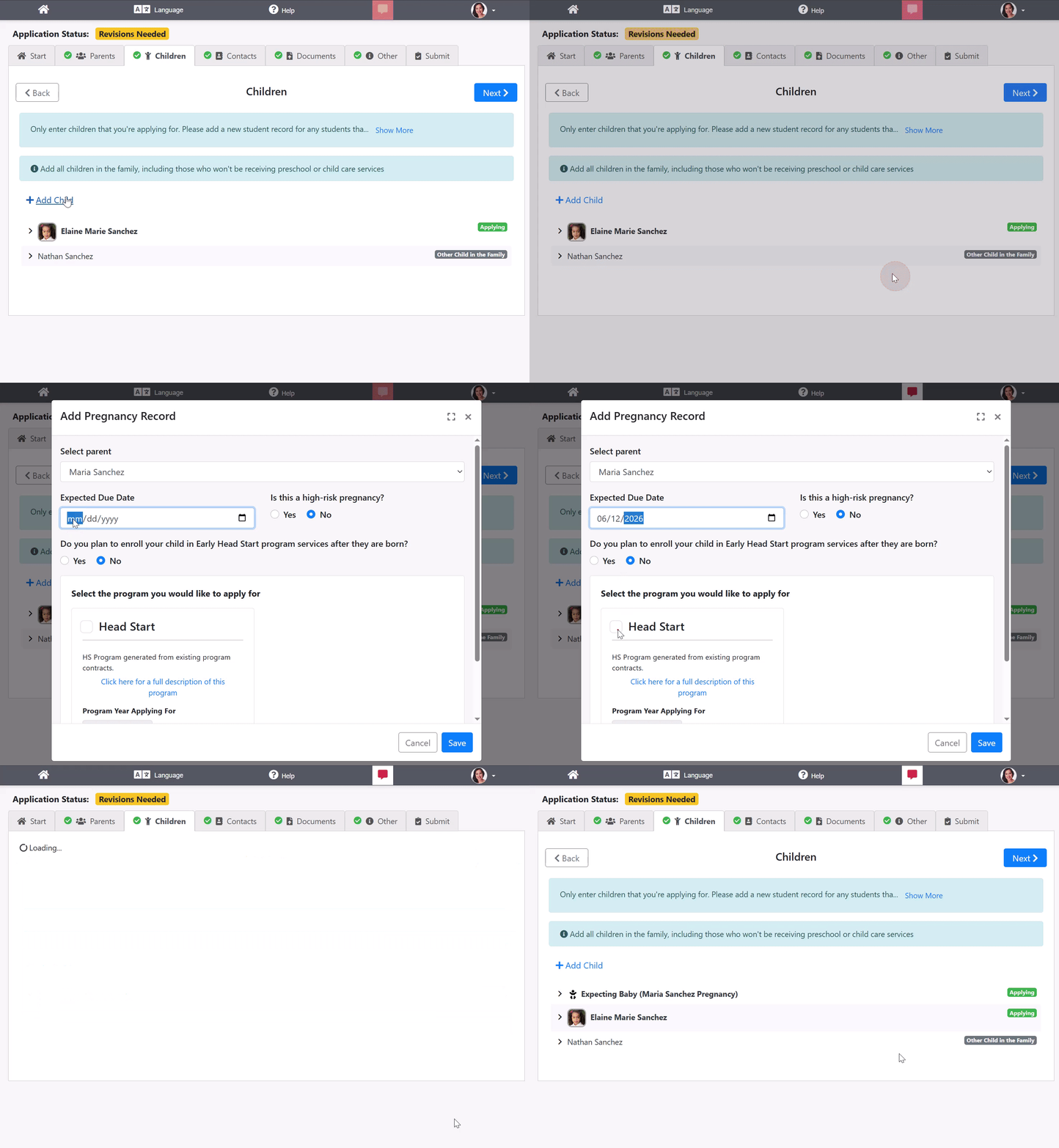
- In conjunction with the Head Start Selection Criteria tool mentioned above, we have added a new record type within the Family Application for pregnancies. Now, when parents are applying for services, a pregnancy record can be added within the "Children" tab of the application. Upon intake of the application, the pregnancy record will be transferred over to the parent record within the household that is linked to the pregnancy. Please note that this will only be an option for applicants if at least one of the Program Applications has allowed pregnant parents to apply for services. If this has not be enabled in any of your programs, then applicants will not see the option to add a pregnancy.
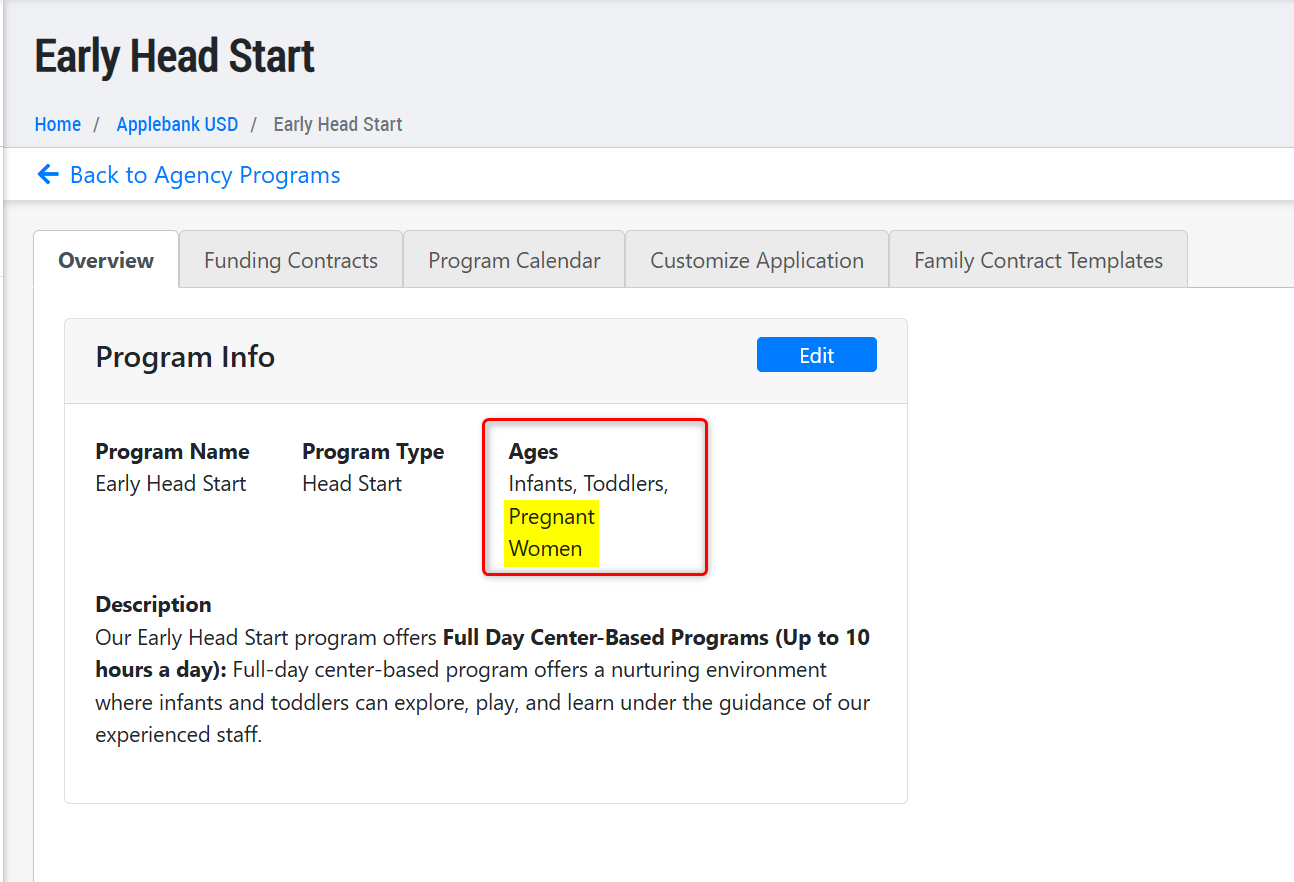
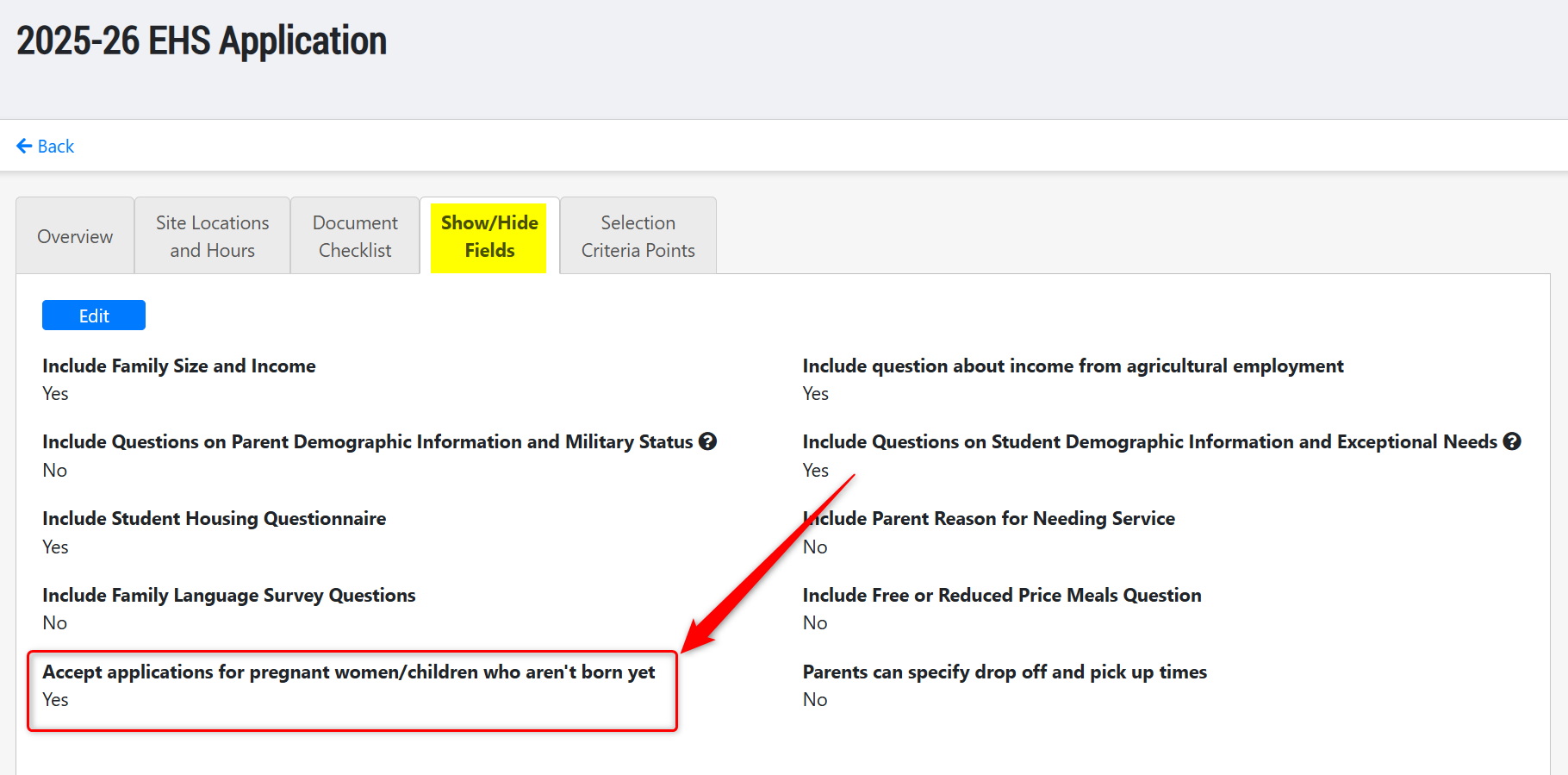
- To configure this in your Family Application, you must first select "Pregnant Women" as a category for "Age Groups Served" for an Agency Program, and then select "Yes" for the setting "Accept applications for pregnant women/children who aren't born yet" in the application settings for the Agency Program.
Family Application Enhancements
- We have optimized the Applications and Waitlist grid to improve the speed and performance of the grid for users.
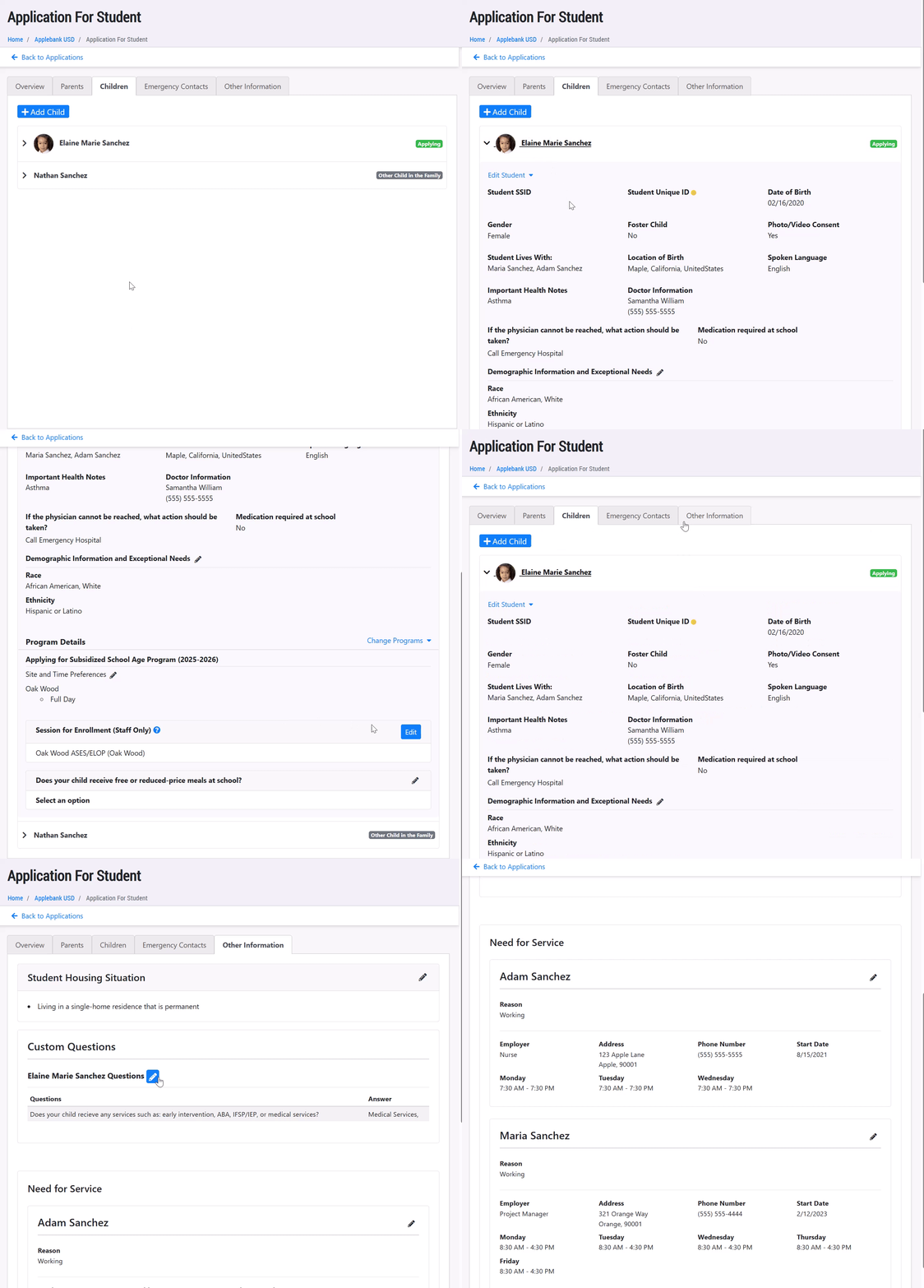
- In an effort to better align the staff view and parent view of the family applications, we have updated the layout of some areas of the staff view on the Family Application. The follow changes were made:
- The tab previously titled "Students" will now be titled "Children" and will include all children in the family, including those who are applying for services and those who are not. This means that the "Other Children" tab has been merged into this single tab.
- Within the "Children" tab for any child applying for services, we have included the child's Program and Site Preference selections to be listed with the child. This information was previously located in the "Student Program Info" tab, but has been merged into the "Children" tab to align with the parent view of the application.
- Within the "Children" tab for any child applying for services, we have also moved the "Session for Enrollment (Staff Only)" field that is used by staff to help plan enrollment.
- Updated the tab previously titled "Student Program Info" to now be "Other Information" and will include the program-specific extra fields, such as: Student Housing Situation (moved from the 'Overview' tab), Need for Service (moved from its own tab), and Custom Questions.
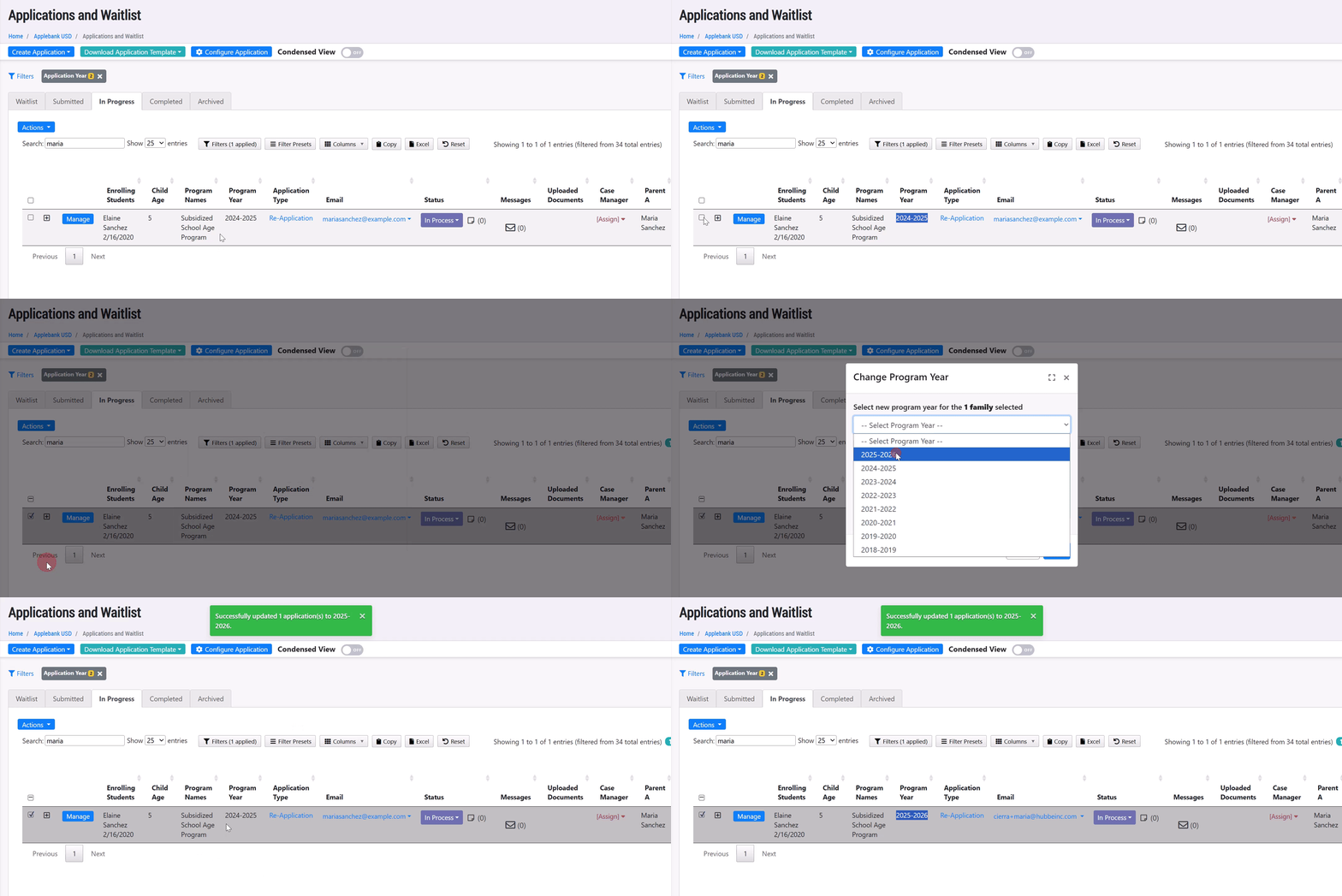
- Created a new tool in the Applications and Waitlist grid within the "Actions" drop-down labeled "Change Program Year." This new option allows users to select as many applications in the grid as needed, and change the "Program Year" of those applications to the selected year. To ensure a smooth transition over to the new selected Program Year, the system checks to see that the Program Application for the new year has the following two items configured:
- (1) A program application is setup for the selected year.
- (2) The same Site Preferences and Time Options that the applicants have already selected are available as options in the Program Year that the application is being transferred to.
- If the conditions above are met, the selected applications will be transferred to the new year with the same Agency Program selection and Site/Time options.
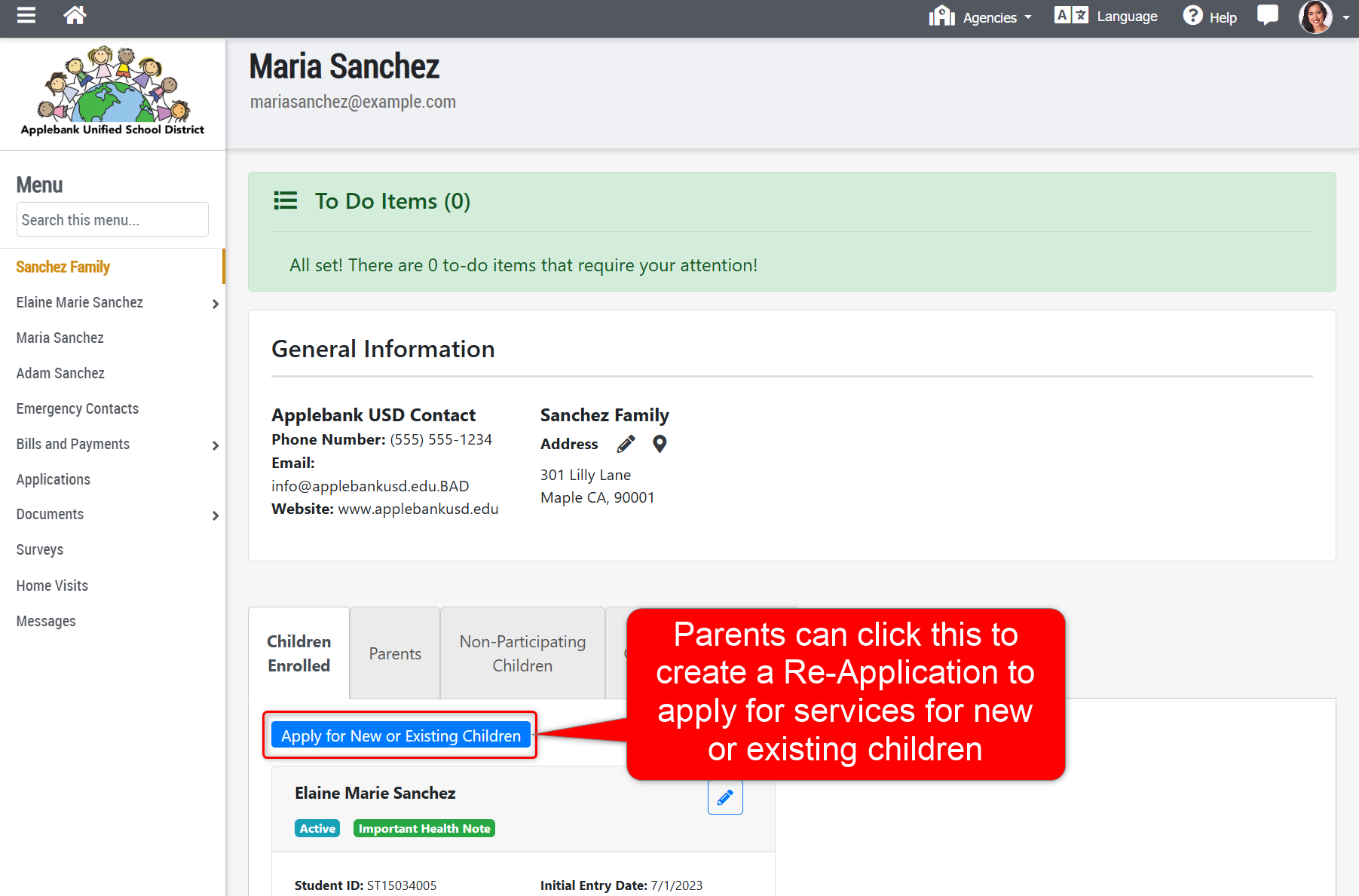
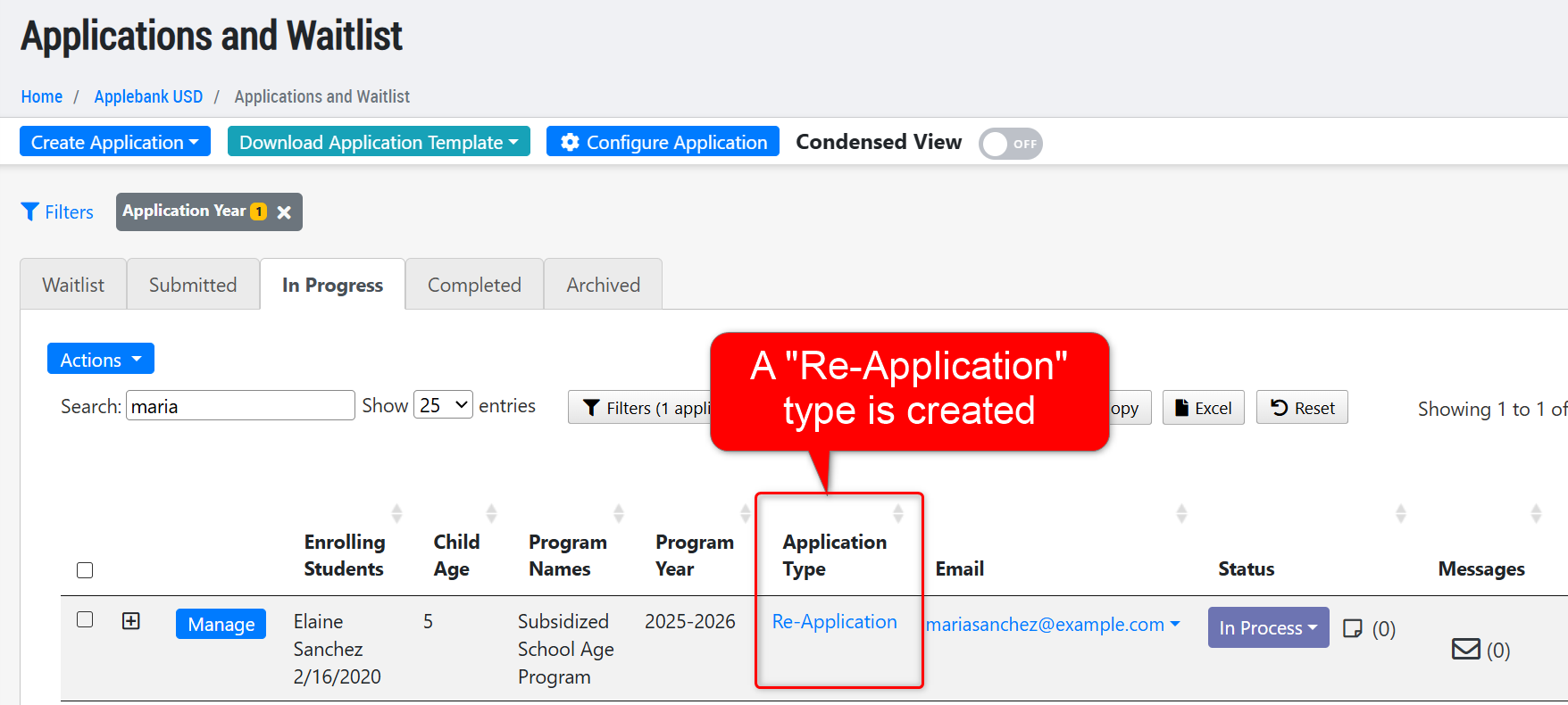
- We have changed the feature known as the "Child Addition" family application type where parents with Hubbe Parent Portal accounts are able to start an application on their end to add a new or existing child to the waitlist. Now, when parents start an application from within their parent portal account, it will create a "Re-Application." This will create the same type of application that staff create when inviting existing families to re-apply.
- Previously, the "Child Addition" application type would only include the children that the parent selected as applying when creating the application, as requested by users when being developed. However, we have updated this process to match the existing re-application model.
- Now, parents will be able to start a "Re-Application" in which every child in the family will be included, and the parent will be able to mark which child(ren) are applying for services in the family. This will ensure the family size is always counted correctly, and simplifies the re-application process from the parent's end.
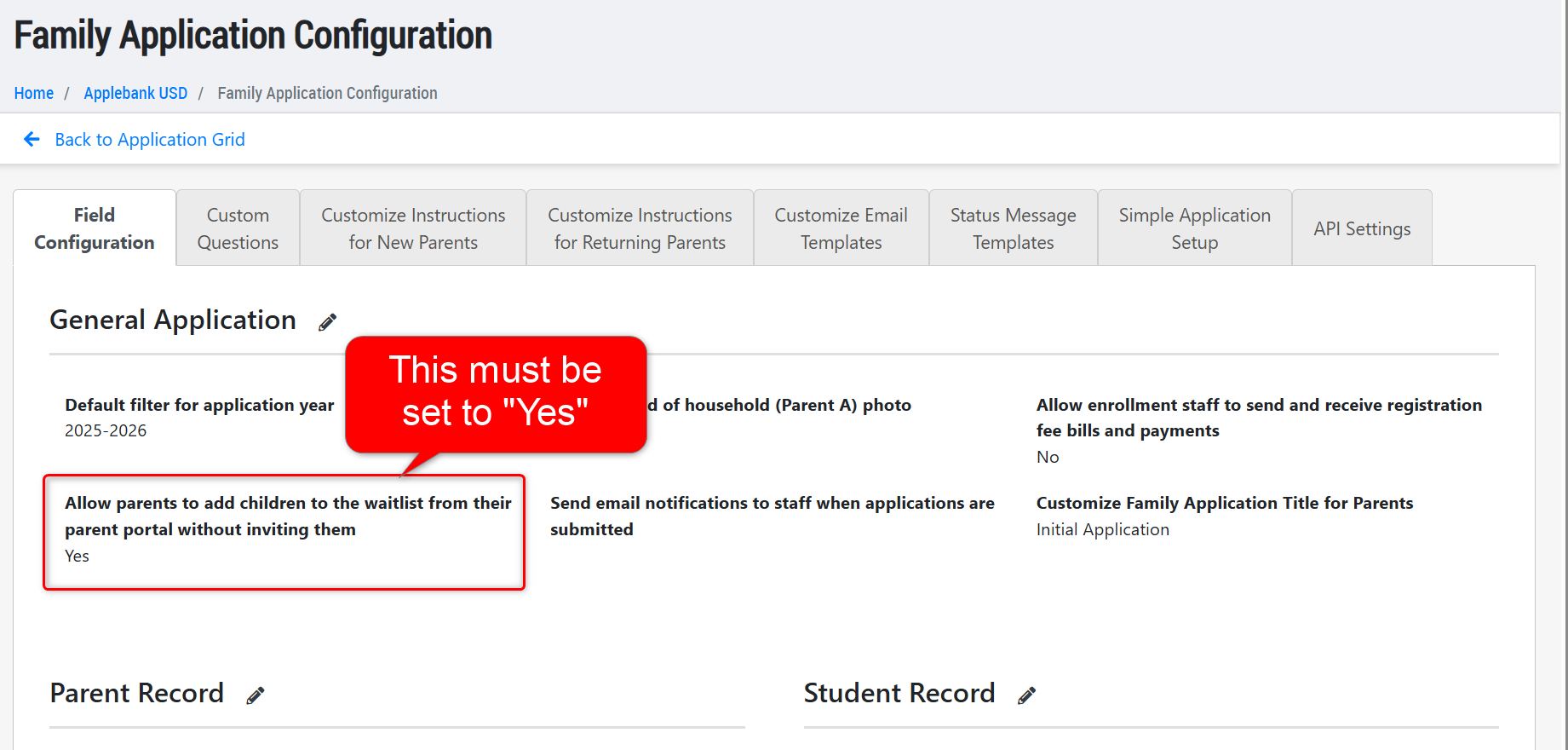
- Please note, this is a feature that must be enabled within the Family Application Configuration area titled "Allow parents to add children to the waitlist from their parent portal without inviting them."
- Lastly, any "Child Addition" application types that were created prior to this update will not be disrupted and will be able to go through the intake process.
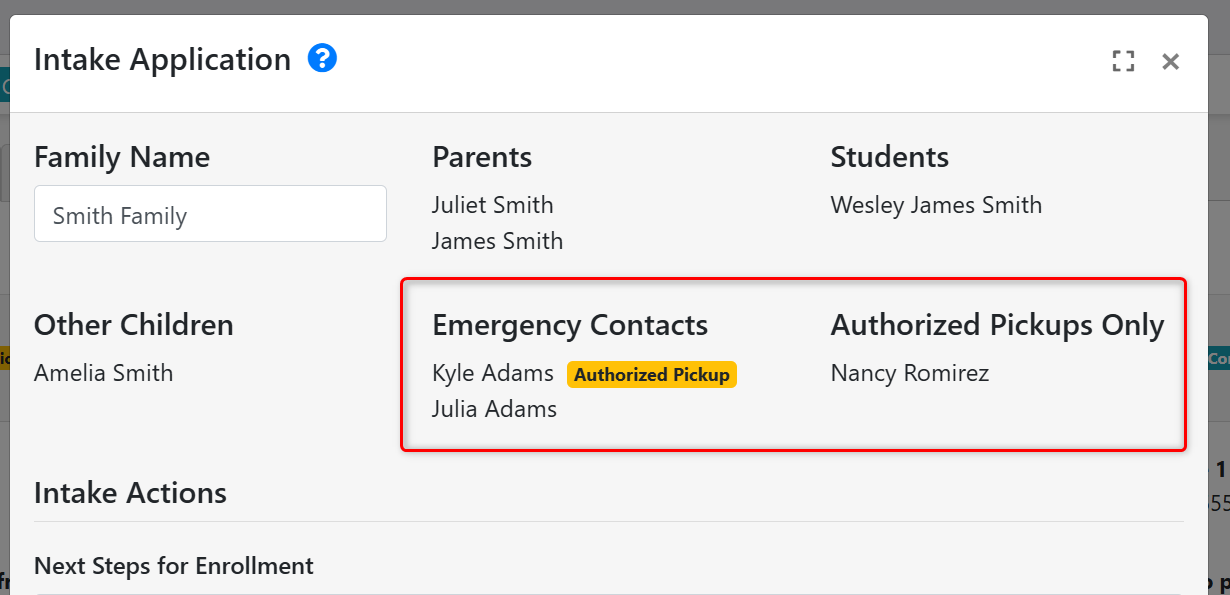
- In the "Intake Application" modal when intaking a family from your Waitlist, there are two sections for "Emergency Contacts" and "Authorized Pickups." We have added badges beside the Emergency Contacts who are authorized to pickup the child, and re-labeled the other section to "Authorized Pickups Only." This update aims to distinguish these two lists from each other, as they are separate record types - one for individuals who can be contacted in the event of an emergency (and can be marked as authorized to pickup, as well), and the other as individuals who are only authorized to pickup the child from care.
Meals and Snacks Enhancements
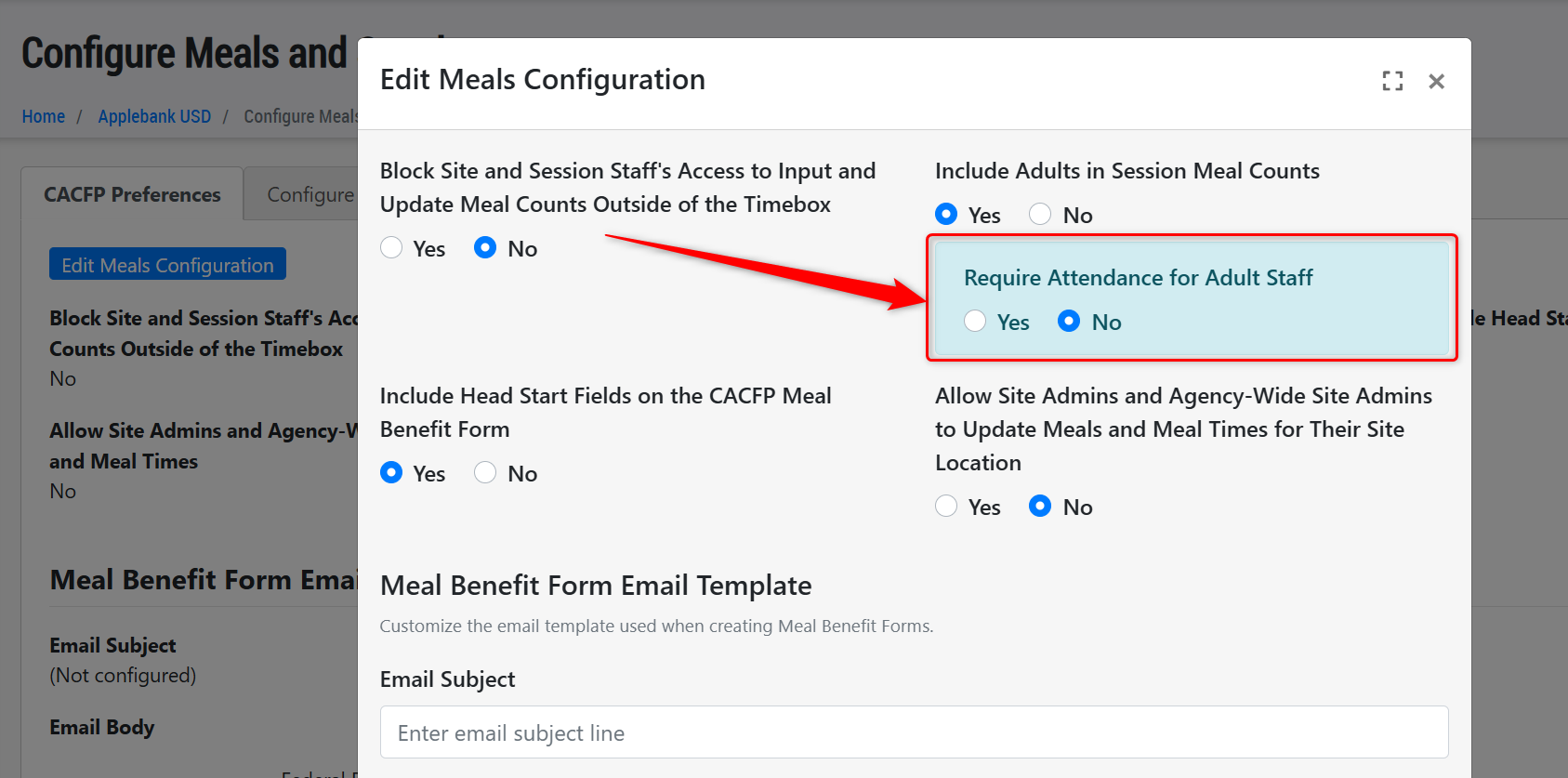
- Added a new setting to the Configure Meals and Snacks area to allow users to select whether they want to require staff attendance in the Meal Count cards. This new setting will be a sub-setting for the one titled "Include Adults in Session Meal Counts" and will be titled "Require Attendance for Adult Staff."
- When set to "Yes" then Meal Count tracking for adults will continue to work as it did before, requiring adults to be marked as "Present" from the Manual Attendance record in order for their meal to validate correctly.
- If set to "No" then the staff member does not need to be marked as "Present" and can be mark as a meal served without validation of whether the staff has been singed in or not.
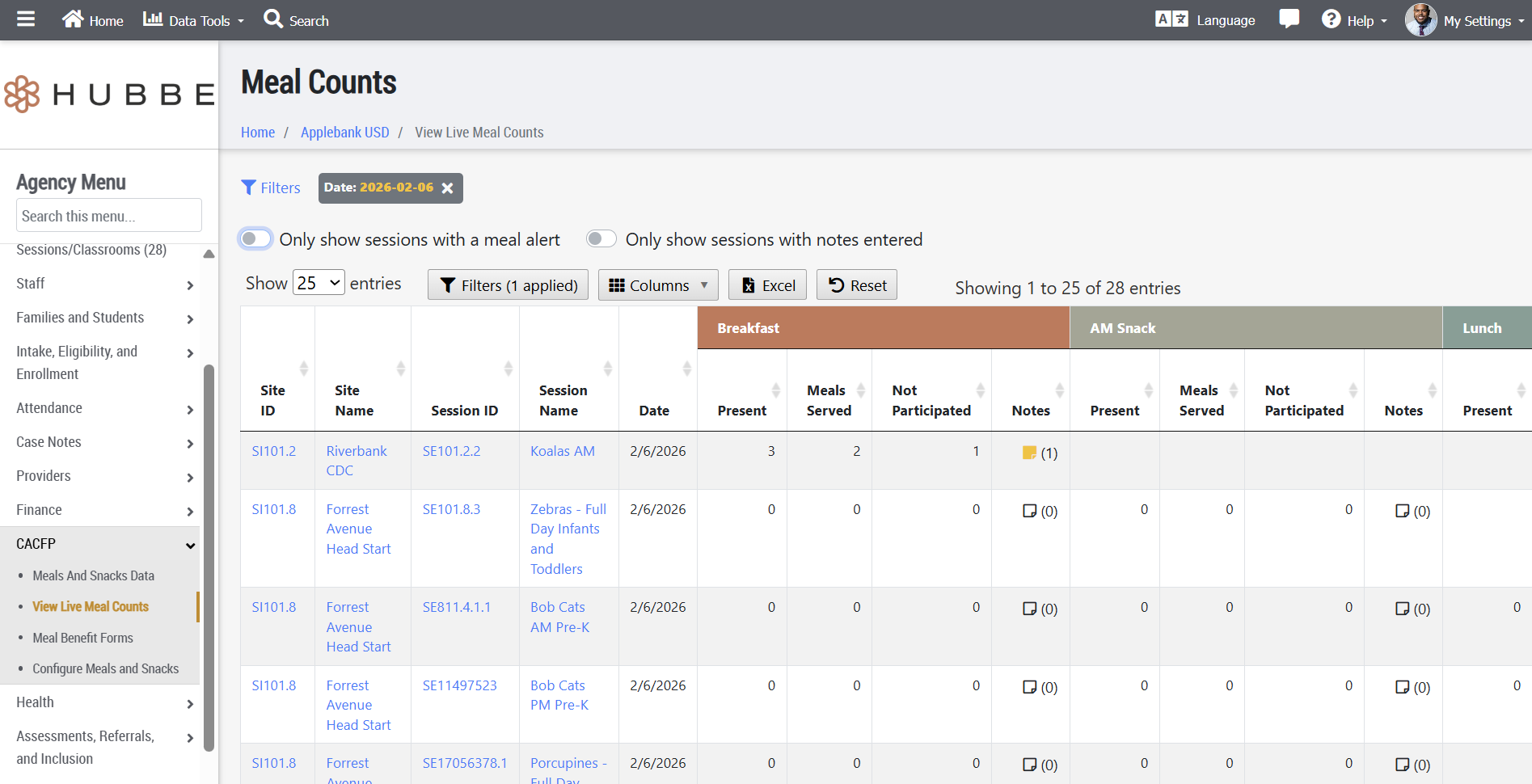
- We have updated the "View Live Meal Counts" report, available at the Agency and Site levels, to allow users to take a high level view of all sessions' meal counts at one time for any given day. The report has been transitioned to a grid view with click-able cells that allow users to view the Meal Counts modal where students are marked as Participating or Not-Participating. Any notes added to the meals served will also appear in this grid. There are various filters and two toggles at the top of the grid that allow users to easily sort for sessions that have notes or have meal alerts (such as meals served outside windows or to children who were not present). We hope this update helps your team better manage meal counts on any given day for your sessions.
Attendance Enhancements
- Updated the Chronic Absences Report as follows:
- Added a column for "Household ID", with a link to the child's household.
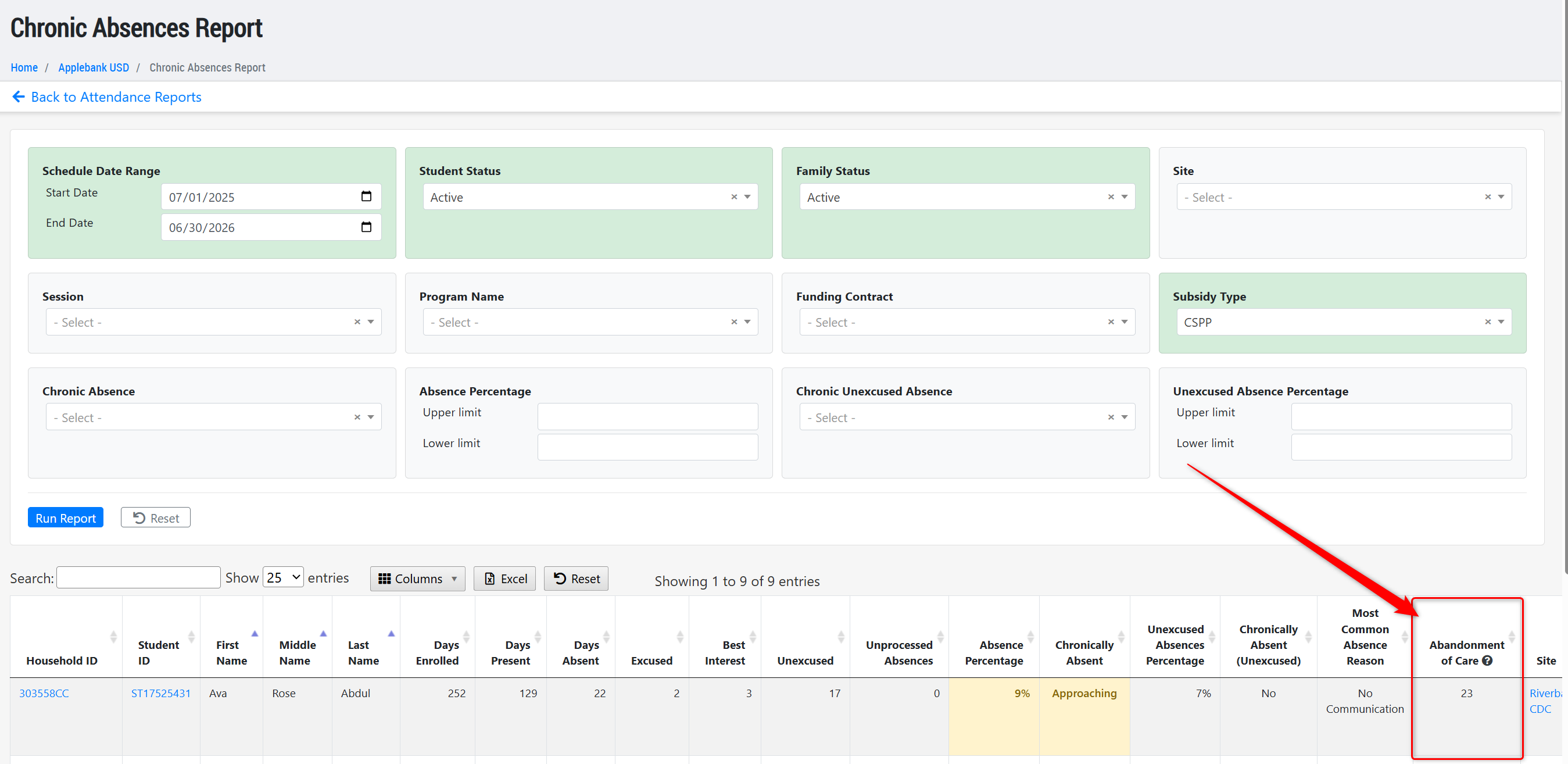
- Updated the column previously titled "Current Consecutive Unexcused Absences" to now be "Abandonment of Care" in the grid and Excel download.
- The "Abandonment of Care" column has been updated to ensure it operates in accordance to the Abandonment of Care regulations, which is 30 calendar days of no communication. This column will count all consecutive calendar days (not just operational days) that are unmarked days, unprocessed absences, and/or any unexcused absences tagged as abandonment of care across all relevant sessions for the child. Any Unexcused Absence reason can now be tagged as “Abandonment of Care” type in Configure Attendance.
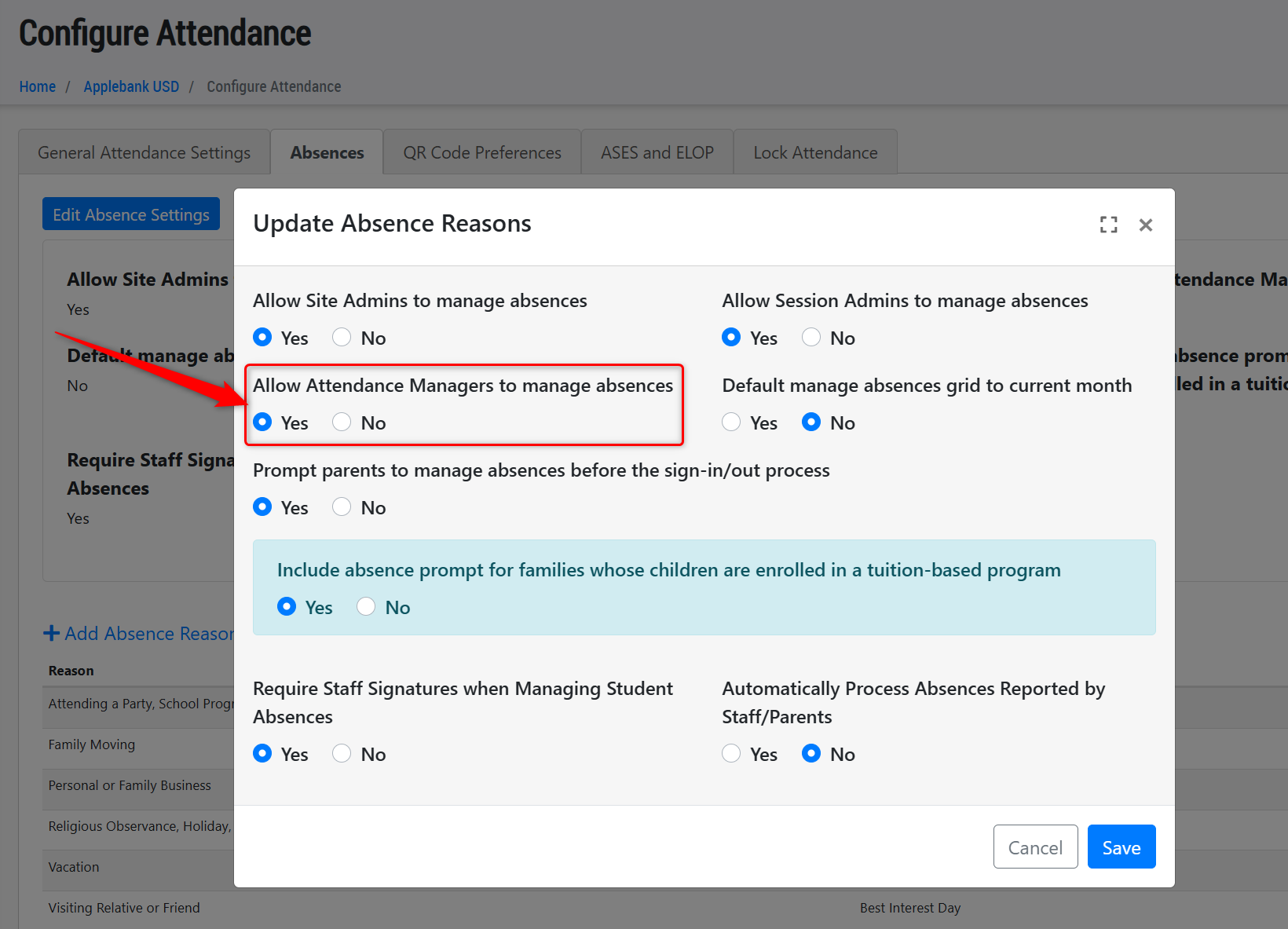
- Created a new setting in Configure Attendance > Absences titled "Allow Attendance Managers to manage absences." This setting will allow users to determine whether staff with the role of Attendance Manager can manage absences for children in their session.
- Added a new message to the "Attendance - Monthly" record in the Student Menu and the "eSignature Attendance/View eSignatures" record in the Agency, Site, and Session Menu for when an attendance day is locked to explain to users why they cannot manage/create attendance on the selected day. An attendance month can be locked in Agency Menu > Attendance > Configure Attendance.
- Updated the 8501 and 9500 Attendance Reports to ensure that a child who is dually enrolled will only look to their subsidized schedule's absence types when counting enrollment/attendance days. For example, if a child is dually enrolled in CSPP and Tuition-Based services and is marked absent on a given day, then the 8501 Report will look to the CSPP schedule's "Absence Type" (i.e. Unexcused, Excused) to count the day as attendance or not in the report.
Student Health Enhancements
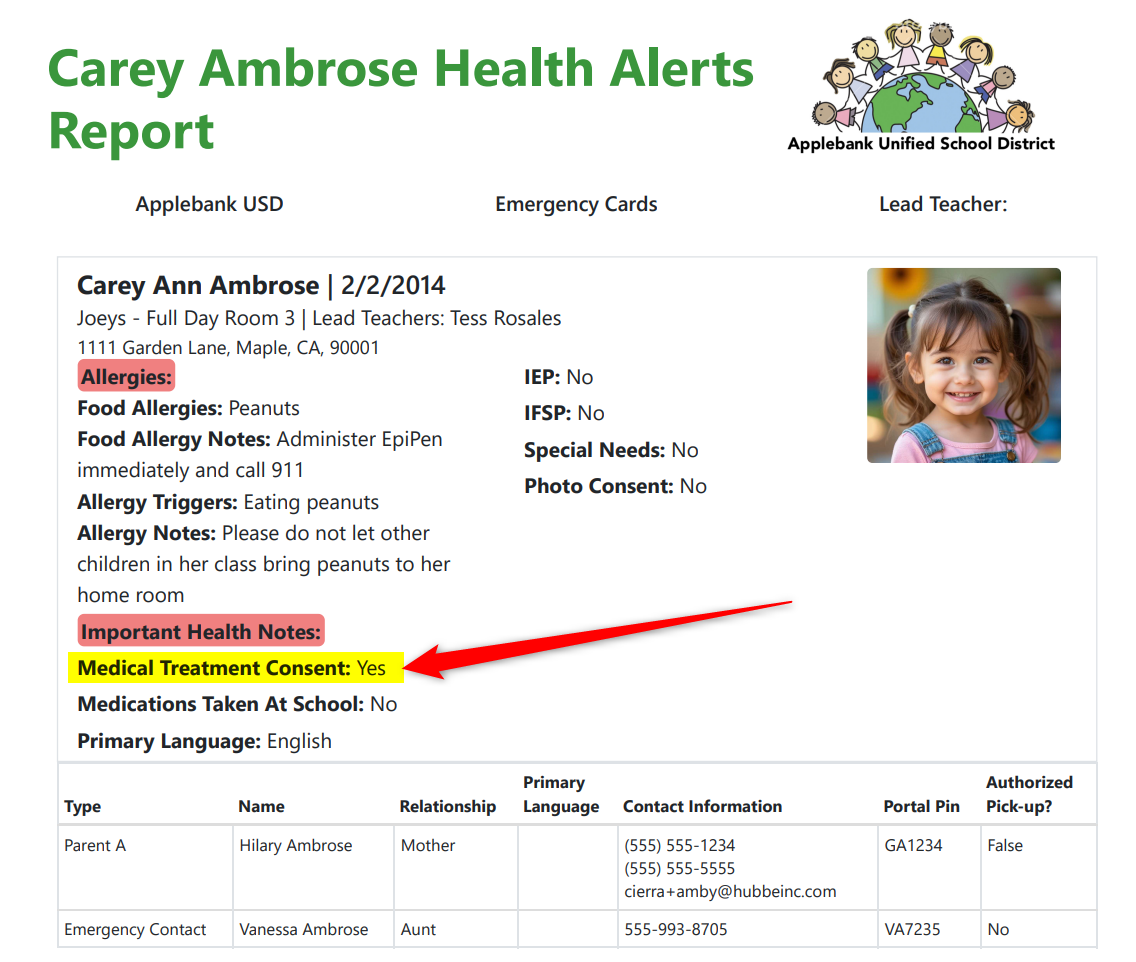
- Added a new field to the student Emergency Card download for "Medical Treatment Consent." If the child has the State Licensing Form "LIC 627: Consent for Emergency Medical Treatment" created and signed by the parent, then this field will show as "Yes" on the download - otherwise, it will show as "No."
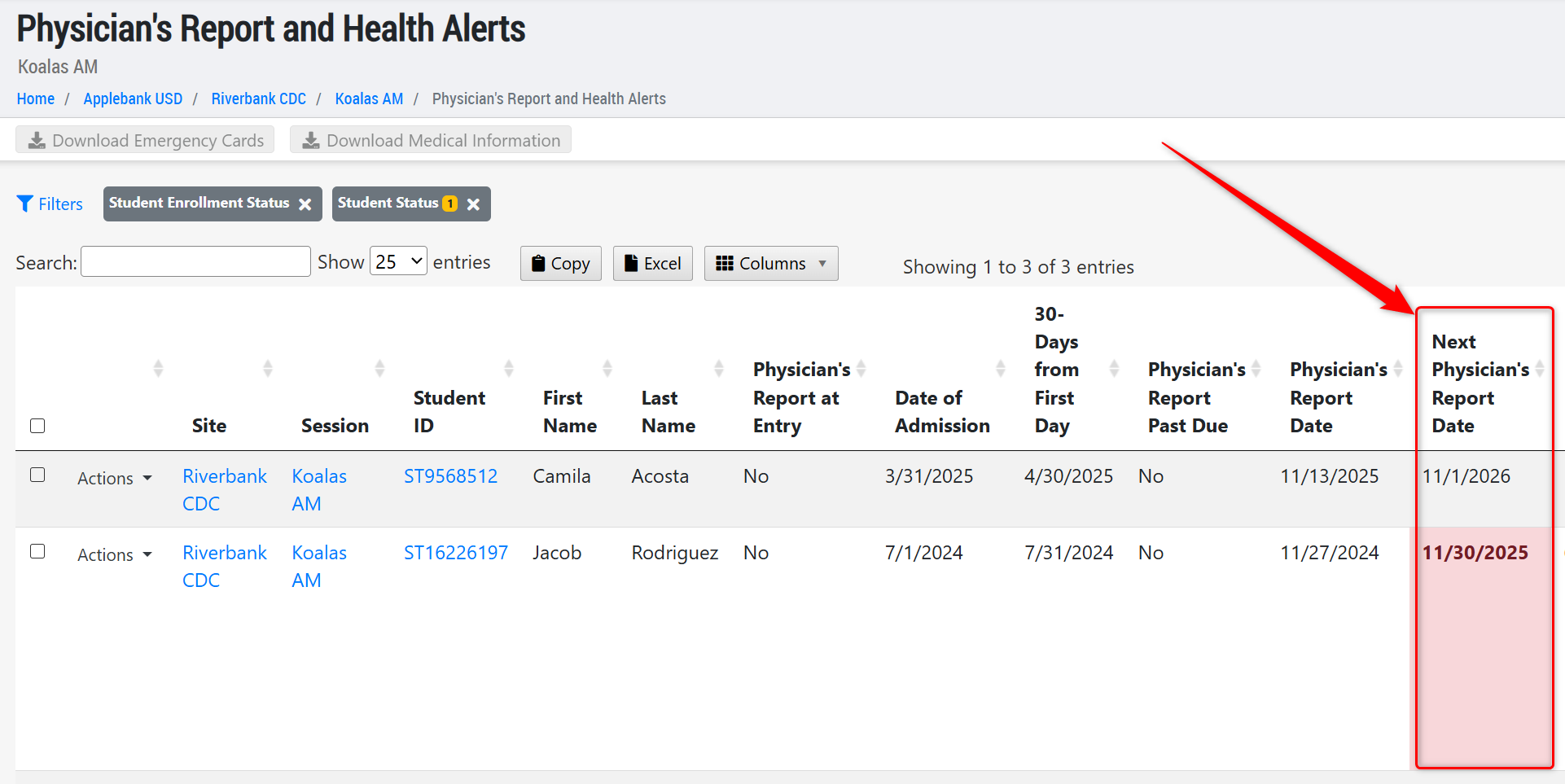
- Added a new column to the Physician's Report and Health Alerts grid at all levels, titled "Next Physician's Report Date." This column will pull the date from the child's latest Physical Screening record from the "Next Exam" field. If the date is in the past, it will be shown in red, like the other dates on this grid when past due.
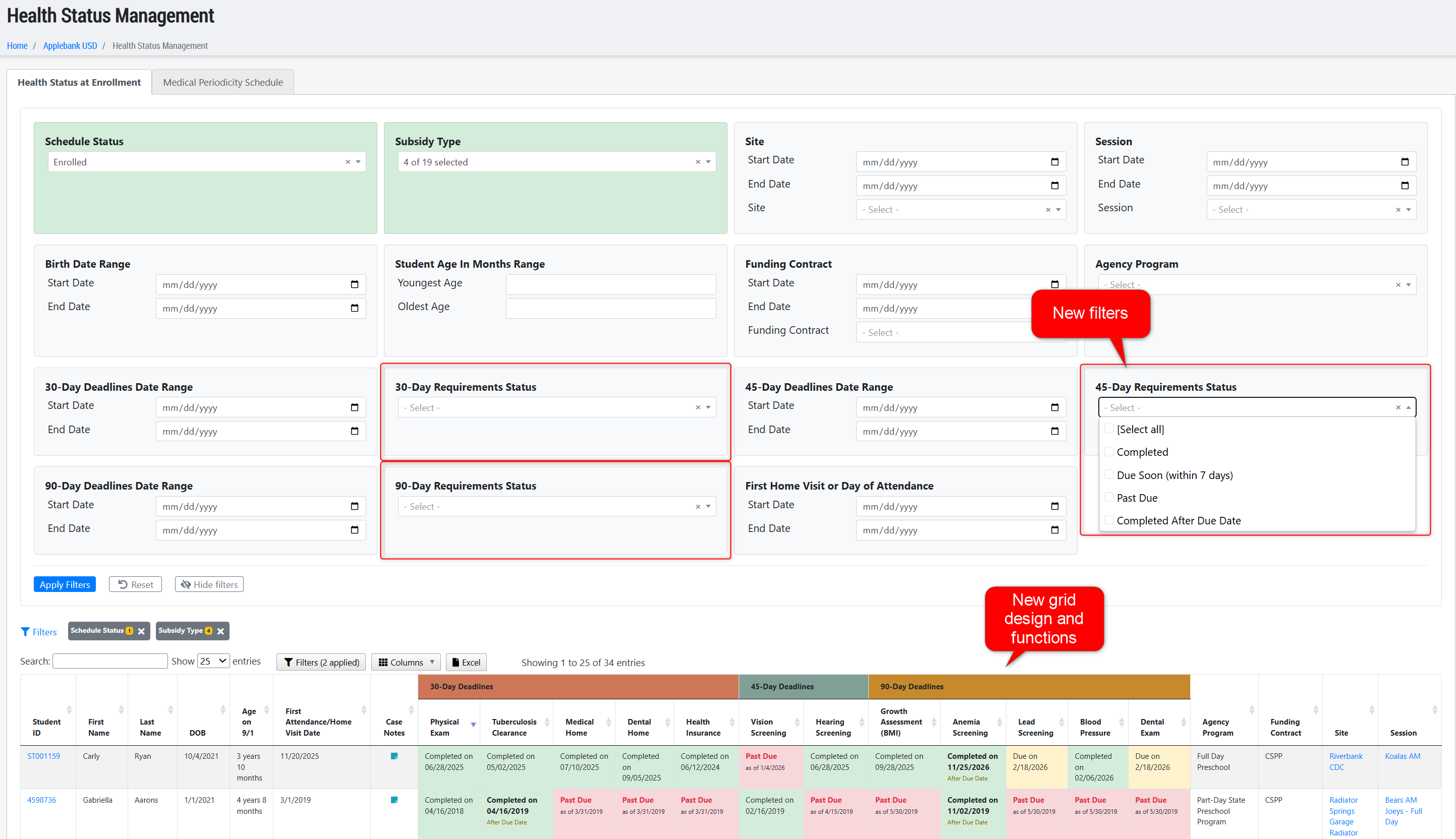
- We have made many updates to the Health Status at Enrollment Report, including:
- Clickable Cells - Converted the grid cells to clickable action items for each health item. Previously, there was an "Actions" button that allowed staff to create a record of any health item in the grid for the student. Now, staff can click any cell for a child to see their full history of records to view and manage, or create a new record. For example, if a user wants to manage a child's Physical Screenings, they can click the cell within the child's row in the "Physical" column. A pop-up modal will appear in which every Physical Screening record that the child has had will appear. Users can edit existing records, create new screening records, or even navigate to that child's individual health records.
- Case Notes - Added a new column to the grid titled "Case Notes" that allows users to click to view a pop-up modal with all of the child's case notes. The users can also add new case notes in this pop-up modal.
- Grid Styling Updates for Date Validation -We have updated the grid to shade cells with a color and include more language to indicate its status, as follows:
- Green - A cell will turn green if the health record has been completed for the child with a date of when it was completed. If it was completed after the due date, this information will also be listed within the cell.
- Yellow - A cell will turn yellow if the deadline has not yet approached and the health item is still not completed. The due date of the health item will be listed within the cell.
- Red - A cell will turn red if the deadline has already passed and the health item is still not completed. The cell will display the due date and indicate that it is past due for the child.
- New Filters - Added three new filters to allow users to easily sort the grid for students with 30-Day, 45-Day, or 90-Day health items that have a status of one of the following options: Completed, Due Soon (within 7 days), Past Due, or Completed After Due Date. The filters are titled: 30-Day Requirement Status, 45-Day Requirement Status, and 90-Day Requirement Status.
- Medical Insurance - Updated the Medical/Dental Insurance feature to relate more specifically to the child. We have added a new "Family Members Covered" field to the Medical/Dental Insurance record in which users can select which family members are a part of the insurance plan. There are also new "Medical/Dental Insurance" records in both the Student Record and the Parent Record, and each will list insurance records that have those individuals selected as covered participants of the plan. On the Health Status at Enrollment grid, the child's Medical Insurance item will be completed only when a medical insurance record has been entered that has the child selected in the "Family Members Covered" field.
- Excel - Updated the excel to match the new language that is displayed in each cell to indicate the status of the health item for the child.
General Enhancements
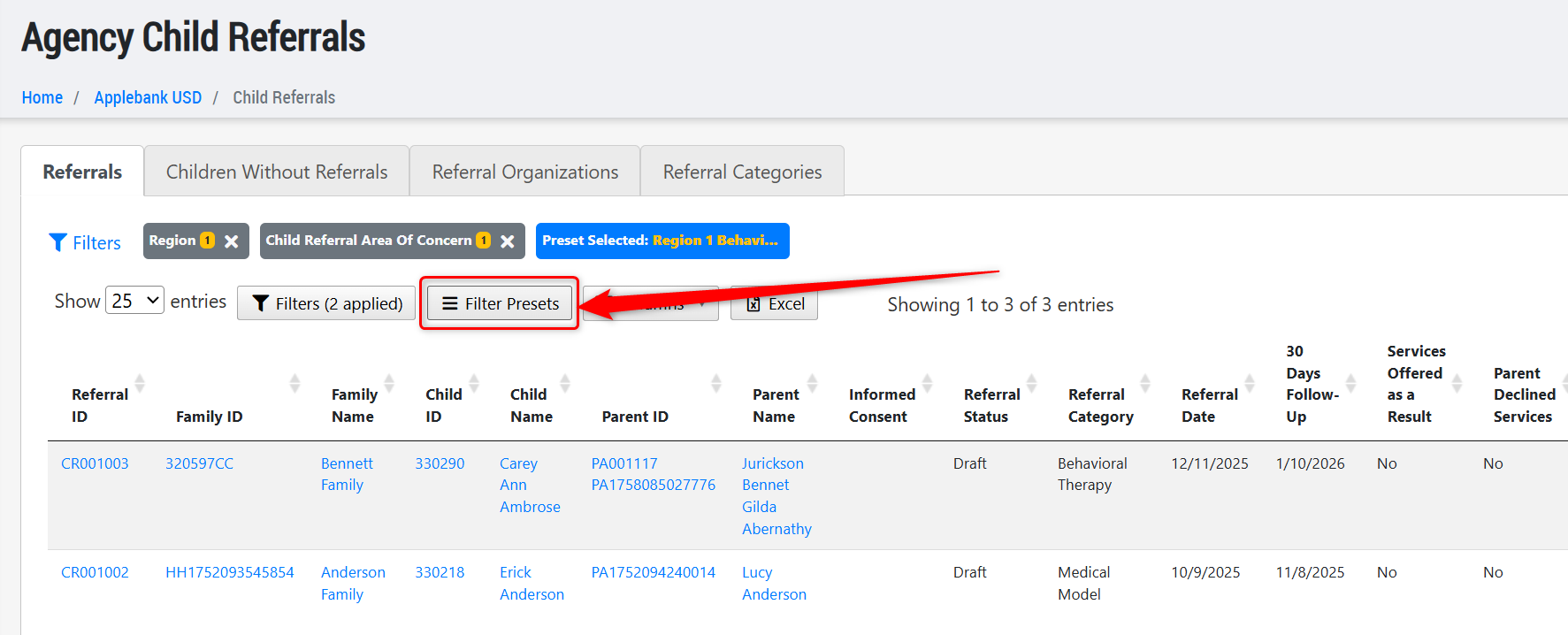
- Added the Filter Presets tool to the Child Referrals and Parent Referrals grids at the agency, site, and session levels. This will allow users to save various filter presets that can be easily applied to the grid.
- Updated the Child Referral and Parent Referral forms so that the field previously titled "Description of New Services Offered or Feedback from Family Regarding Referral Experience" will now be titled "Description of New Services Offered and/or Feedback from Family Regarding Referral Experience." Any referral previously made will not lose any information entered into this field.
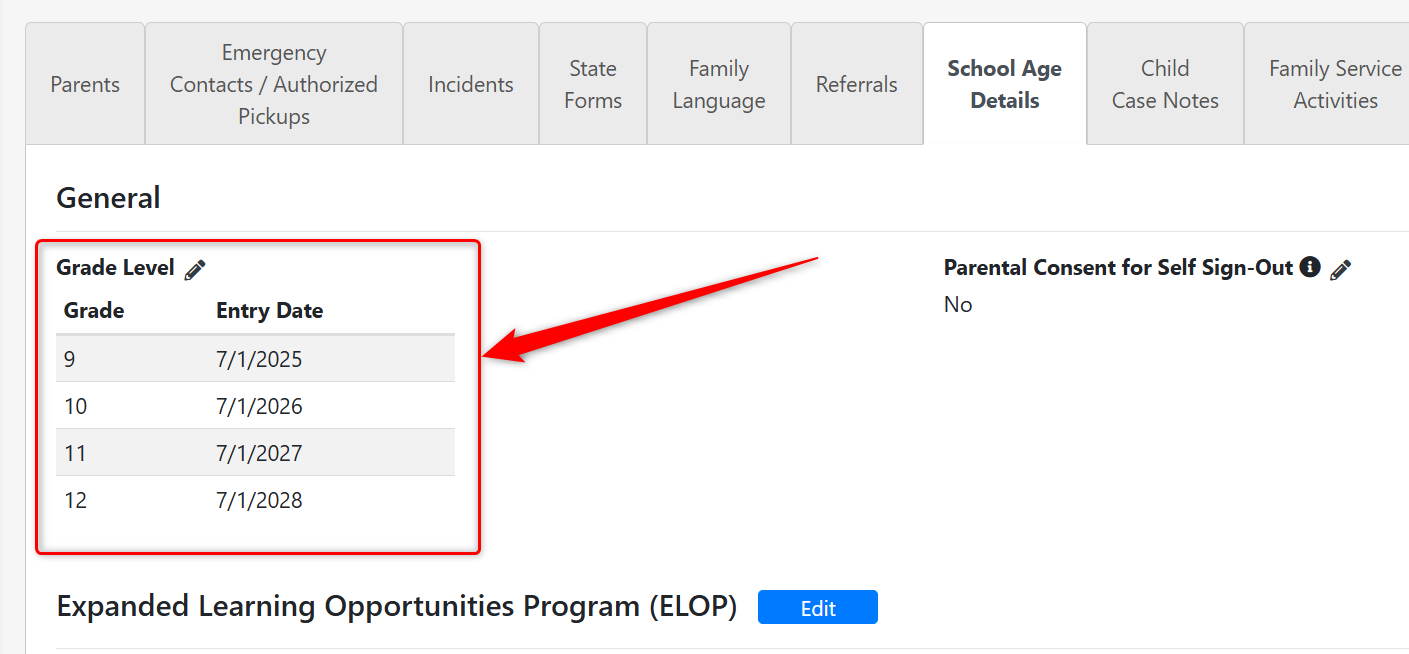
- Added grades 9 - 12 in the "Grade Level" field within a Student Record to support programs accepting high school students. These new grade levels have also been added to the "Enrollment Counts by Grade Level" report available within the Enrollment Dashboard.
Keeping Up With the State
- As released on January 28, 2026 by the Department of Social Services (CDSS), there has been an update to the following State Licensing Form: LIC 613A: Personal Rights – Child Care Program. We released this update to the Hubbe system on the evening of January 30, 2026 to ensure all system users have the newest version available to stay in compliance with all requirements.
Fixes & Adjustments
- Added a few more default Drop & Transfer reasons for agencies for Expelled, Withdrawn, and Does Not Qualify. These reasons can be selected as reasons for the child's Drop or Transfer.
- Updated the Absence reasons, available to manage in the Configure Attendance > Absences tab, to ensure users cannot delete an absence reason that has been used to manage an absence.
- Added two new language translation options for Turkish and Haitian-Creole in the Hubbe Staff and Parent Portal.
- Fixed an issue in the 9500 Attendance Report in which absences marked as Non Contract Days were being included in the total days of Enrollment.
- Fixed an issue reported by users when trying to download the "EED-9600 Appendix Form" for a family in which a Parent was missing a Parent A/B designation.
- Fixed an issue reported by users when trying to delete an ASQ:SE-2 records for a child.
Was this article helpful?
That’s Great!
Thank you for your feedback
Sorry! We couldn't be helpful
Thank you for your feedback
Feedback sent
We appreciate your effort and will try to fix the article