TABLE OF CONTENTS
- NEW Infant Meal Tracking
- Meals & Snacks Enhancements
- Referral Enhancements
- General Enhancements
- Fixes & Adjustments
NEW Infant Meal Tracking
- We are excited to share the release of the new Infant Meal Tracking feature in Hubbe. There are three areas where an Infant Meal can be entered for an infant:
- At the session, an Infant Meal can be entered when adding an Activity Log for any child in this age category.
- At the session, an Infant Meal can also be entered from the Meal Counts area.
- In the student record, an Infant Meal can also be entered from the student's Activities record.
- From each of these areas listed above, the process of adding an Infant Meal will look very similar, and will consist of a Meal Time (Breakfast, Lunch, etc.), Meal Component (Milk, Yogurt, Fruit, etc.), Meal Name (customizable), and Quantities Prepared and Eaten. Notes and/or attachments can be added, and the log can be shared with parents in the Parent Portal, if desired.
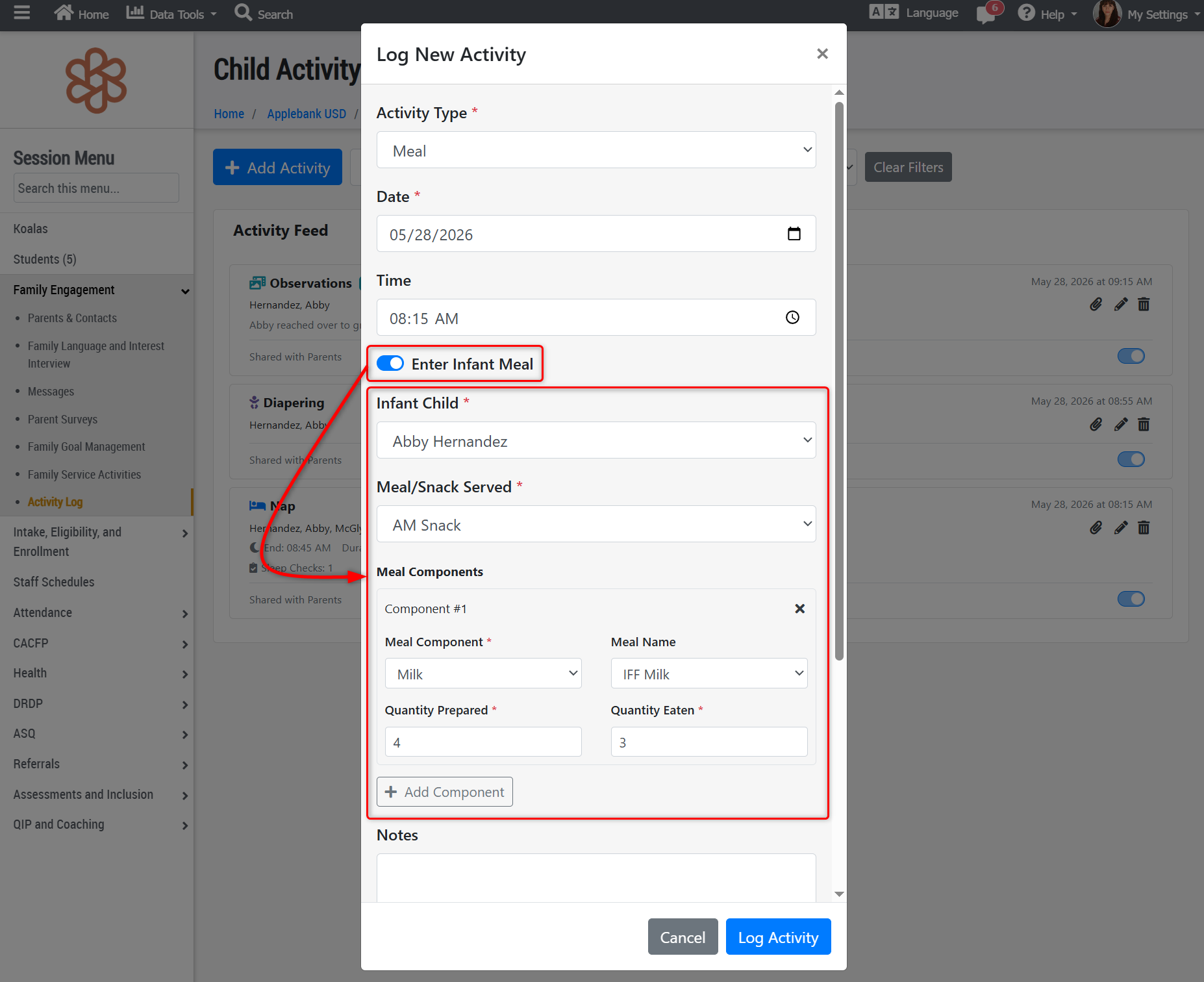
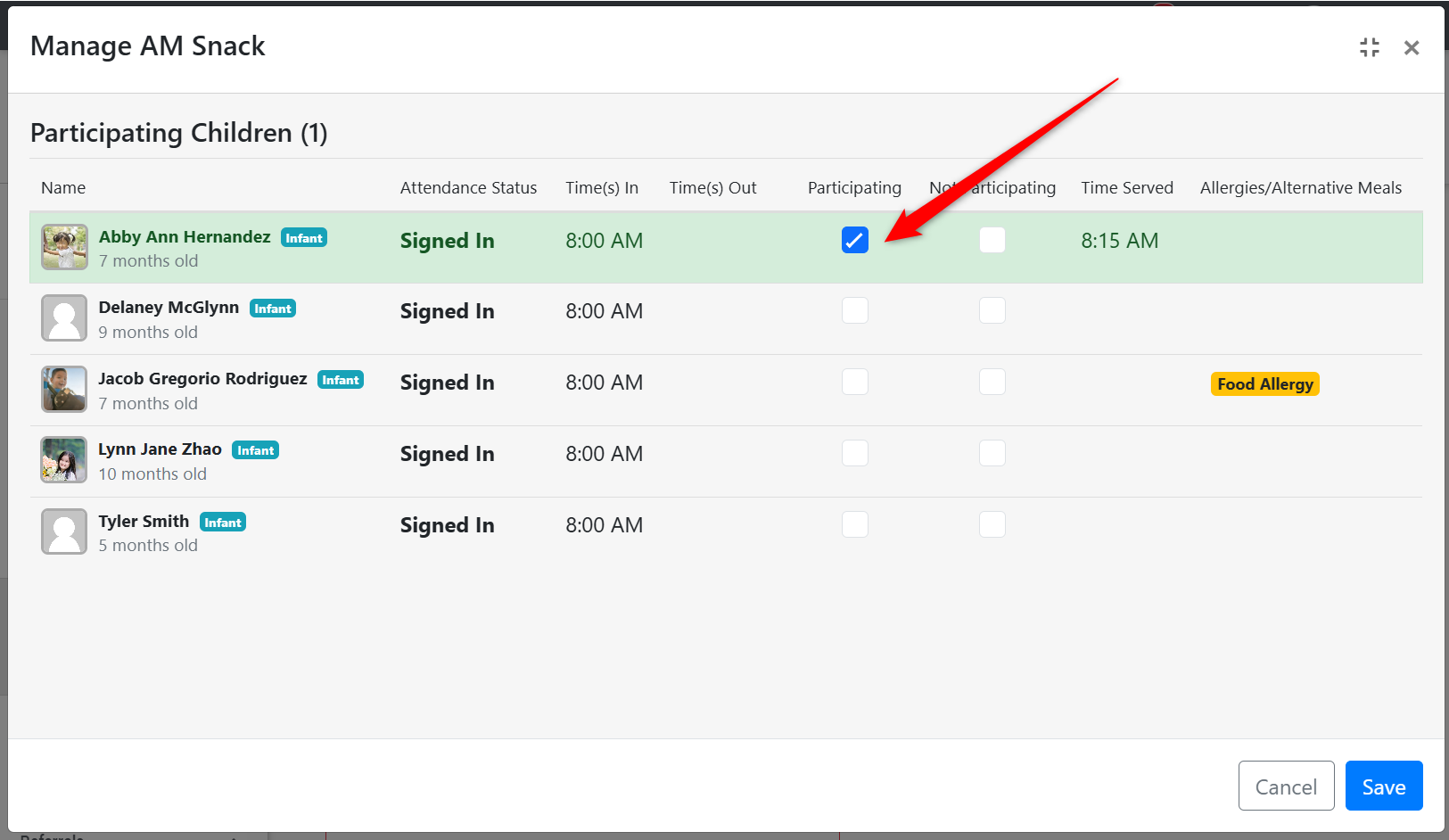
- It is important to note that when an Infant Meal is entered for a child, that child will be automatically marked as "Participating" for that Meal Time selected (Breakfast, Lunch, etc.). Staff can still unmark or change this meal status to Not-Participating, if needed.
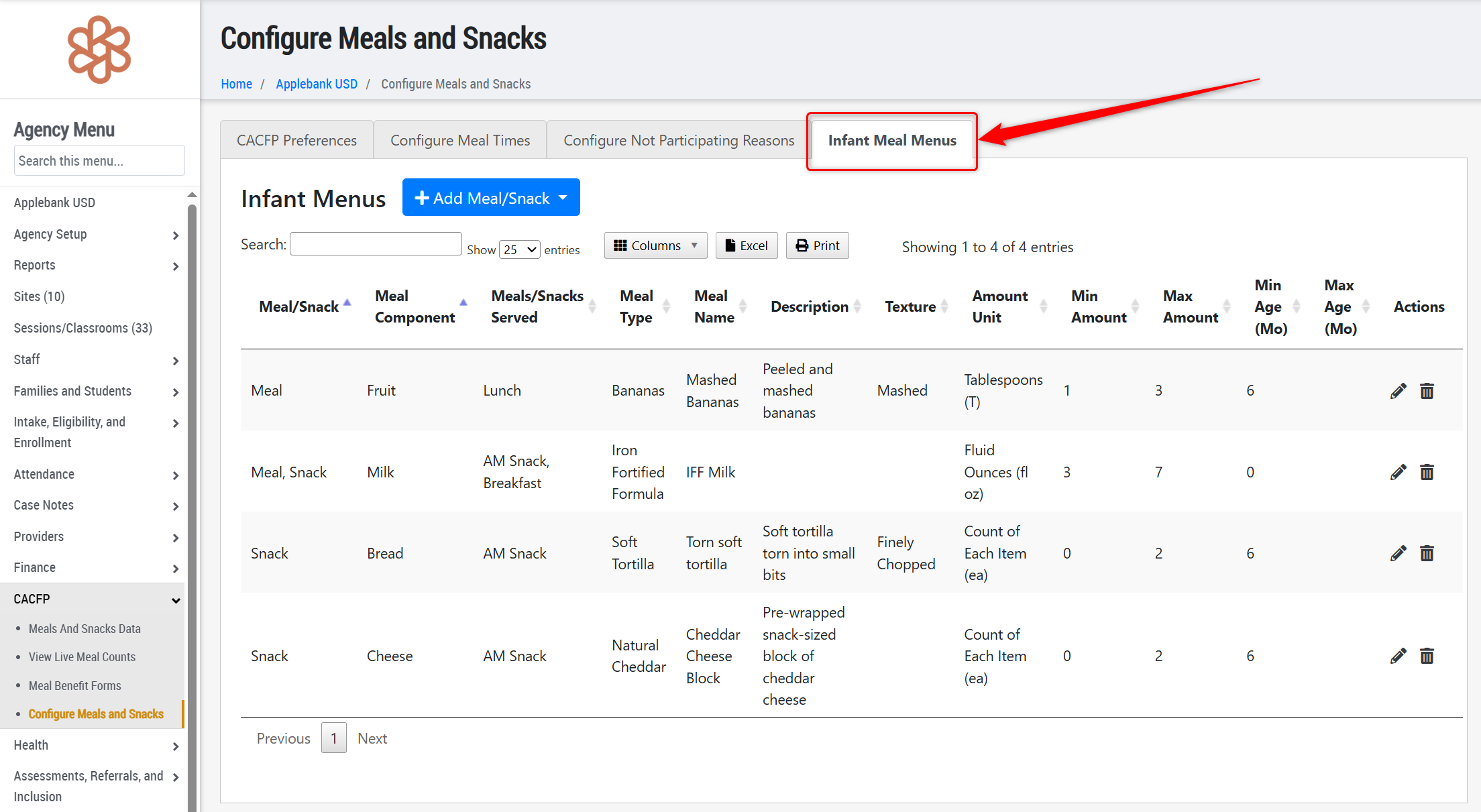
- To set up the Infant Meal feature, navigate to the new "Infant Meal Menus" tab of the Configure Meals and Snacks page. Within this tab, create the infant meal menu components that staff will select from when entering an Infant Meal for a child.
- Each menu item will be required to have a component category selected (Milk, Yogurt, Fruit, etc.), the Meal Times they are available for (Breakfast, Lunch, etc.), and their Meal Name (configurable by centers).
- Optionally, there are additional fields each meal item can include, such as the description of the meal, texture, unit for the amounts (fluid ounces, count of each item, cups, etc.), and then minimum and maximum ages and amounts for the meal item. If a min/max age range is entered, then the meal item will only be available to select for children who fall into the eligible age range for the meal item. If a min/max amount is entered, then staff will be required to put a "Quantity Prepared" that falls within the allowed amount range in order to create the meal log.
- Once the Infant Meal Menu is ready, teachers can enter Infant Meal logs for infant children in their session!
Meals & Snacks Enhancements
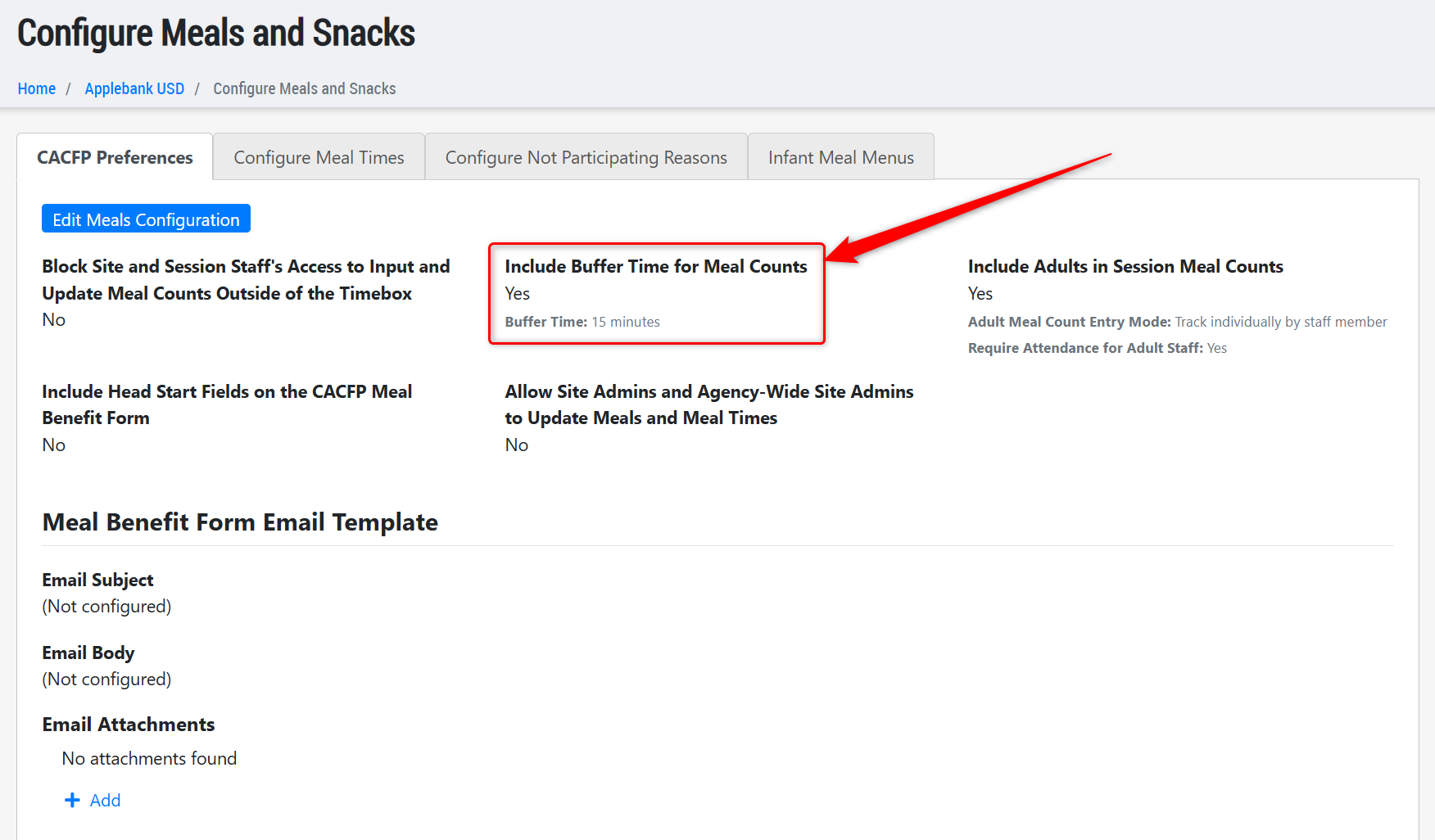
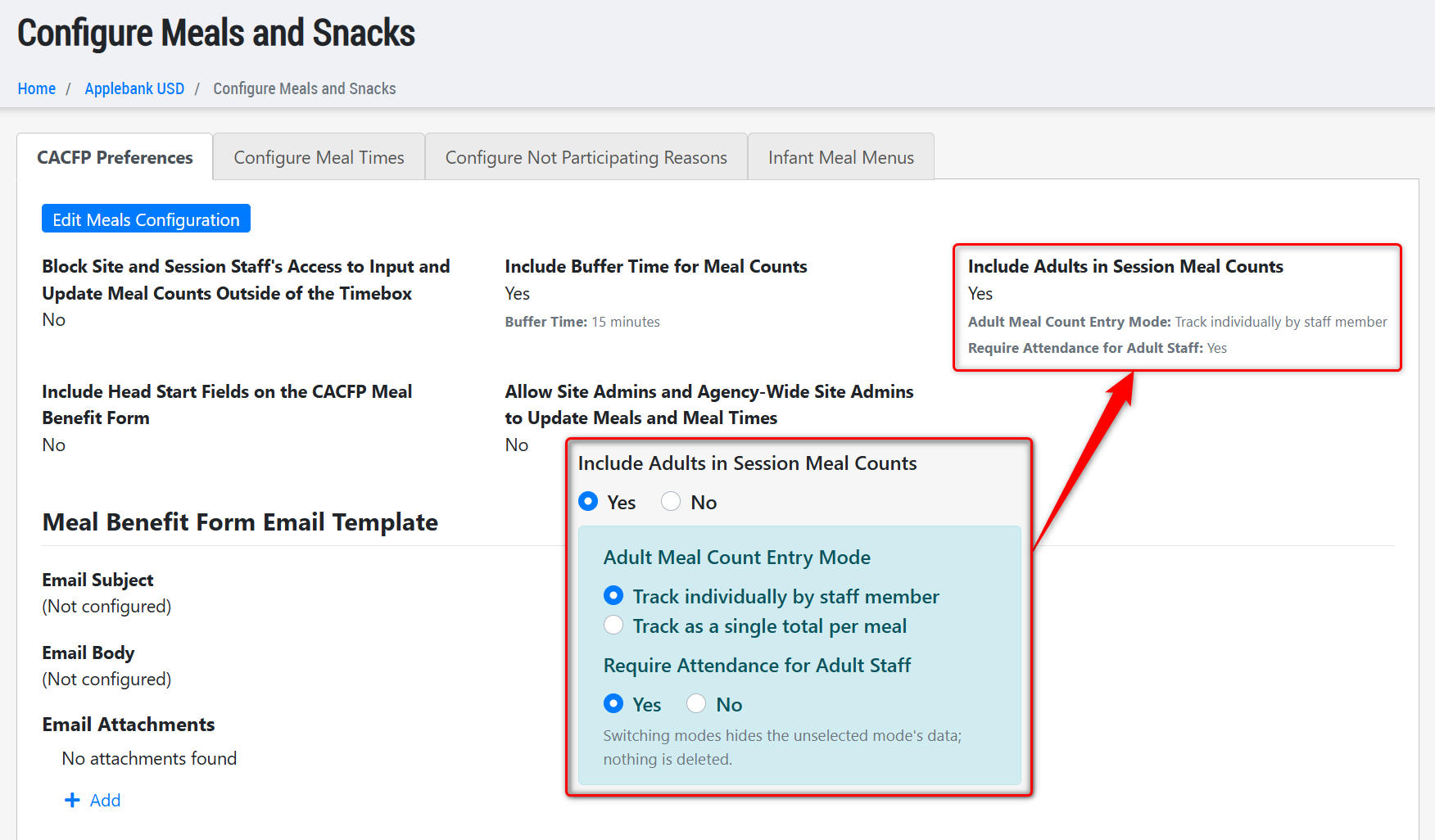
- Added a new setting to the Configure Meals and Snacks area to allow users to include a buffer time for meal windows. This setting will be set to "No" by default upon release of this update, and will continue to operate the same as before. When set to "Yes" then users can enter a buffer time period, such as 15 minutes, in which a "Meal Served" and "Sign In" for a student is considered "on time" and an accepted meal served.
- For example, if a child is signed in 15 minutes after the meal window closes and is served the meal at that time, then they will be considered a valid meal served. This child will be included in both the "Present" count for the meal, as well as a new column titled "Present Buffer Time" which will display the total number of children who were "Present" for the meal that were served during the buffer time period.
- Added another new setting to the Configure Meals and Snacks area to allow users to enter a total number of adult meals served, or continue to mark meals served by staff member. This setting will be set to "Track individually by staff member" by default upon release of this update, and will continue to operate the same as before. When set to "Track as a single total per meal" then users can enter a total number of adult meals served without having to check off each staff member served the meal.
- To assist with data management, the first time that this setting is changed from its default state of "Track individually by staff member" to the new state of "Track as a single total per meal," the system will automatically populate the "total number of adult meals served" based on the historical data of individual staff served the meal. This prevents users from having to go back and enter these values for historical data upon changing this setting. Again, this automated data assignment will only occur on the first change of this setting. For example, if users have been marking individual staff members as "served" to make a total of 4 Adult Breakfasts served on a given day, then upon changing this setting to the single total per meal, the value will start off by counting 4 Adult Breakfasts on that day. This value can be changed or managed however needed beyond this point.
Referral Enhancements
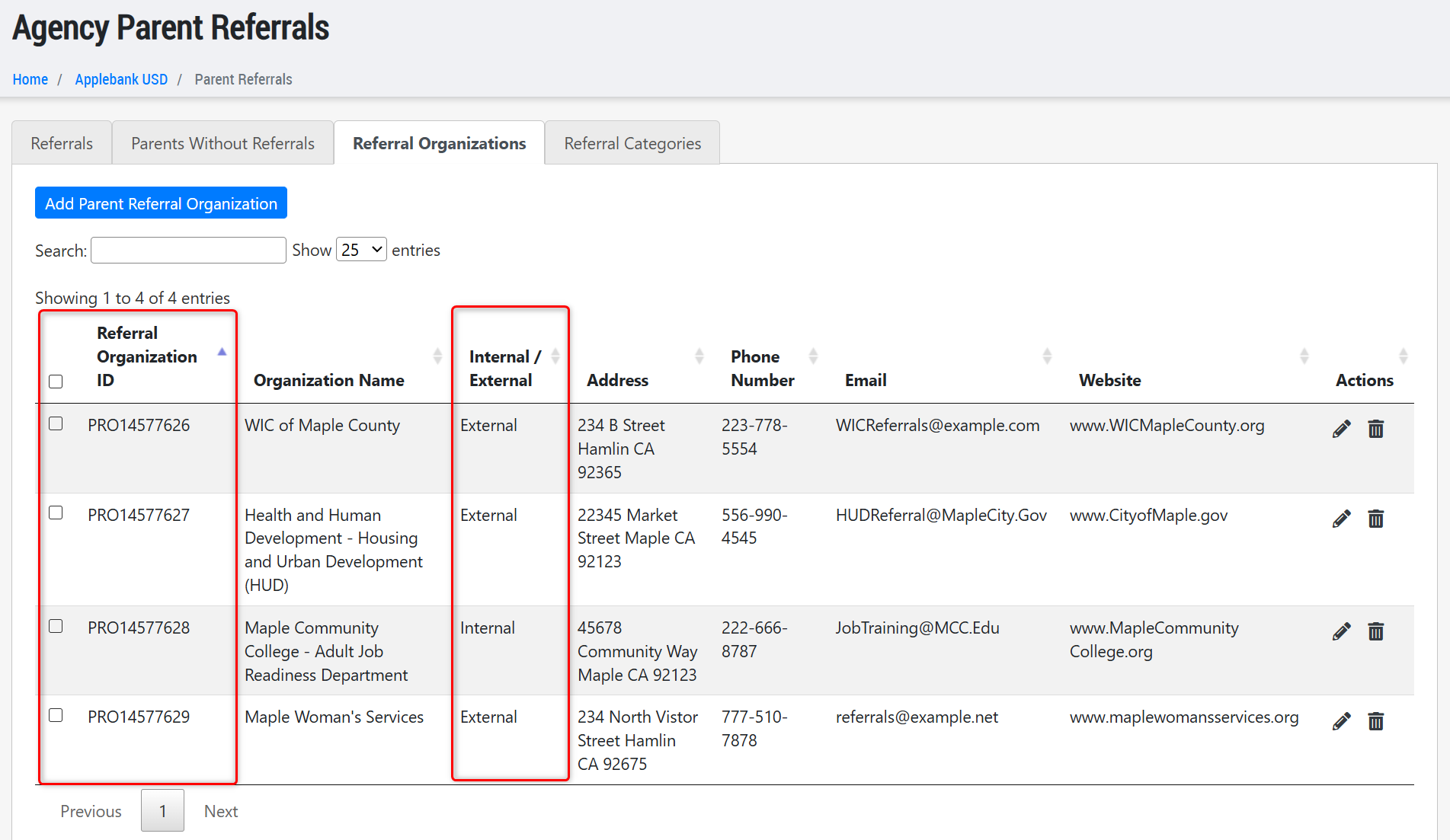
- Added IDs to the Child Referral and Parent Referral Organizations created for your agency, which allows users to easily export and import organizations to easily update them in batch.
- Added a new field to the Parent Referral Organization record that allows users to mark the organization as Internal or External. For both types, there will also be a new option to automatically send a notification to the staff who support referrals to the organization. This means that anytime a Parent Referral has a status set to "Referral Made" then an email notification will be sent to the email addresses listed for the organization. To easily track internal/external referrals, there will also be a new column and filter on the Parent Referrals grid to sort for either type. This update follows our recent release of the same enhancement added to the Child Referrals back in April 2026.
General Enhancements
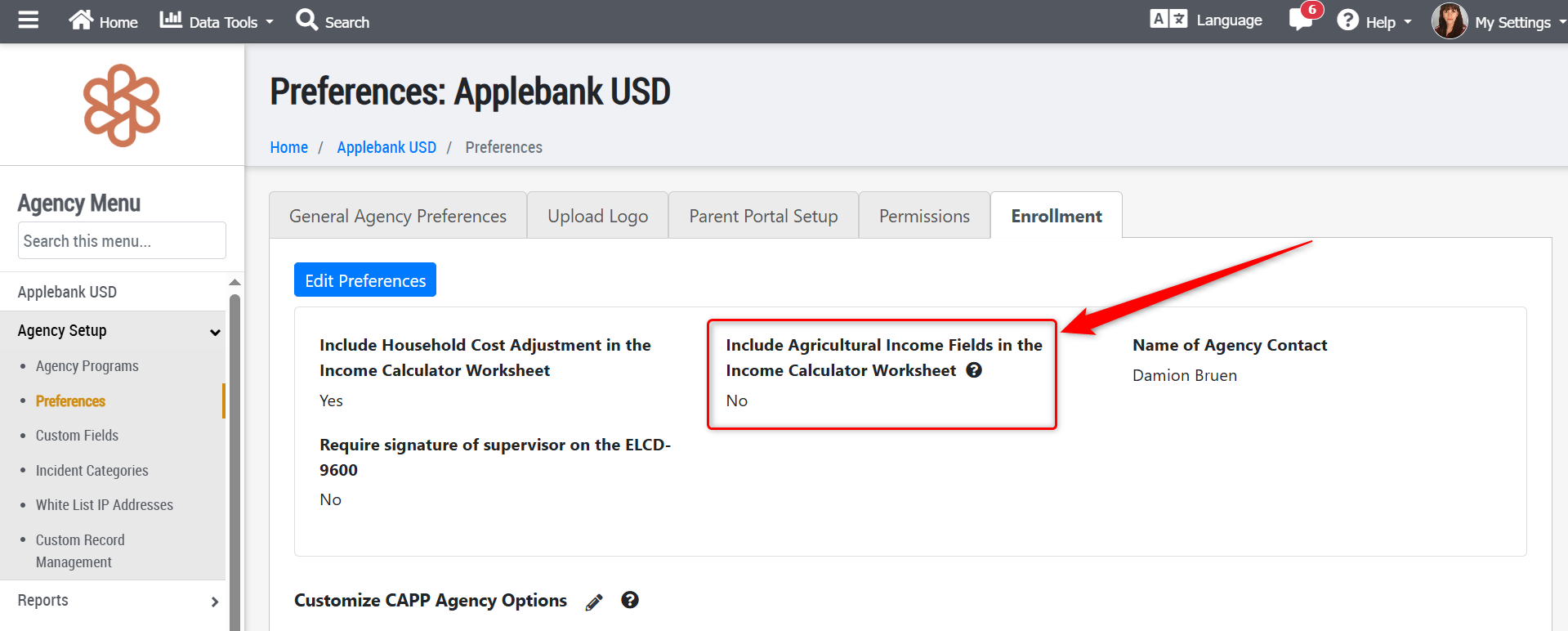
- We have added a new Agency Preference found within the "Enrollment" tab called "Include Agricultural Income Fields in the Income Calculator Worksheet."
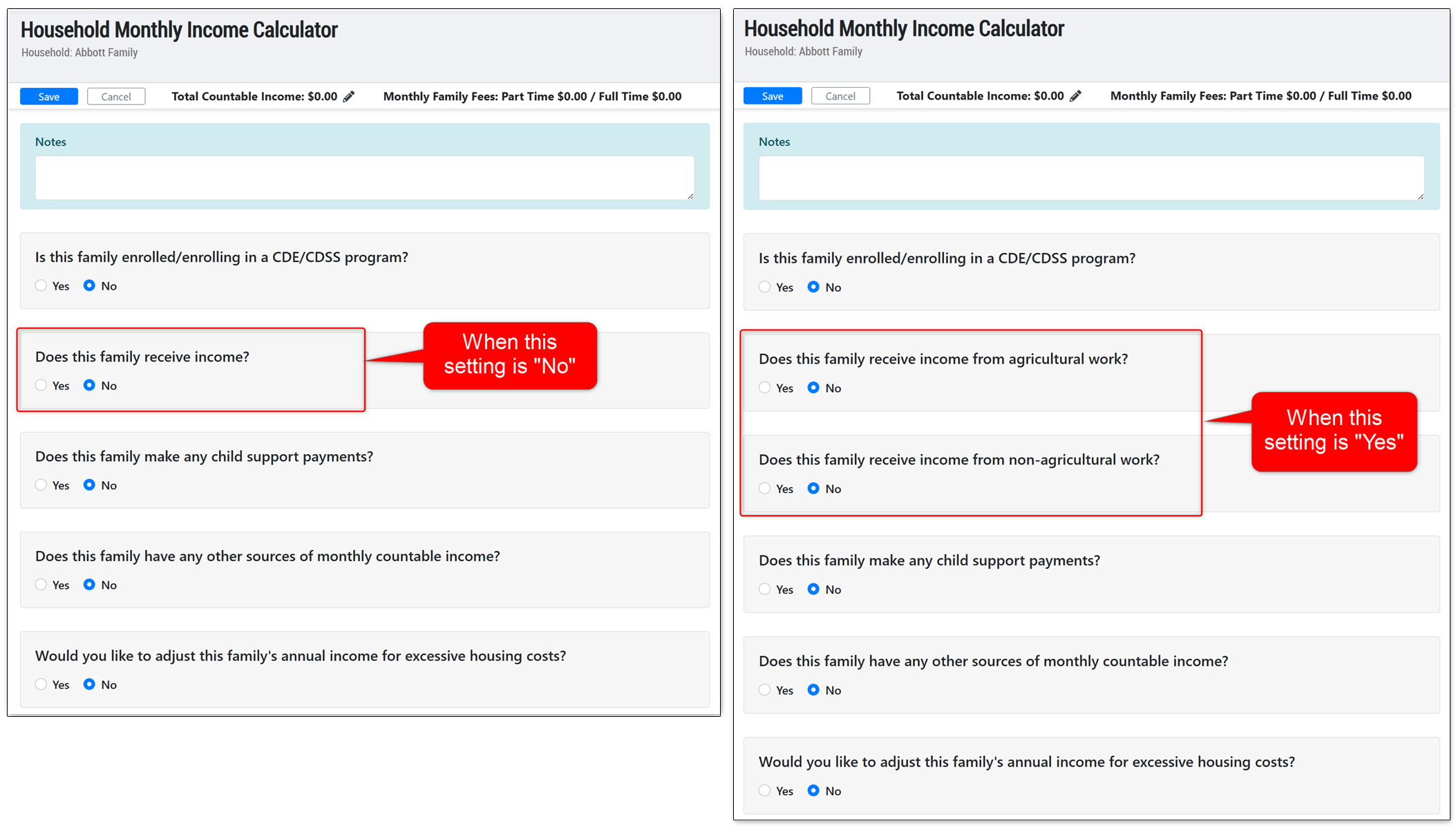
- This should be set to "Yes" for any center that provides Migrant and Seasonal Head Start programs. When set to "Yes" then the Income Calculator Worksheet will include a section for Agricultural Income. This allows parents or staff to enter income for each/either parent that receives income from agricultural related work. Any income entered into this section will be used to determine the family's eligibility for Head Start programs.
- By default, this setting will be set to "No" upon release of this update. When set to "No" then the Income Calculator Worksheet will only include one income section where parents or staff can enter all income information for the parents. Please note, there will still be a "Fluctuating Income" frequency that allows users to enter income for seasonal or migrant work.
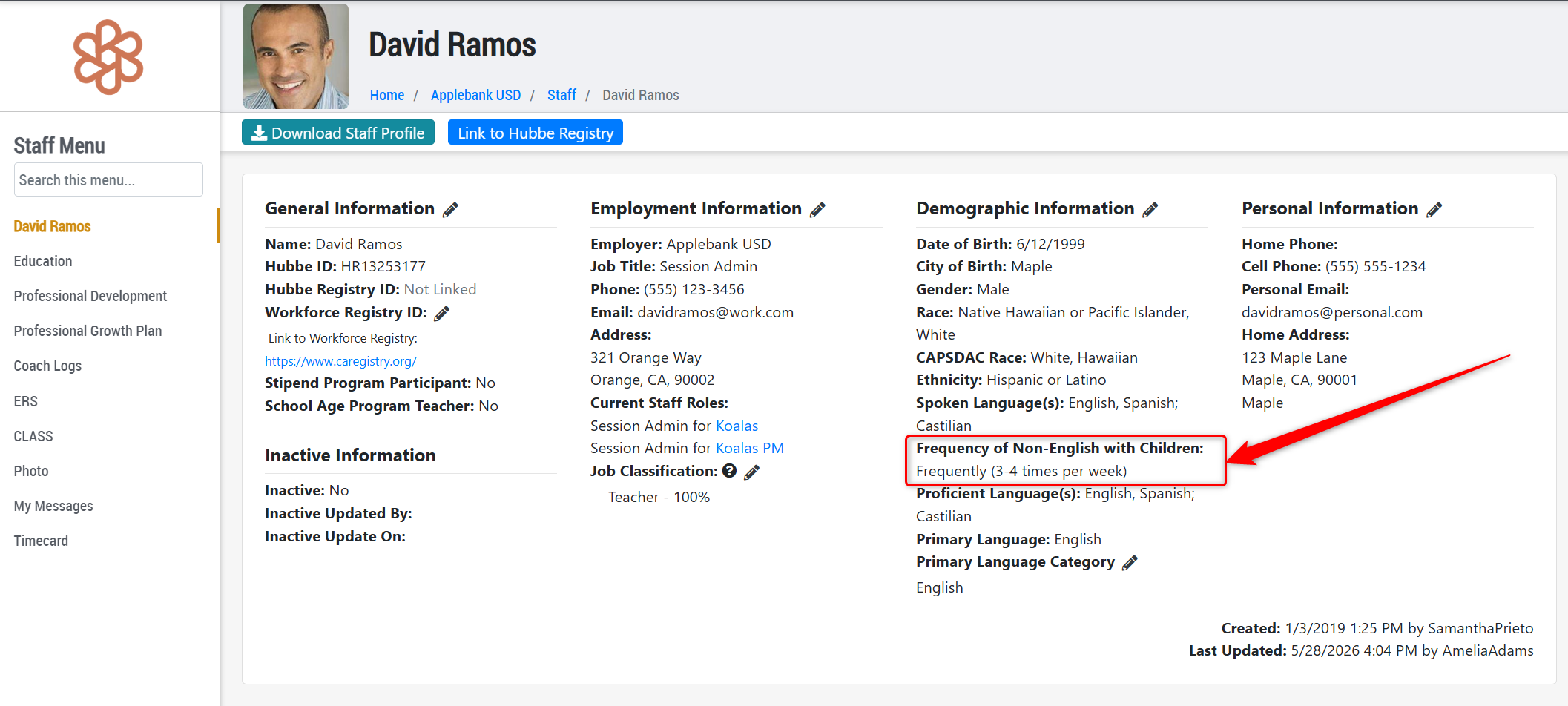
- In preparation for upcoming CDSS 801A Report updates, we have added a new field to the Staff record titled "Frequency of Non-English Language Used with Children" (Never, Rarely, Occasionally, Frequently, Daily). Upon release, this field will be automatically populated as "Never" for all Staff records to assist with data management for this new field. It has also been added to the Staff Import/Export files.
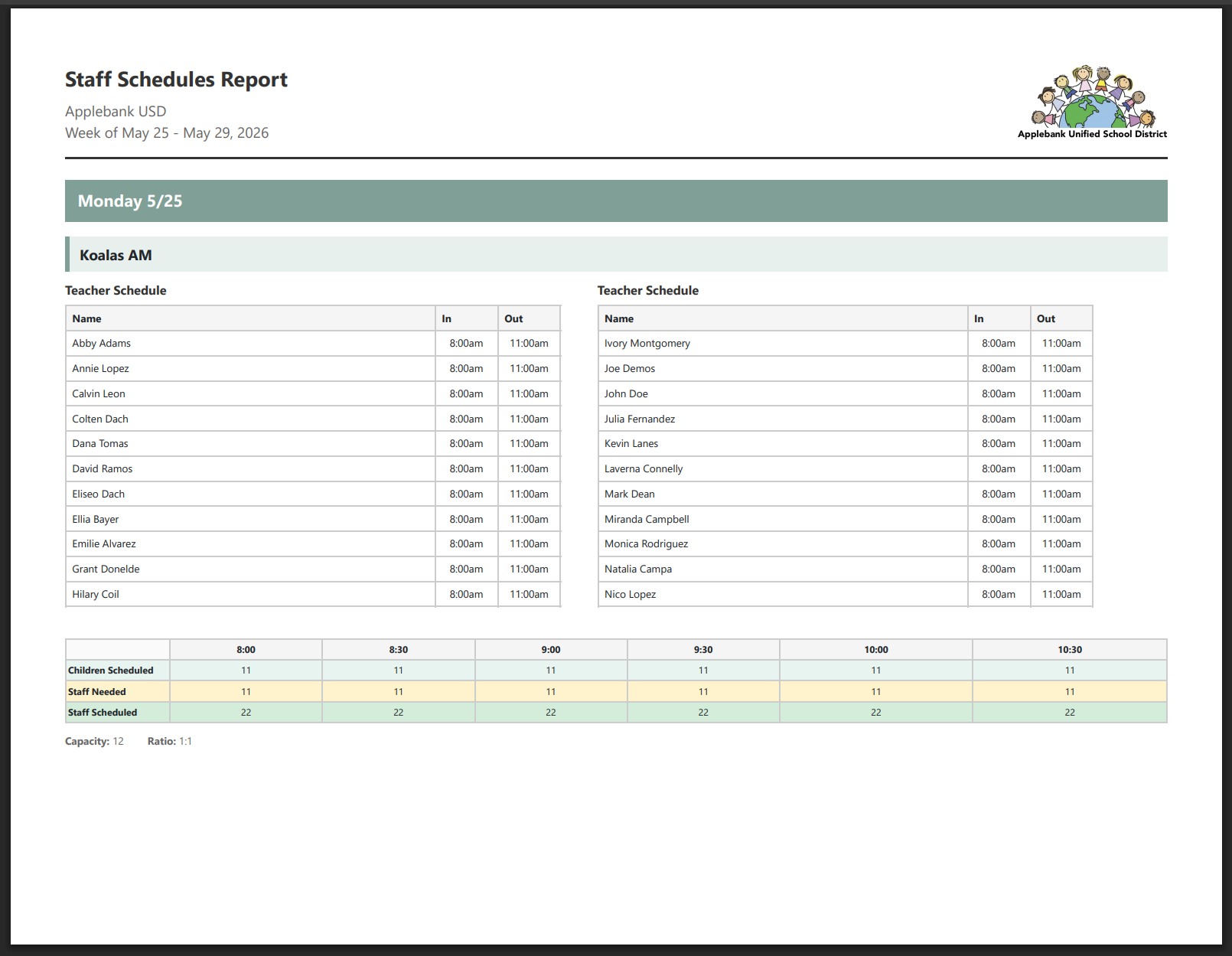
- Updated the Daily PDF download for the Staff Scheduler tool to make the "Teacher Schedule" table wrap into a second column if more than 18 staff are assigned to a schedule for that session on a given day, ensuring the Children Schedule grid remains on the same page.
Fixes & Adjustments
- Updated the All Schedules grid to require at least one of any filter applied to the grid, rather than specifically requiring the "Schedule Status" filter as it previously did. This update is in response to an issue reported by users when trying to filter for future schedules.
- Updated the ASQ-3 feature to open a newly created ASQ-3 record for a child within the same tab the user is already in, as a response to an issue with this record reported within the Staff Hubbe mobile app.
- Updated the "Income Report Word" download for CDE and CDSS to instruct parents to notify their center within 30 calendar days if and when their adjusted monthly gross income exceeds a declared amount.
- Fixed an issue reported by users when trying to load into the Batch Scheduling area.
- Fixed an issue reported by users when viewing the "My Application Messages" tab within a staff's record as a result of the size of the data set.
- Fixed the Site Profile download to handle historical staff professional development data.
Was this article helpful?
That’s Great!
Thank you for your feedback
Sorry! We couldn't be helpful
Thank you for your feedback
Feedback sent
We appreciate your effort and will try to fix the article