TABLE OF CONTENTS
- NEW Activity Logs
- NEW DRDP Observation Library
- Other DRDP Enhancements
- NEW Staff Clock-In/Out Feature
- Meals & Snacks Enhancements
- CLASS Enhancements
- Family Bills & Payments Enhancements
- General Enhancements
- Fixes & Adjustments
NEW Activity Logs
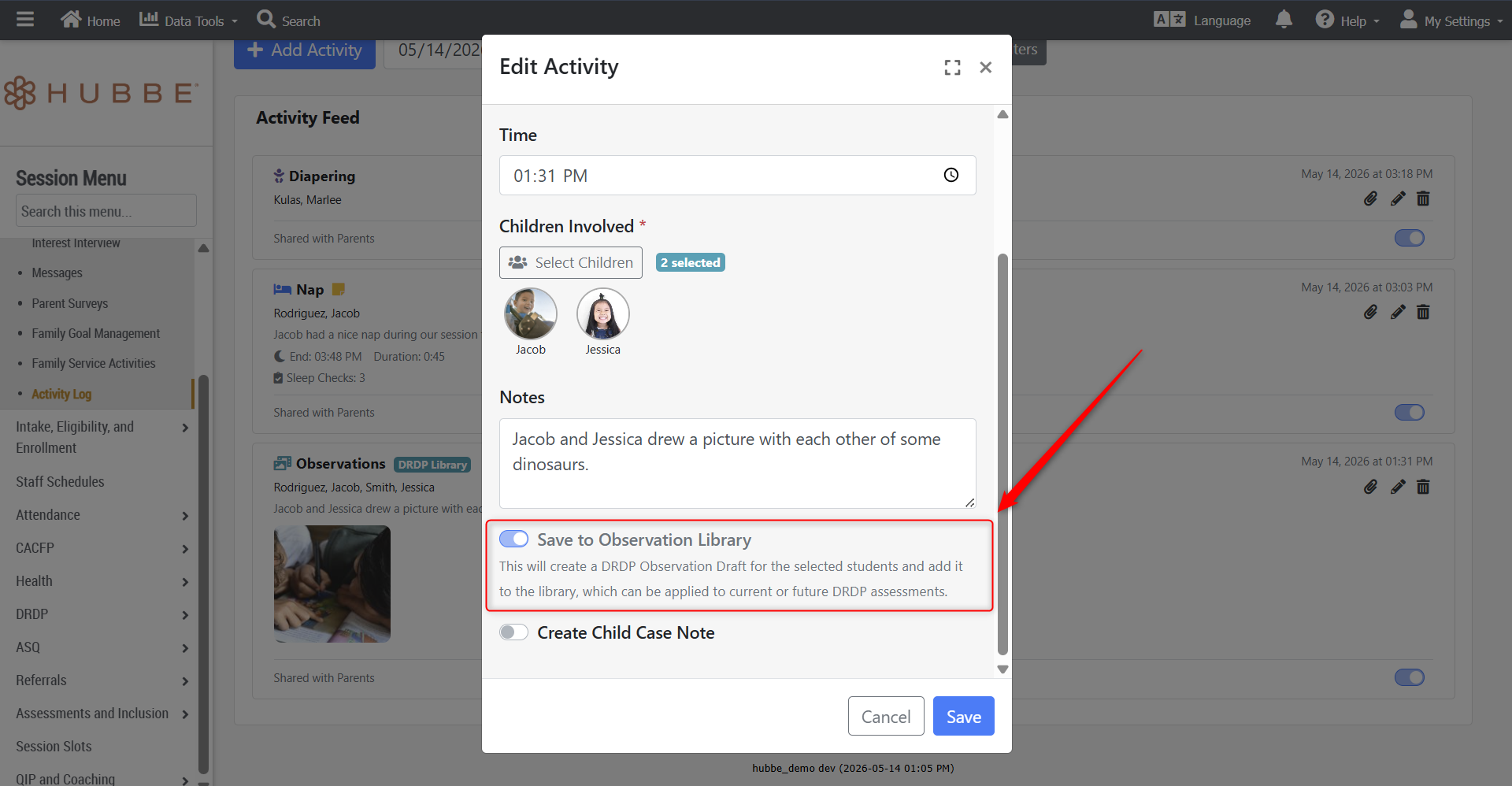
- We are excited to share the new Activity Log feature in Hubbe to support infant programs. This feature will be accessible at the session and student levels, and can be shared with parents in the Parent Portal. Teachers can now use this tool to add logs for naps, diapering, meals served, toilet time, and observations to be recorded in the child's daily activity log. This new feature is available under Family Engagement on the Session Menu.
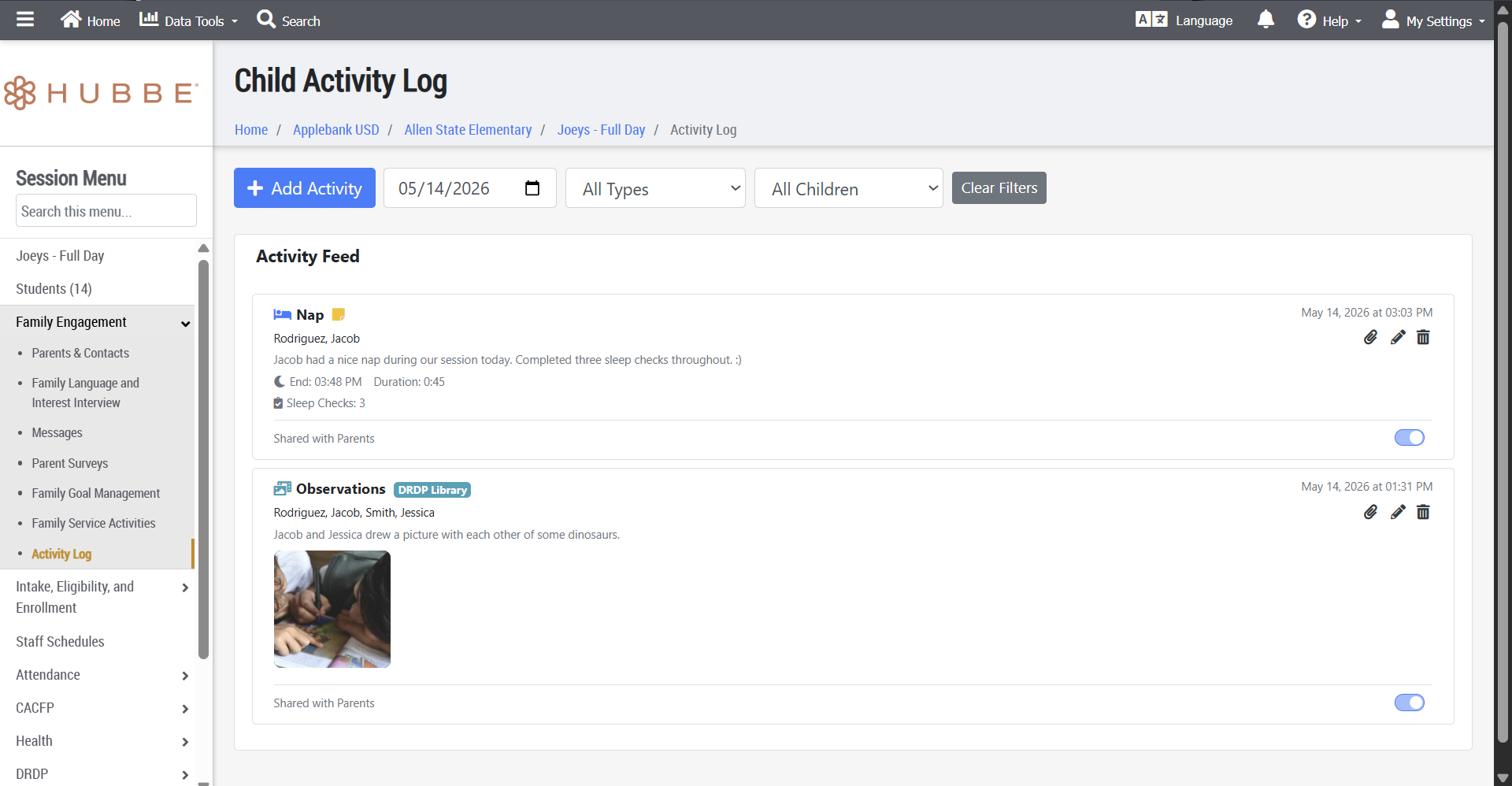
This powerful new tool also allows users to seamlessly create related records based on the activity being recorded, such as:- Case Notes - For every type of activity log, users can select to create a child case note that will be added to the student record.
- DRDP Observation - For an "Observation" activity log type, users can select to add the record to the DRDP Observation Library (more on this new feature below).
- Meals - We currently have a new "Meal" activity log that users can select from; however, we will be updating this activity type with additional features for infant meal tracking and meal counts in a future release.
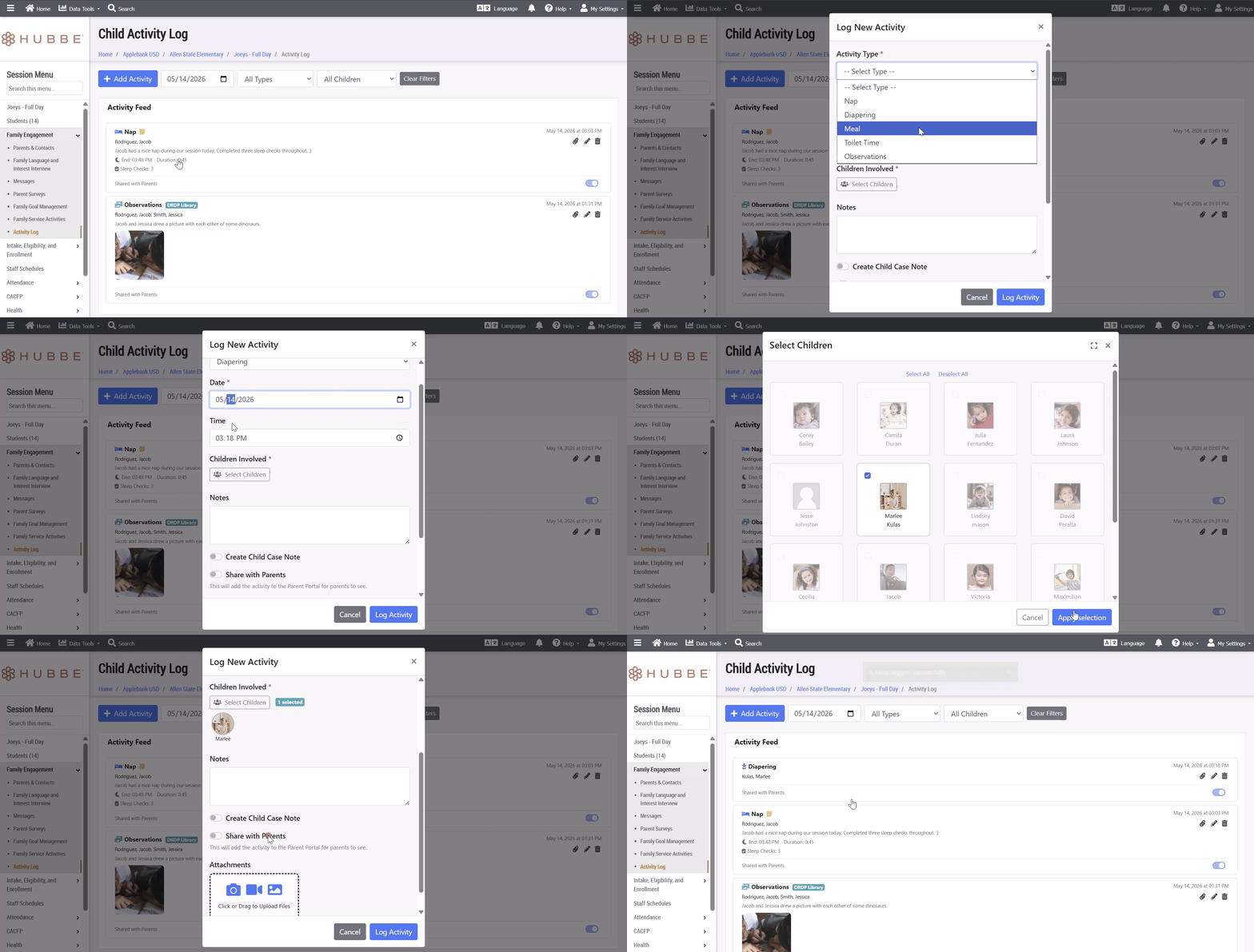
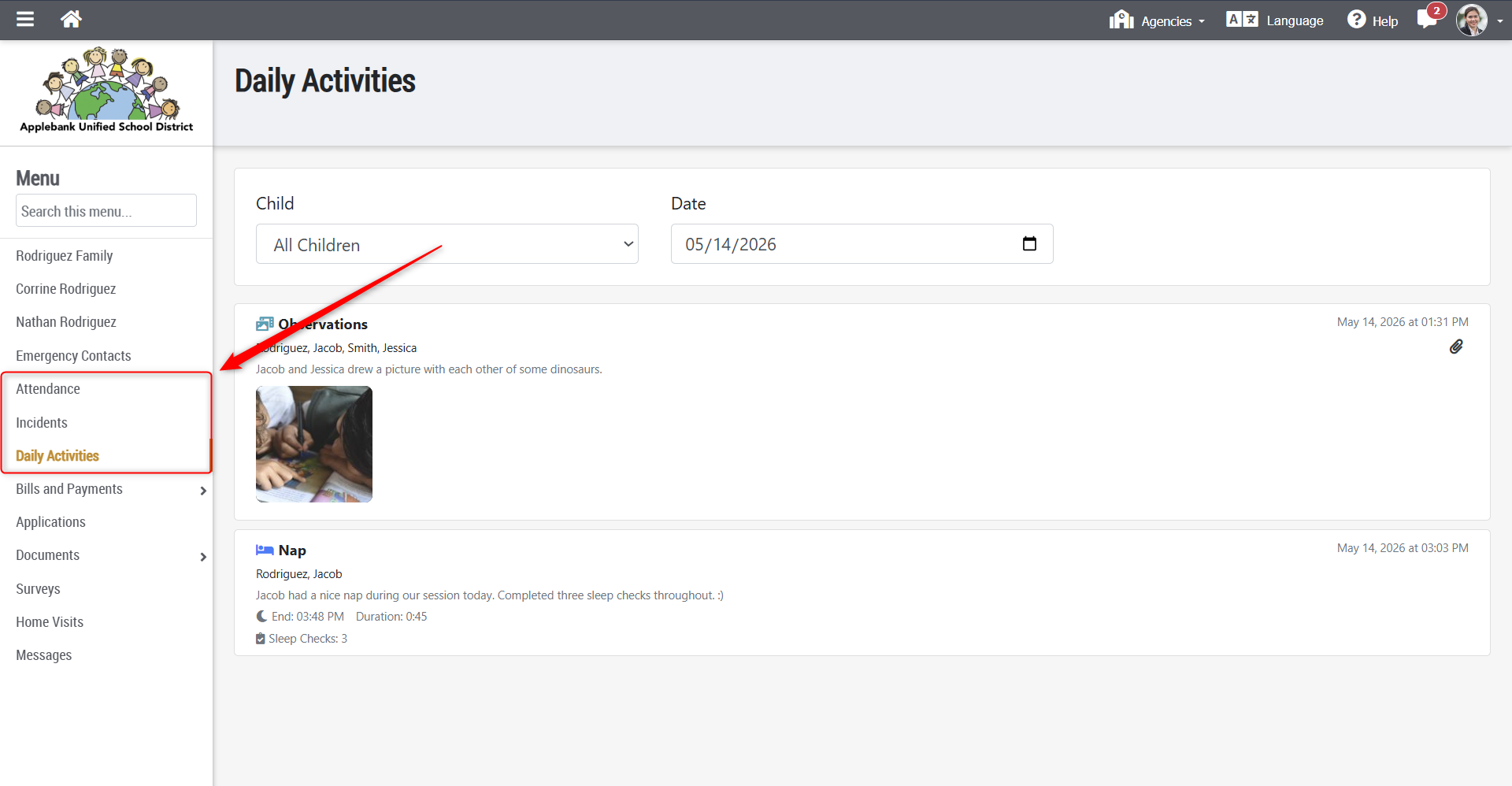
- Along with this new feature, we updated the Parent Portal Menu by adding the Daily Activities record and consolidating the Attendance and Incidents into their own records with student selection fields at the top - previously, each student was listed in the menu with their own Attendance and Incidents sub-menu items.
NEW DRDP Observation Library
- We are excited to share the new DRDP Observation Library that allows teachers to add observation records for students that can be applied to current or future DRDP assessments.
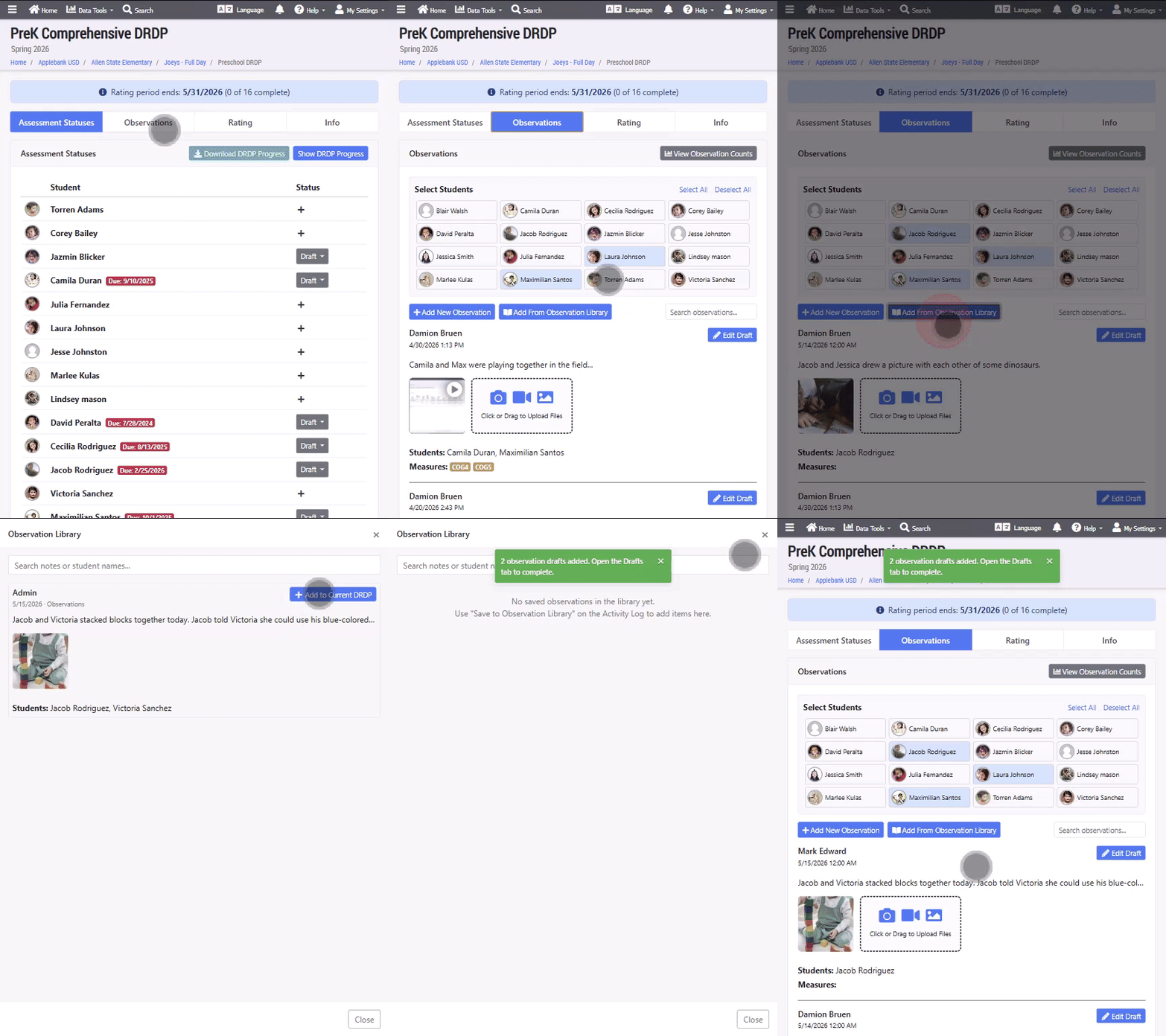
- This feature is tied in with the new Activity Log to allow teachers to simultaneously log an activity in the Daily Activities log for the child and add it to the DRDP Observations Library. Then when assessing a child in the DRDP rating tool, observations can be added from the library to the current or future DRDP assessment. We hope this helps your team manage and prepare for each DRDP rating season!
Other DRDP Enhancements
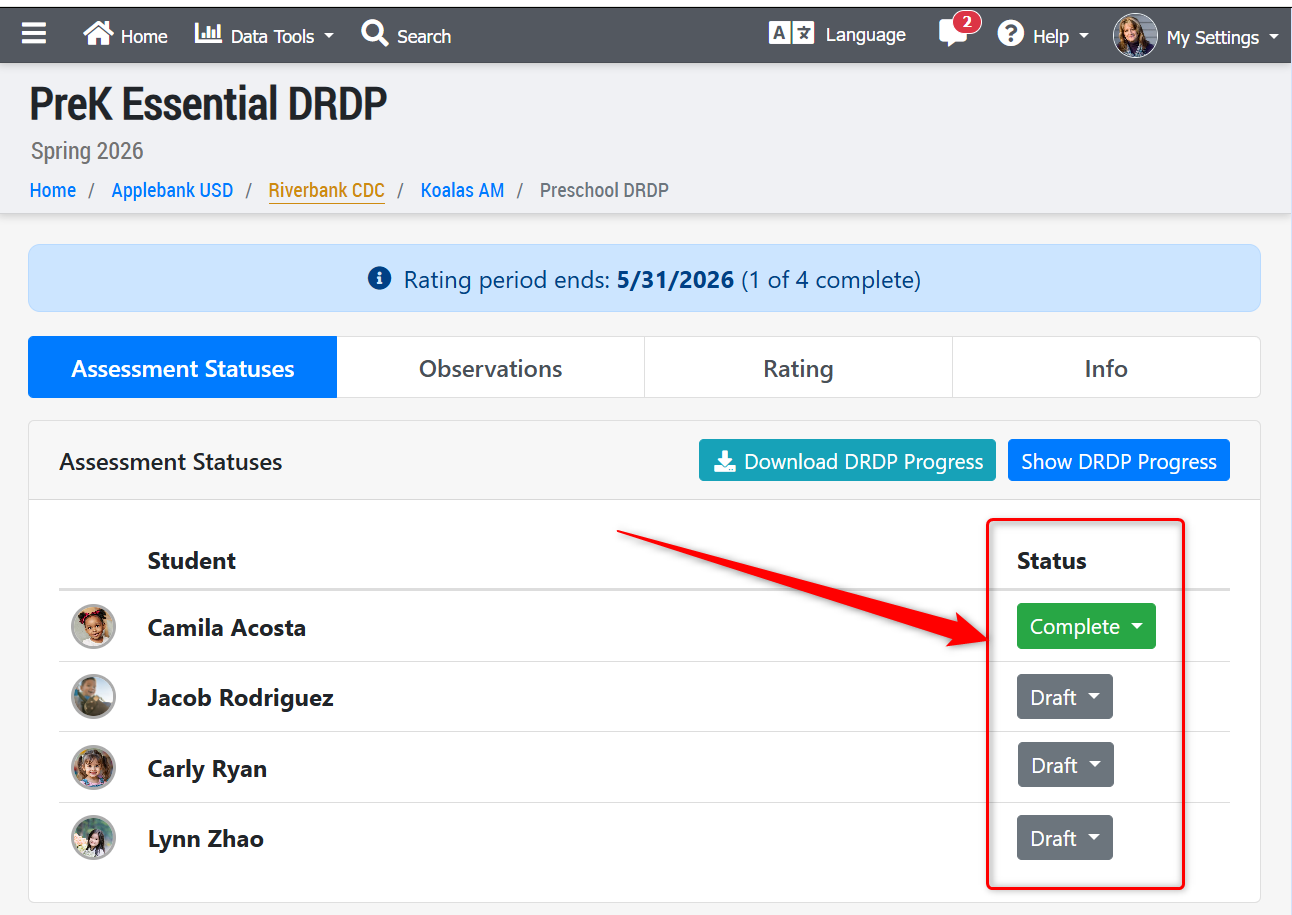
- Updated the session-level DRDP Rating tool within the first "Assessment Statuses" tab to allow users to edit a child's DRDP assessment information and/or mark as 'complete'.
NEW Staff Clock-In/Out Feature
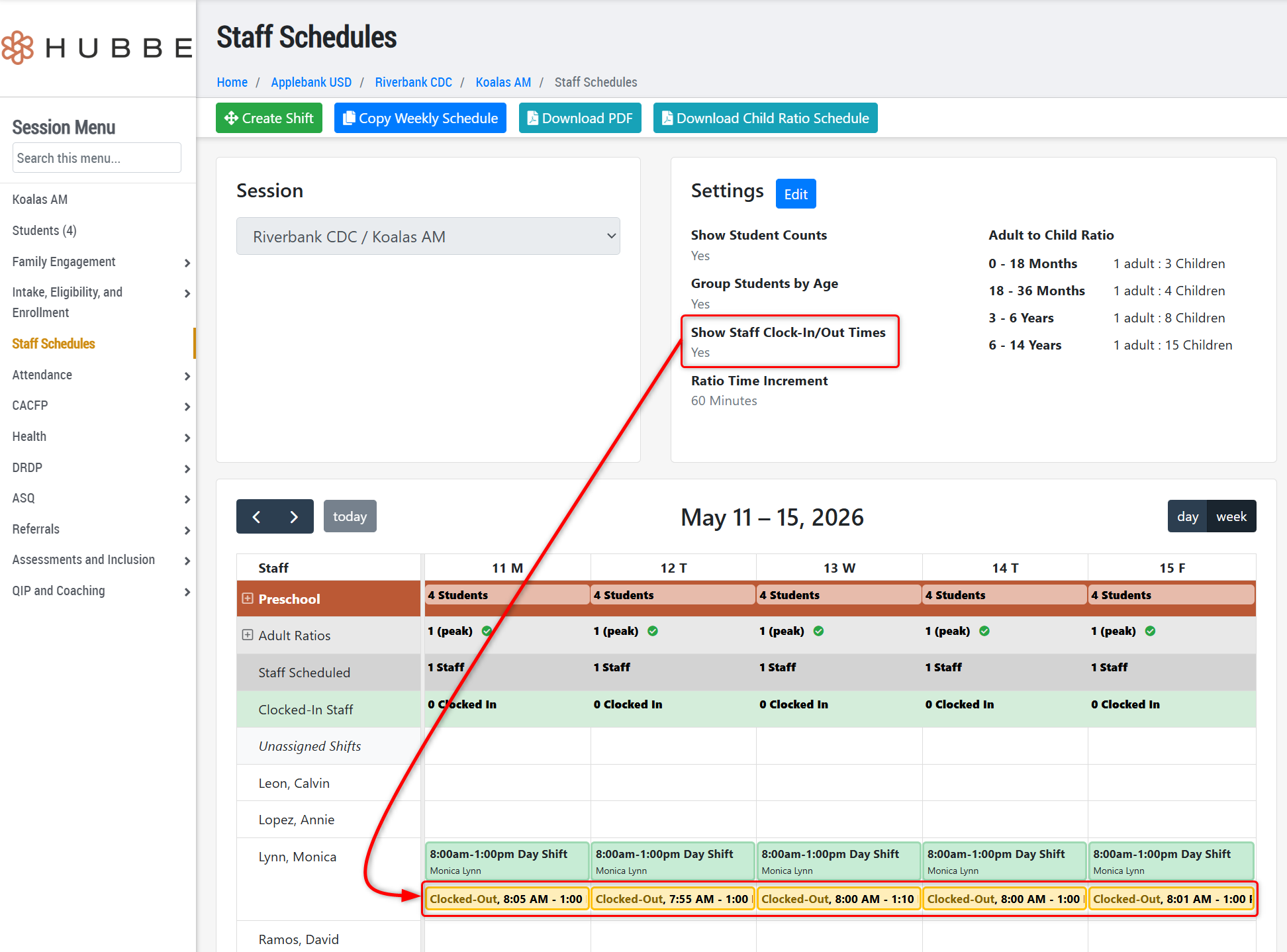
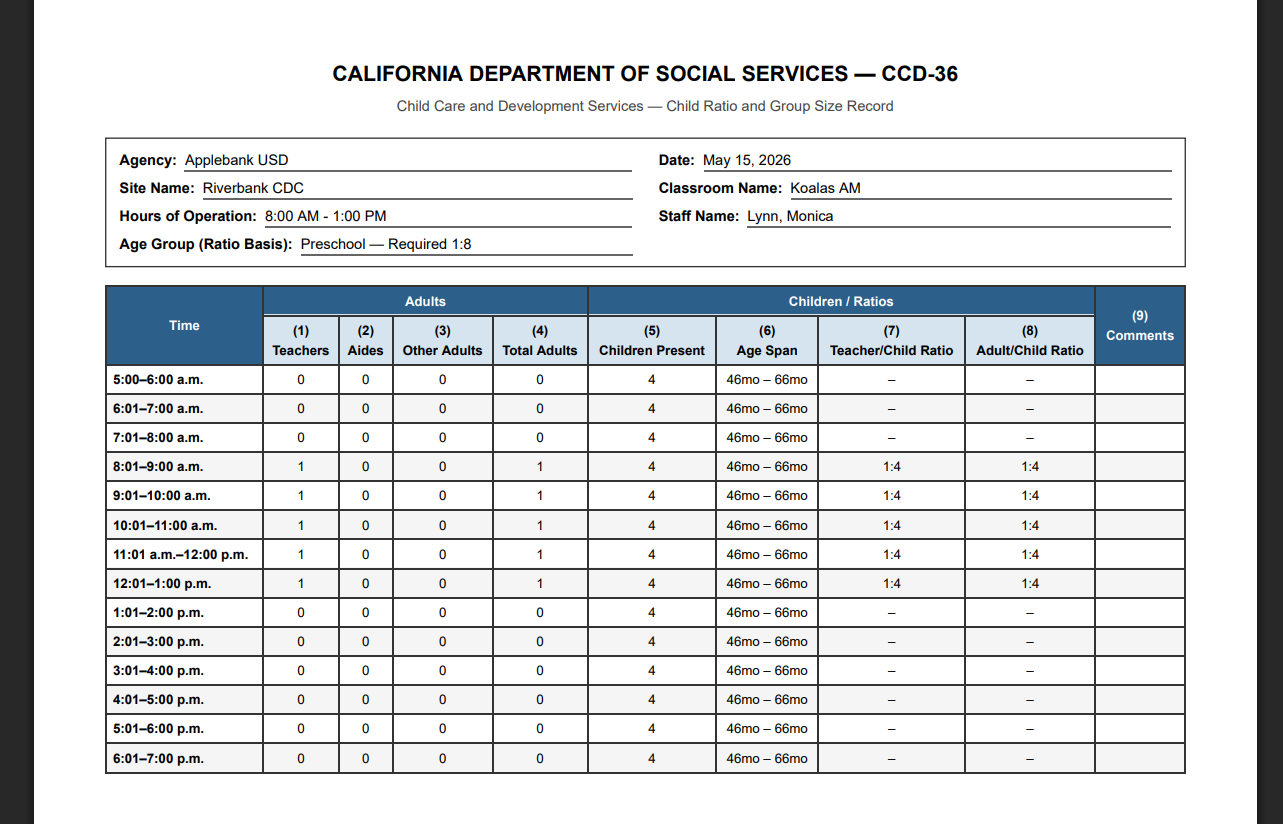
- We are excited to share the new staff Clock-In/Out feature that allows staff to clock in and out of their sessions throughout the day. This information can be enabled in the Staff Scheduler tool, and used to feed the new Child Ratio Report which provides information on how many adults were present for each hour of the day compared to children present, among other information.
- Clock-in/outs can be entered or managed for a staff member within their staff record in the new "Timecard" menu option. Additionally, the clock-in/out feature has been integrated into the eSignature Attendance Portal and the Offline Attendance Portal. Each method of adding time-ins and outs is shown below.
- Staff Record - To enter a clock-in or out for a staff, click the "+ Create Clock-In/Out Event" at the top of the "Timecard" record. If the staff is assigned to more than one session, then you will be prompted to select a session first, otherwise, a note can be added or simply click "Save" to log the clock-in time.
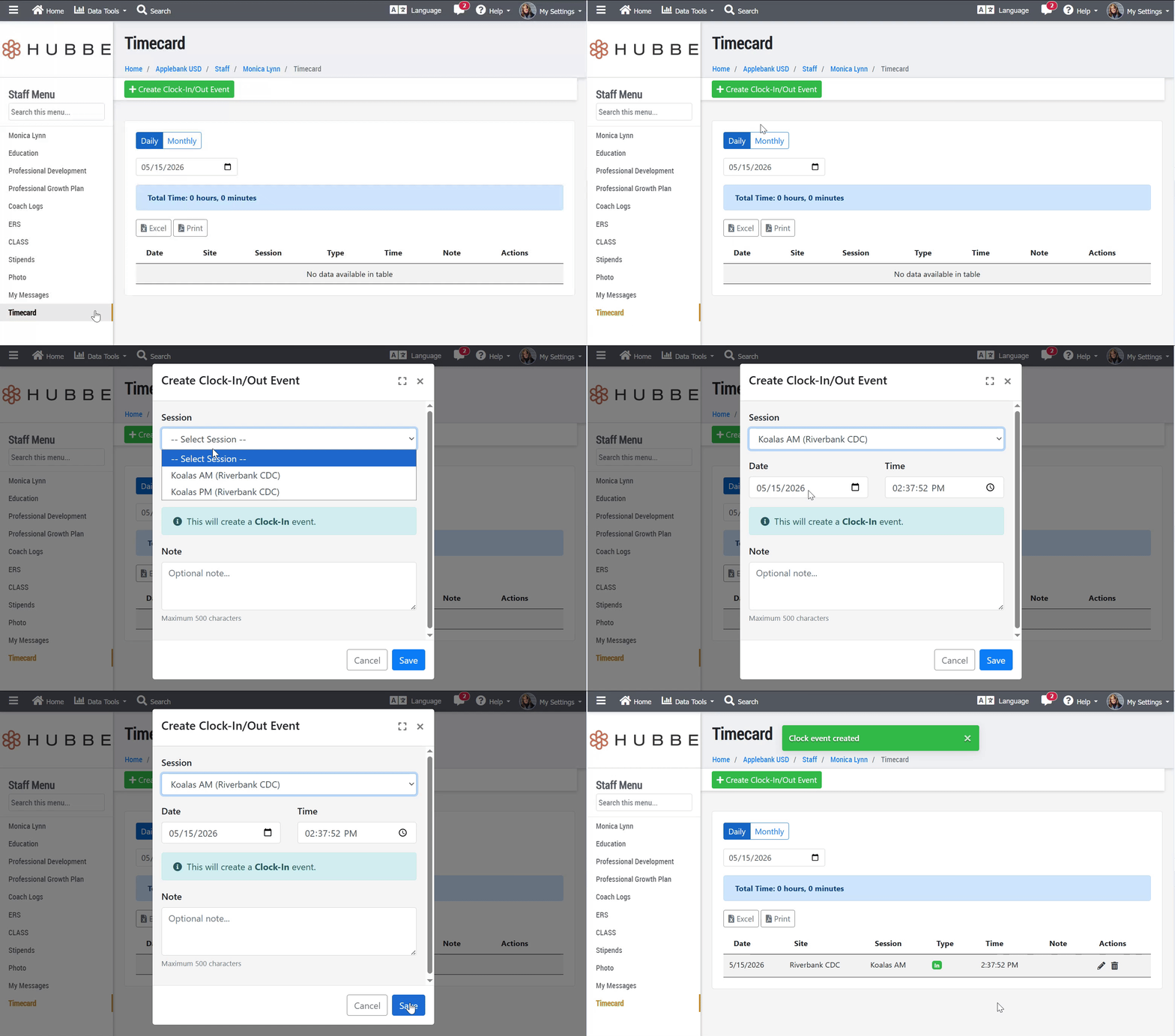
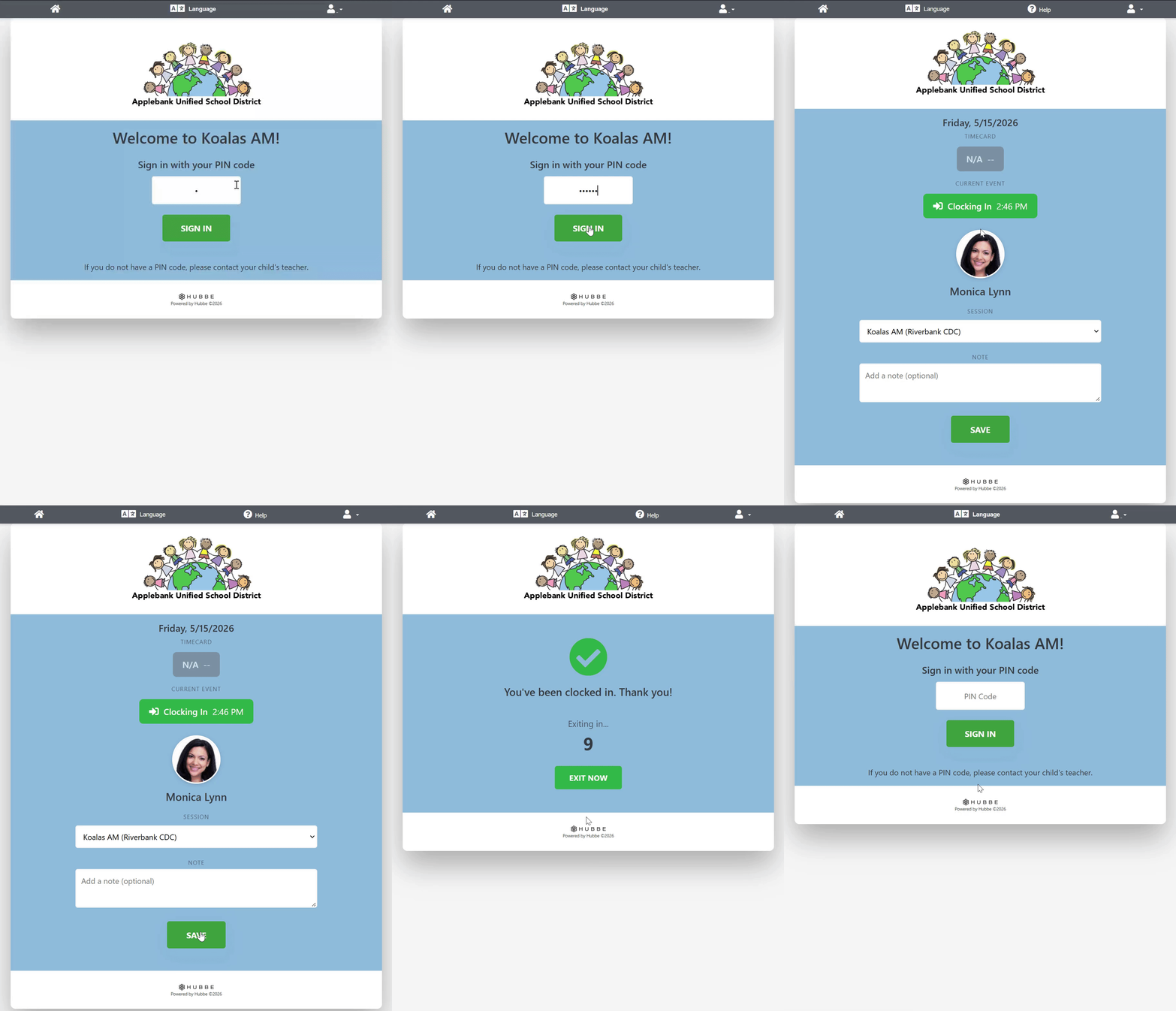
- eSignature Attendance Portal - A staff member can clock in or out in the eSignature Attendance Portal by entering their assigned Staff PIN code. This PIN can be assigned at the agency or site level "PIN Code Management" grid within the "Staff" tab. When a staff enters their PIN code into the portal login, they will be directed to the Clock-In/Out page for their own timecard. Staff can record their clock-in at the start of the shift and clock-out at the end of their shift from here.
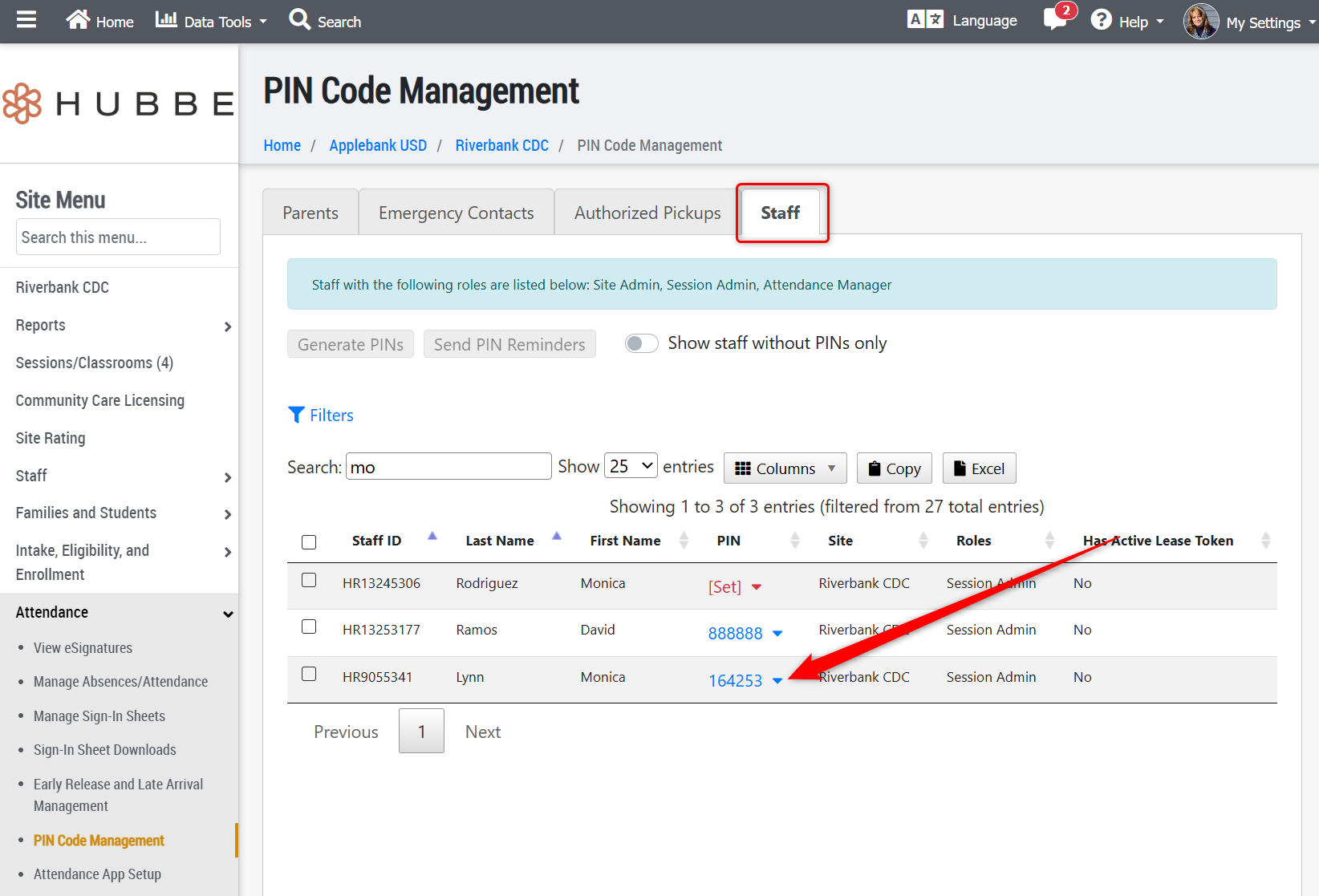
- Below shows a staff logging into the portal to clock-in:
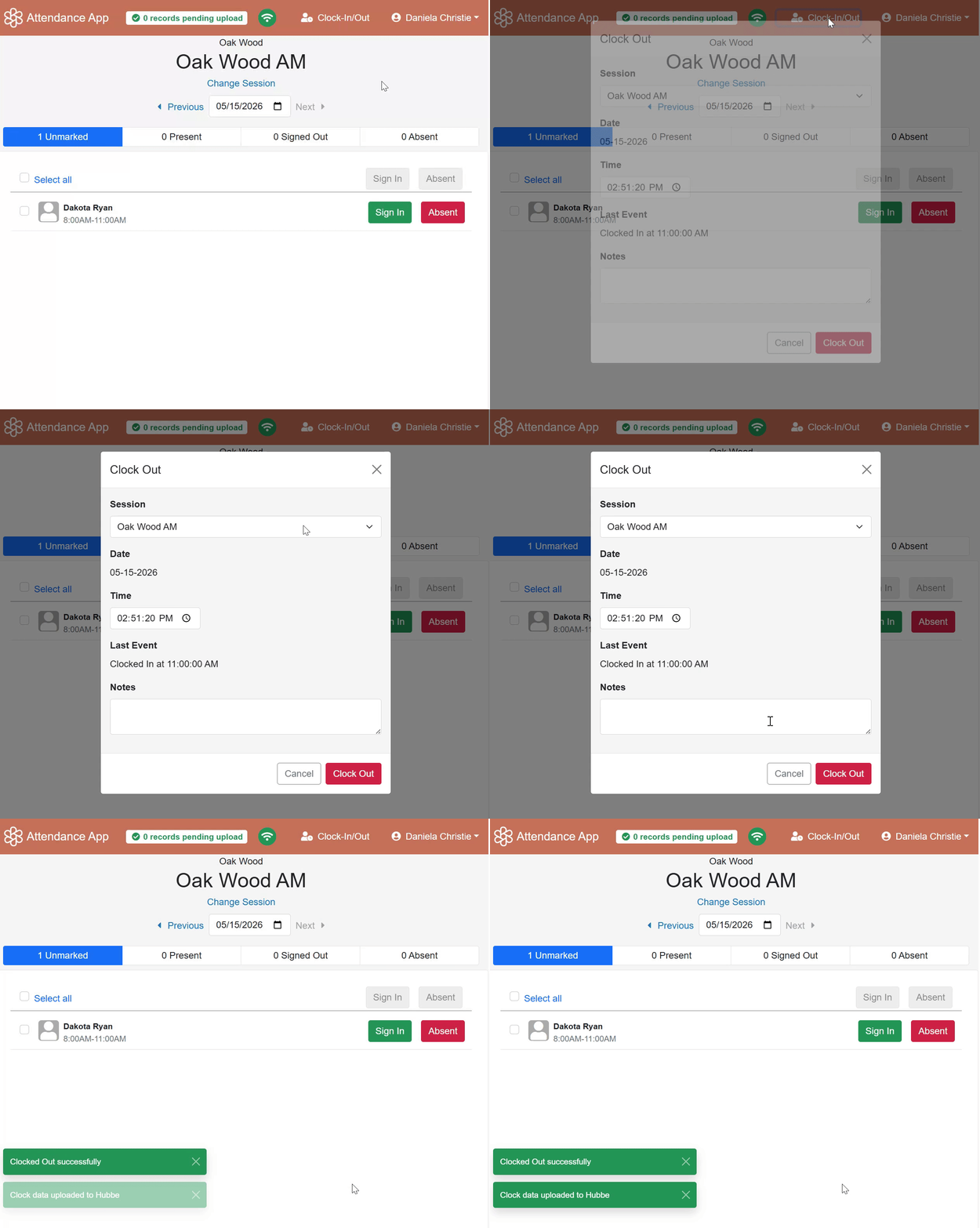
- Offline Attendance Portal - For centers that use the Offline Attendance App Portal for taking attendance, staff members can clock-in/out using the same Staff PIN code assigned to them as explained above to login. They will be brought to the children's attendance page, where they will see a "Clock-In/Out" button near the top right corner. Staff will need to click this and log their clock in or out time, with the option of providing a note. Staff can record their clock-in at the start of the shift and clock-out at the end of their shift from here.
- Staff Record - To enter a clock-in or out for a staff, click the "+ Create Clock-In/Out Event" at the top of the "Timecard" record. If the staff is assigned to more than one session, then you will be prompted to select a session first, otherwise, a note can be added or simply click "Save" to log the clock-in time.
To enable this tool within the Staff Schedule feature and access the Child Ratio Report, turn this toggle "On" for any applicable session:
Below shows the Child Ratio Schedule Report:
Once staff begin to use their assigned PIN code in either the eSignature Attendance Portal or the Offline Attendance Portal, the timecard information will instantly feed the scheduler tool and report. We hope this new feature serves your team well!
Meals & Snacks Enhancements
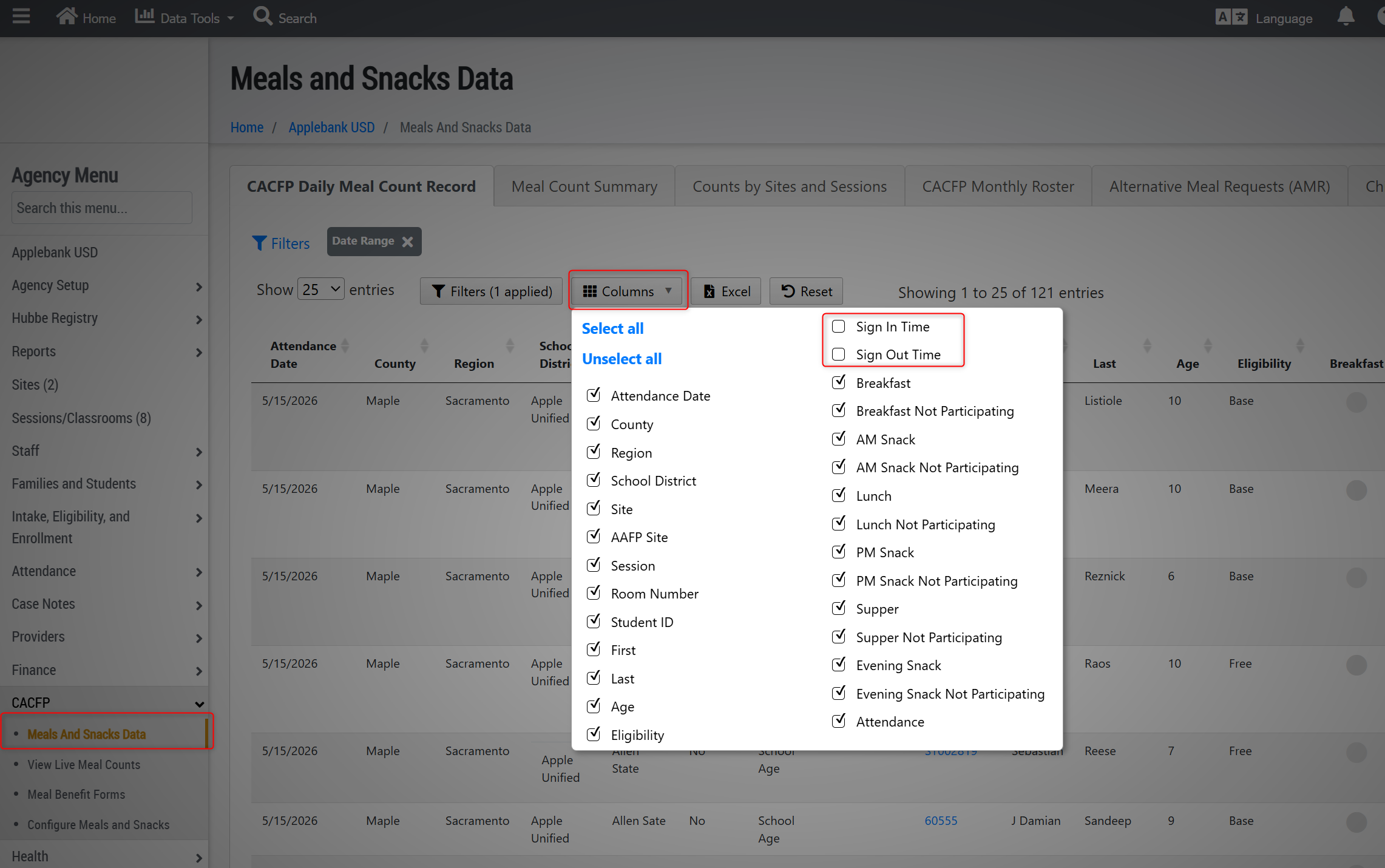
- Added new columns to the CACFP Daily Meal Count Record (Agency Menu > Meals and Snacks Data), including a "Sign In" column and a "Sign Out" column that will list the student's sign-in/out times for the day, and a set of new columns for each meal category (AM Snack, Lunch, Supper, etc.). Each meal category will now include columns for:
- Attendance Status - This column will display if the child was present or not present for this meal based on their sign-in/out time(s) for the day.
- Time Served - This column will show a time stamp of when this meal was managed and marked as "served" by the classroom staff.
- Meal Start Time - This column will show the overall start time for the meal.
- Meal End Time - This column will show the overall end time for the meal.
- Meal Notes - This column will display any notes that were added to this meal for the day. This is not a student-specific column, but rather a session-meal specific column. This means that any note added to the meal, such as not participating reasons, will display here.
CLASS Enhancements
- Updated the permissions associated with CLASS Assessments, so that any site or session level staff will only see a CLASS Assessment that is "Approved" and will no longer be able to view any Agency-level CLASS that is in "Draft" status.
Family Bills & Payments Enhancements
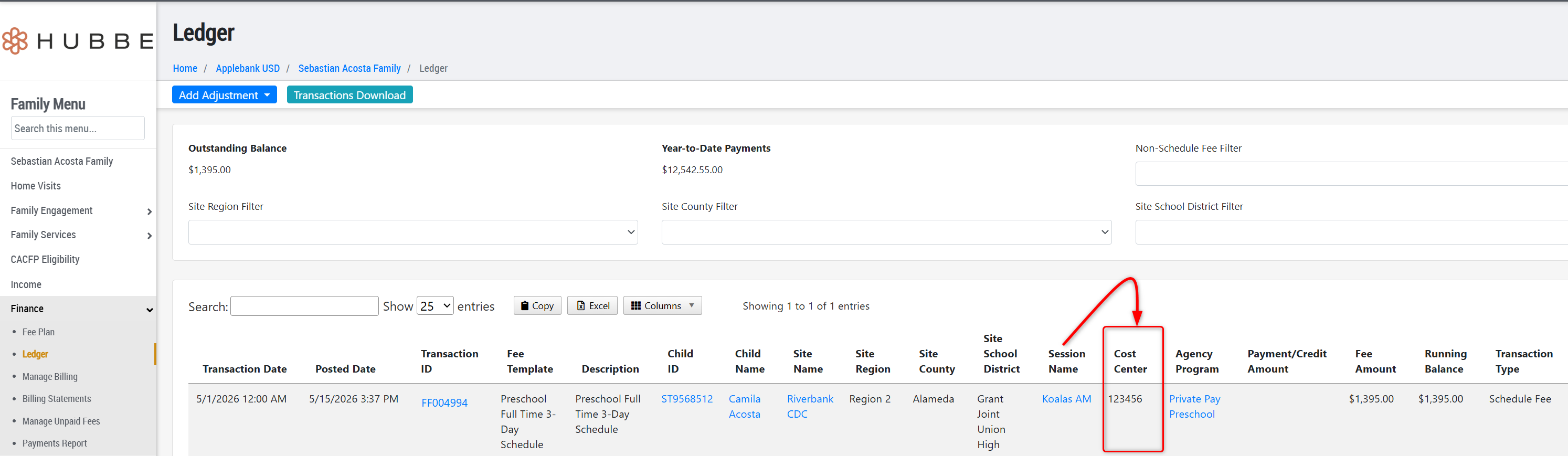
- Added a new field to the session record titled "Cost Center ID." This new field allows users to enter a Cost ID that is related to each age group at a site location that will be surfaced in several fiscal grids, including the General Ledger, the Household Ledger, and the Manage Billing area for drafted and posted fees.
General Enhancements
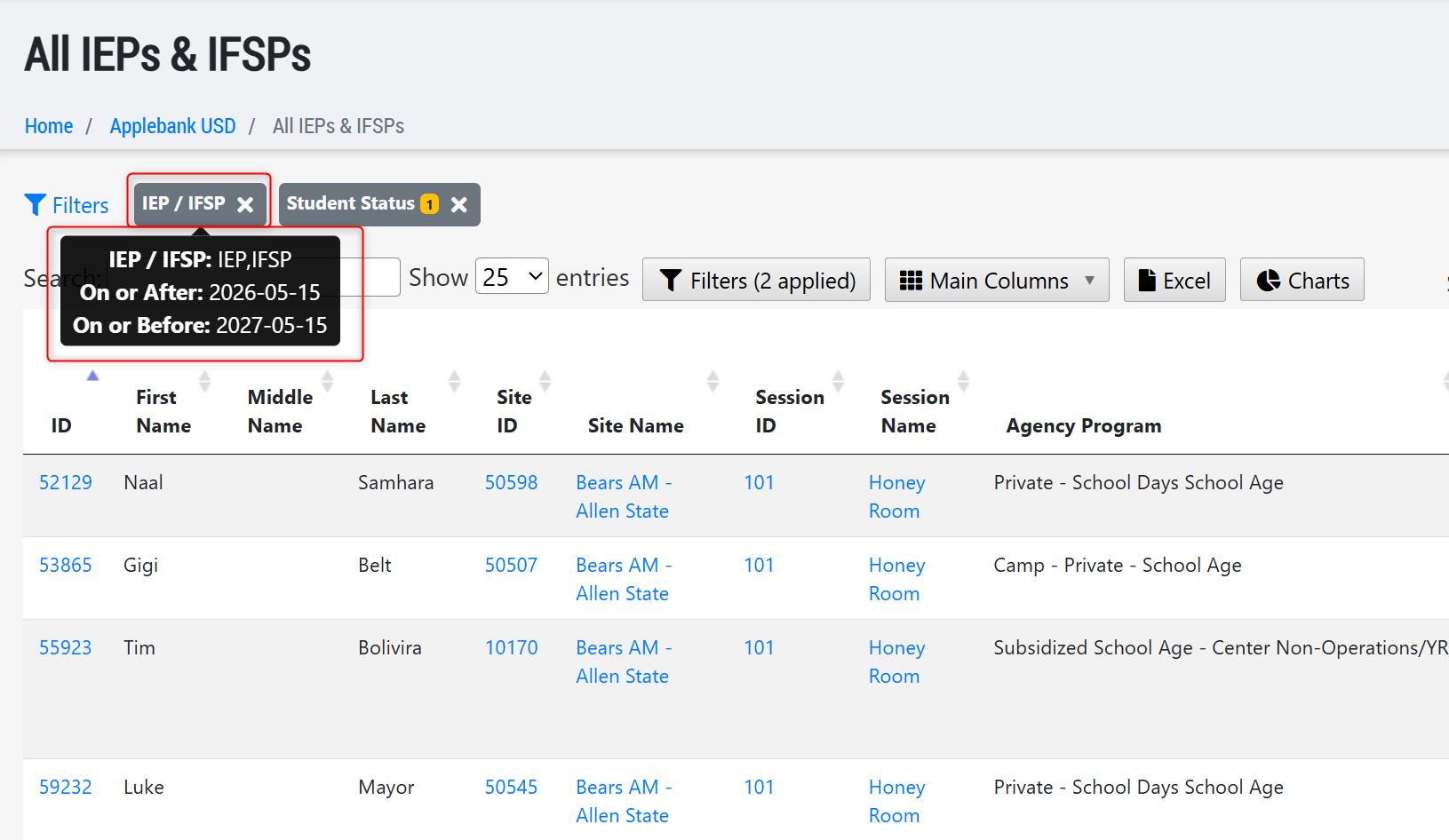
- Added a default filter to the All IPEs & IFSPs roll-up grid at the agency level to ensure users accessing this grid only initially see records that are currently active; however, users can still filter to view/manage IEPs/IFSPs that have expired, as well.
Fixes & Adjustments
- Updated the age calculation logic for the Enrollment and Attendance Register (EAR) Report to ensure the age groups of Toddlers into Two Year Olds accounts for shorter months, such as February.
- Updated the CAPSDAC Report to allow for the following characters in student names and export them in the submission file properly: apostrophes and hyphens.
- Updated the CCL License "Facility Type" option previously titled "Indoor Facility Space for School-Age Children" to now be "School Age Day Care Center" to match the facility type option from the Community Care Licensing system.
- Updated the Messaging feature to ensure a parent who has been made inactive will not be sent any SMS or email messages/notifications sent to the family.
- Updated the Staff Scheduler tool to only count a child once who is dually enrolled in a session. This student count will impact the Adult Rations needed for the day.
- Fixed an issue reported by users regarding the Projected Billing Report for systems that utilize the Family Fee Billing system in Hubbe. June 2026 is now available for users to run in the report.
- Fixed family billing issues reported by users regarding student discounts and ensuring a fee is only linked to a student's transferred schedule. The process of identifying schedule fees and associated discounts has been optimized on the Family Fee Plan.
- Updated the Daily Meal Count Template downloads to ensure any customized meal times are displayed accordingly on the template download for the indicated date range.
- Updated the "Meals and Snacks Report - without Reimbursement Rates" available within the "Reports" area to ensure students are included in the count for current and previous schedules.
- Updated the session-level Meal Counts area to optimize the way in which student attendance is retrieved to ensure any child who has duplicated attendance for the day is not counted twice.
- Updated the Spanish version of the CDE NOA download to be titled as "California Department of Education" only.
- Made adjustments to the Teachstone-Hubbe API to optimize the calculations for multi-county systems.
Was this article helpful?
That’s Great!
Thank you for your feedback
Sorry! We couldn't be helpful
Thank you for your feedback
Feedback sent
We appreciate your effort and will try to fix the article