Within the Hubbe system, household records help track a family's eligibility/need, enrollment requests/certification, communication history, and much more. When a family has separate parents, you may need to create separate household records to capture each parent's individual service information. This article will review how to set up a family in this scenario depending on the family's current status within Hubbe.
If both parents exist in a single household record already
- To begin, you will need to follow these steps to separate the parents:
- From your Agency level > All Families grid > click the blue "+Create New Family" button
- In the modal that opens, enter the second parent's household details (for split households, I recommend appending the households' names with (Father) or (Mother), i.e. Bennett Family (Father) )
- In the newly created household, you will need to recreate the second parent's record (copy over information with copy + paste)
- When all information is copied over, disconnect the portal from the old record. On the new parent record, click "Setup Portal" to reconnect them to their portal
- Take note of their PIN somewhere handy so that you can use it on the new parent record. Before pasting it in the new parent record though, you will need to edit the old record's PIN to be different so that the system doesn't flag it as already used. The PIN they had been using should be brought over so that any attendance they've taken with it will still be linked to them!
- Lastly, once this is done, you want to 'remove' this parent from the original household. To do so, in the original household mark the original parent record as inactive and not included in the family size
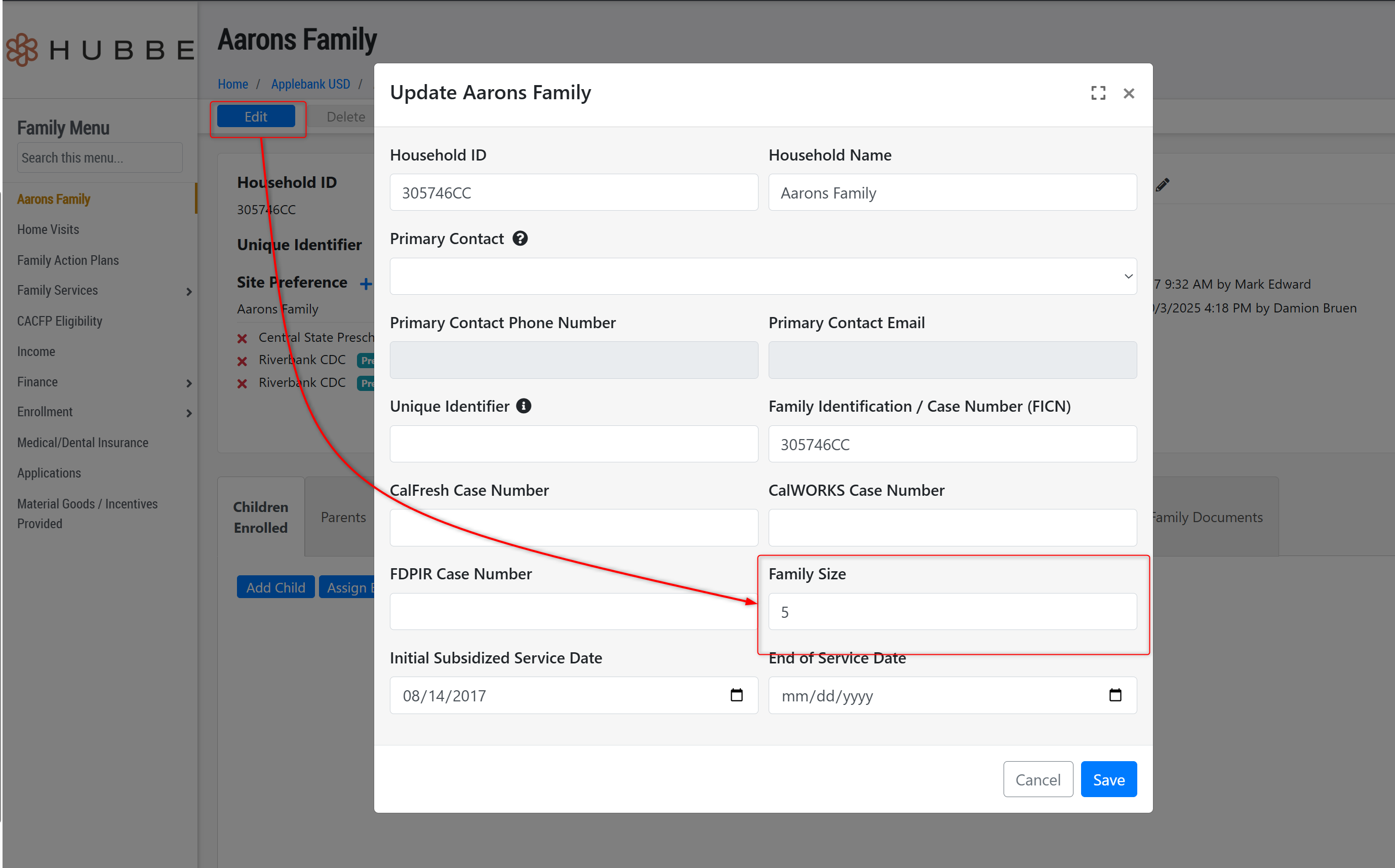
- After doing this, then update the original household record's Family Size to exclude this parent. You can edit this from the household record's homepage using the top blue "Edit" button.
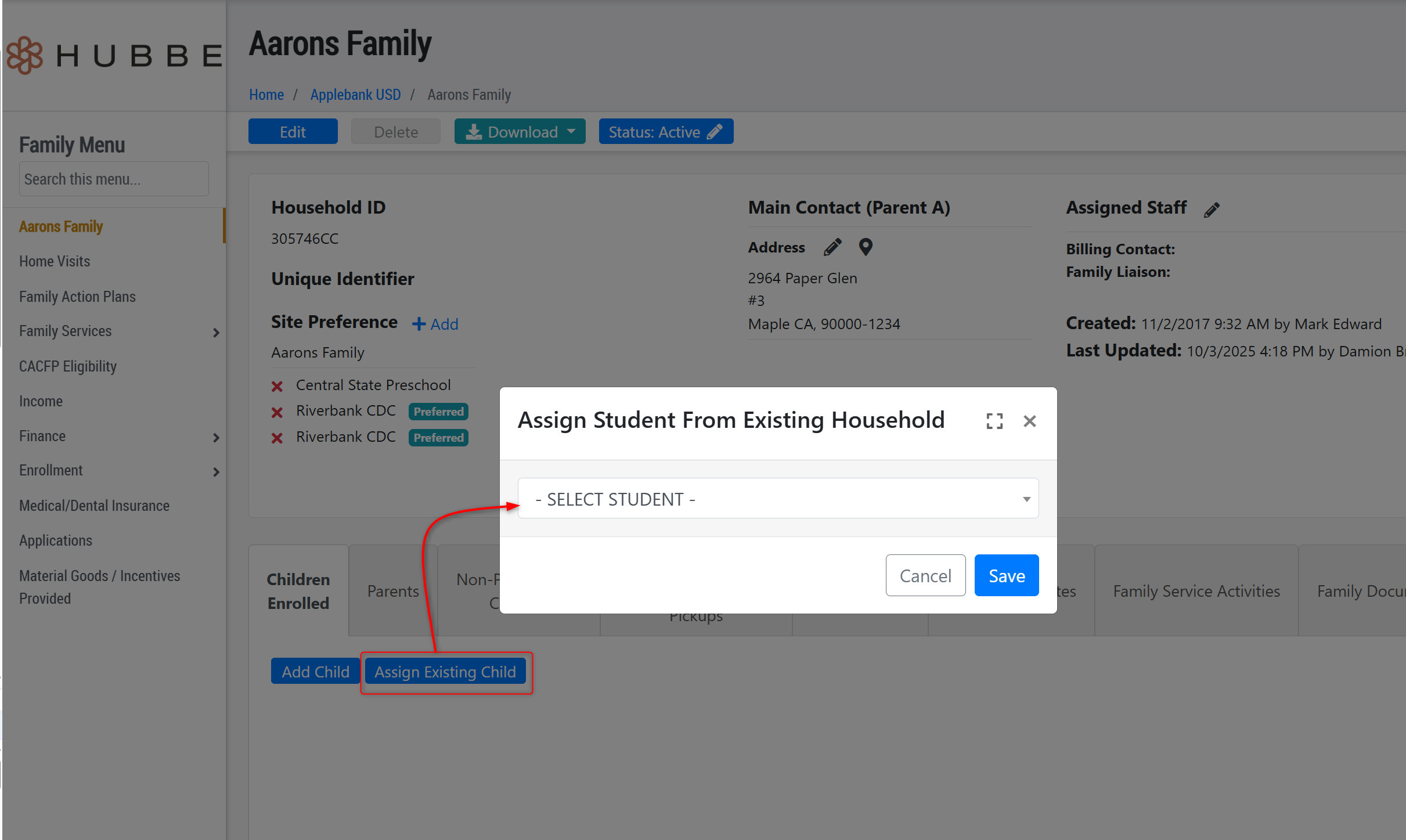
- Next, you will need to "share" the students across both households. You can easily do this by clicking on the blue "Assign Existing Child" button from the 'Children Enrolled' tab of the new household record.
- In the modal that opens, search for each child (one at a time) and click save. This will now have the students exist in both households, while the parents remain in separate households.
- Make sure the new parent's household contains any emergency contacts unique to them (if an emergency contact exists in both households, they will need 2 PINs to sign the children in and out so I recommend leaving the shared contacts on the original household until the schedules are settled).
- Once all of those steps are done, the families will be separated!
If only one parents exist in a single household record already
- In this scenario, the parents may need to apply separately to establish separate households. To prevent a duplicate kiddo from being created through the application, you may need supervision by the Hubbe staff team. Please reach out with the Household ID and we will review the matter to provide support as needed!
Was this article helpful?
That’s Great!
Thank you for your feedback
Sorry! We couldn't be helpful
Thank you for your feedback
Feedback sent
We appreciate your effort and will try to fix the article